
Post online
On this page
Post online sends the loaded readings to the readings server. They replace the readings that are online now. Do this at the end, when the cycle has been checked.
Important: Before posting, the app always saves a backup of what is online now. If you cancel the backup, nothing is posted.
Steps
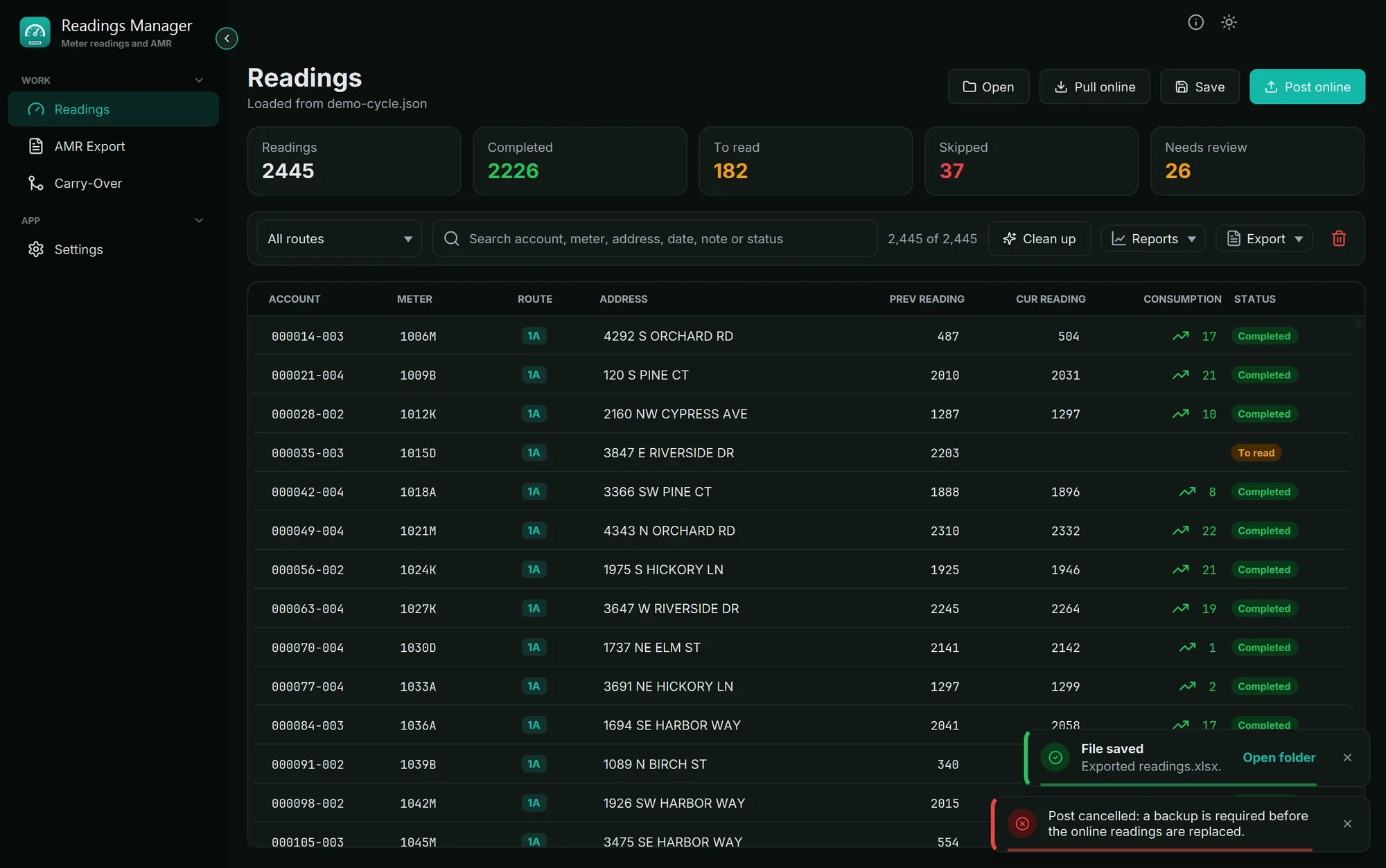
Click Post online (the coloured button at the top right of the Readings page).
The app says how many readings will be posted. Click Back up and post.
A save window opens for the backup. Choose a folder, keep or change the name, and click Save.
Wait. A green message says how many readings were posted. They are visible online within 5 to 10 minutes.
Undo a post
Open the backup file with Open, then click Post online again. The old readings go back online.
If the app is in the tray or behind other windows, it tells you with a Windows notification when the post is finished (see Notifications in Settings).
If something goes wrong
What you see | What to do |
|---|---|
Post cancelled: a backup is required... | The backup window was closed. Click Post online again and save the backup. |
| Enter the API address in Settings. |
| Enter the API key in Settings (ask the IT staff, or copy it from the readings web site). |
| The API key is wrong, or an administrator made a new one on the readings web site. Paste the current key in Settings > API key, click Save and post again. Nothing was changed online. |
| The server has a problem. Wait a few minutes and try again; tell the IT staff if it keeps happening. |
| Check the internet connection and the API address in Settings. On a slow connection, raise the Connect timeout in Settings (for example to 30) and try again. |
| Load the cycle first. |
| Copy the new address from the message into Settings > API address, Save, and post again. |
Still stuck? See Troubleshooting, or open a support ticket.
Last updated November 17, 2026