
You are reading the documentation for 1.0.5. The current version is 1.0.6.Go to 1.0.6
Backups and restore
On this page
Developer → Backups (permission Manage backups and restore the server) saves the whole shop and brings it back. Every backup is complete: all the data and every uploaded file (logo, item pictures, profile pictures, receipts, certificates, ticket files, signatures). Each backup is one .jux file.
Sign-in sessions are never part of a backup, so after a restore everybody signs in again. The licence is never part of a backup either: after restoring on another server, activate the licence there.
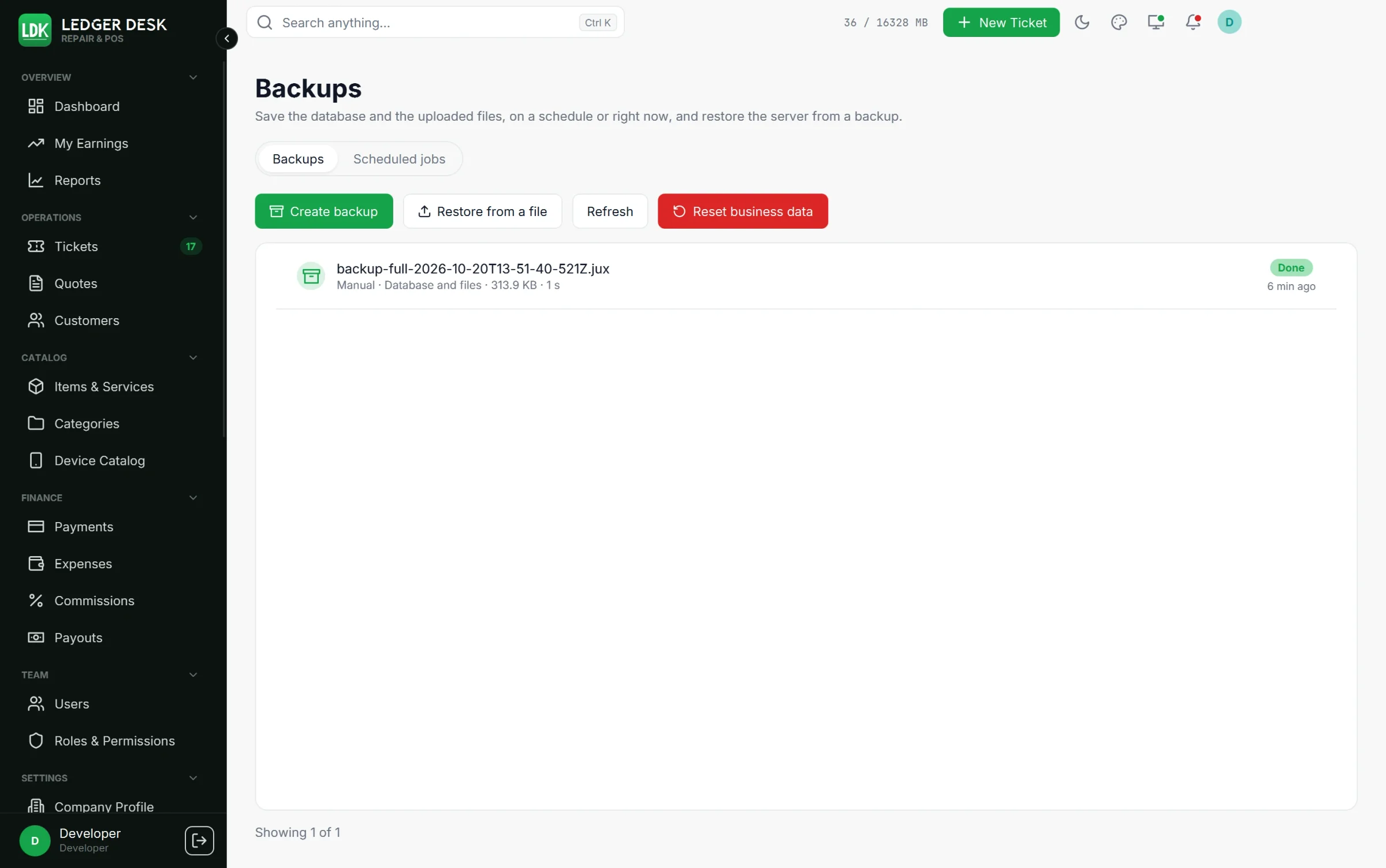
Make a backup now
- On the Backups tab press Create backup.
- Optionally type a Password for this backup twice.
- Confirm. The backup runs in the background and appears in the list when it is done, with its size, who started it and how long it took.
Manual backups are kept in the backup folder of the server. Press Download on a row to keep a copy on this computer, or Delete to remove it.
Back up when the app closes
The card Back up when the app closes on the Backups page keeps a copy on the counter computer itself, for example on a USB drive away from the server. It belongs to this computer.
- Switch on Ask for a backup when the app closes. Closing the window then asks: Back up and close, Close without backup or Cancel. Only people who may make backups are asked, and only while the server can be reached.
- Folder on this computer: where the complete backup (database and every uploaded file) is saved. By default
Documents\Ledger Desk\Backups. - Backups to keep: the oldest backups made this way are removed; other files in the folder are never touched.
- Password (optional): locks every archive. It is needed to restore one, and nobody can recover it if it is lost.
- The backup is made by the server, saved in the folder, checked, and then removed from the server so its disk does not fill up. If it does not finish, choose Try again, Close anyway or Keep the app open.
Scheduled backup jobs
On the Scheduled jobs tab press Add backup job. A job saves on its schedule to one destination and keeps only its newest backups there.
| Destination | Edition | What you fill in |
|---|---|---|
| Folder on the server | All editions | A folder (empty for the usual backup folder) |
| S3-compatible storage | Premium | Endpoint (empty for Amazon S3; or MinIO, Backblaze B2, Wasabi, Cloudflare R2, DigitalOcean Spaces), region, bucket, access key, secret key, optional folder |
| Azure Blob Storage | Premium | Connection string (Access keys of the storage account), container, optional folder |
| SFTP server | Premium | Host, port, user name, folder, password and/or private key; the server's key is remembered at first contact |
- When: the schedule, in the company's time zone. Run on the schedule switches it on or off.
- Backups to keep: after a backup that worked, older backups of this job beyond this number are deleted. Other files at the same place are never touched.
- Password on the backups: every backup of the job is locked with it.
- Test connection before saving: it answers with the destination's own words.
- Find backups there adds backups already at the destination that the list does not know. This is how a new server finds the backups of the old one.
- A scheduled backup that fails is reported in the bell and by email to the people who manage backups.
The place of a job is fixed
Once a job has backups at its place, the place (the kind of destination, folder, bucket, container, host…) can no longer be changed, or those backups could not be found again. Keys, passwords, the schedule and the number to keep still change. To save somewhere else, press Duplicate as a new job (keys and passwords are not copied: type them again).
Passwords on backups
A backup locked with a password is of no use to anybody without it, and nobody can recover a lost password: not you, not our team. Keep the password somewhere safe, apart from the server.
Restore
- Press Restore on a backup in the list, or Restore from a file to send a
.juxfile from this computer (up to 2048 MB unless your Developer changed the limit). - Read what will happen: the whole database and every uploaded file are replaced with the content of the backup. Everything entered since then is lost.
- For a locked backup, type its password.
- Tick This backup comes from another server only for a backup made on another server.
- Type
RESTOREand press Restore the server.
- The present data is saved first as a safety backup (shown as Before a restore). If the restore fails, the present data is put back.
- While the restore runs nobody can work; a window follows the progress. Do not switch the server off.
- Afterwards everybody signs in again, with the passwords of that time. Press Sign in again.
- A backup made with an older version of Ledger Desk can be restored: it is brought up to date during the restore, which takes longer. A backup from a newer version can not be restored on an older server.
Reset business data (start over)
For training or testing, a Developer with Reset the business data can empty the shop and start the numbers again. Press Reset business data on the Backups page.
| Deleted | Kept |
|---|---|
| Every ticket, bill (invoices and receipts), payment, refund, quote, commission, payout and job cost, the messages sent to customers and the notifications | Users and their roles, the company profile, taxes, number patterns, the catalog, the device catalog and every setting |
| Optional: Also delete the customers and their devices | Backups and their jobs, the licence |
| Optional: Also delete the operating expenses | Recurring expenses, expense categories and budgets |
- Choose the two options.
- Type
RESETand Your password. - Press Delete and start over.
A full backup is made first; to undo the reset, restore that backup. The numbers start again, so the next ticket is LDK-000001. The reset is refused while a card payment is still waiting on a tablet.
Last updated November 2, 2026