
You are reading the documentation for 1.0.5. The current version is 1.0.6.Go to 1.0.6
Customers
On this page
Customers, in the Operations section of the sidebar, lists the people and companies you serve. Search by name, company, phone or email. A phone can be typed the way you like: 786-777-2140, (786) 777-2140 and +1 786 777 2140 all find the same customer.
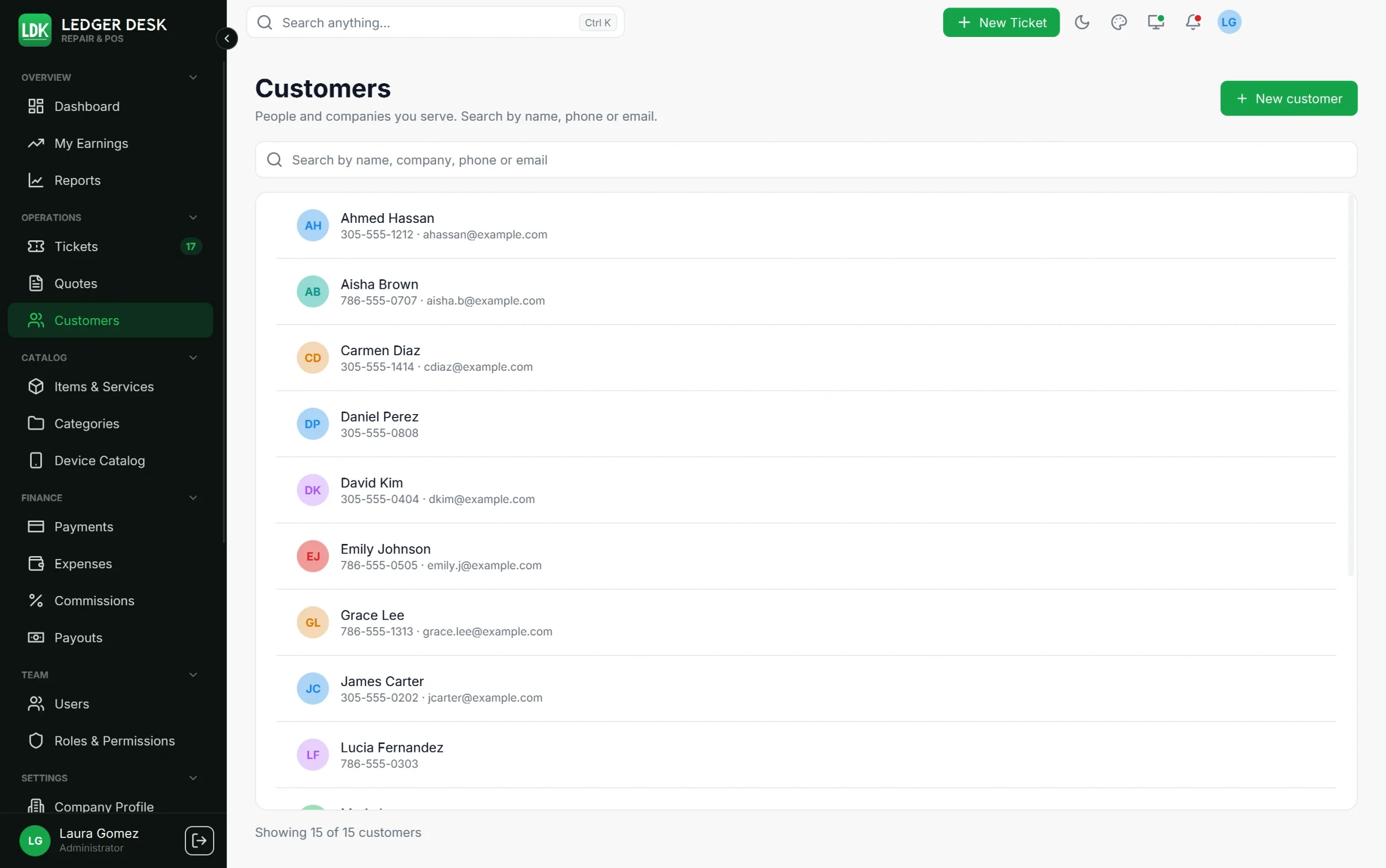
Add or edit a customer
Press New customer, or open a customer and press edit. The form holds:
- First name, Last name and Company.
- Phone: it is written in the phone format your shop chose on the Company Profile (
786-777-2140,(212) 555-1234or+1 786-234-6790). Only digits can be typed. Two customers cannot share a phone number. - Email: Ledger Desk marks an address that is not complete.
- Address in parts: Address line 1 (street and number), Apt, suite, unit, City, State (always written in capitals, for example
FL) and ZIP code. Documents print the street lines and then City, State ZIP. - Language of documents and messages: English or Spanish. Their receipts, invoices, labels, emails and text messages use it. No preference (English) is the default.
- Consents: May receive email, May receive text messages and Send offers and promotions. Automatic messages only go to customers who agreed to that channel.
- Tags: type a tag and press Enter, to group customers your own way.
- Internal notes: the customer never sees them.
Export CSV on the Customers page saves every customer to a CSV file that opens in a spreadsheet (people with the Export customers permission).
The customer types their own details
With a customer screen or tablet connected, press Let the customer type this. The customer types their name, phone, email, address (if they choose to), language and consents, ticks that the details are correct and presses Done. The record is saved by itself, and the form shows Details confirmed by the customer on with the date. If the phone or email already belongs to a customer, that customer is chosen instead of creating a second one, and the screen greets them with Welcome back. See Customer screen and tablet.
The customer drawer
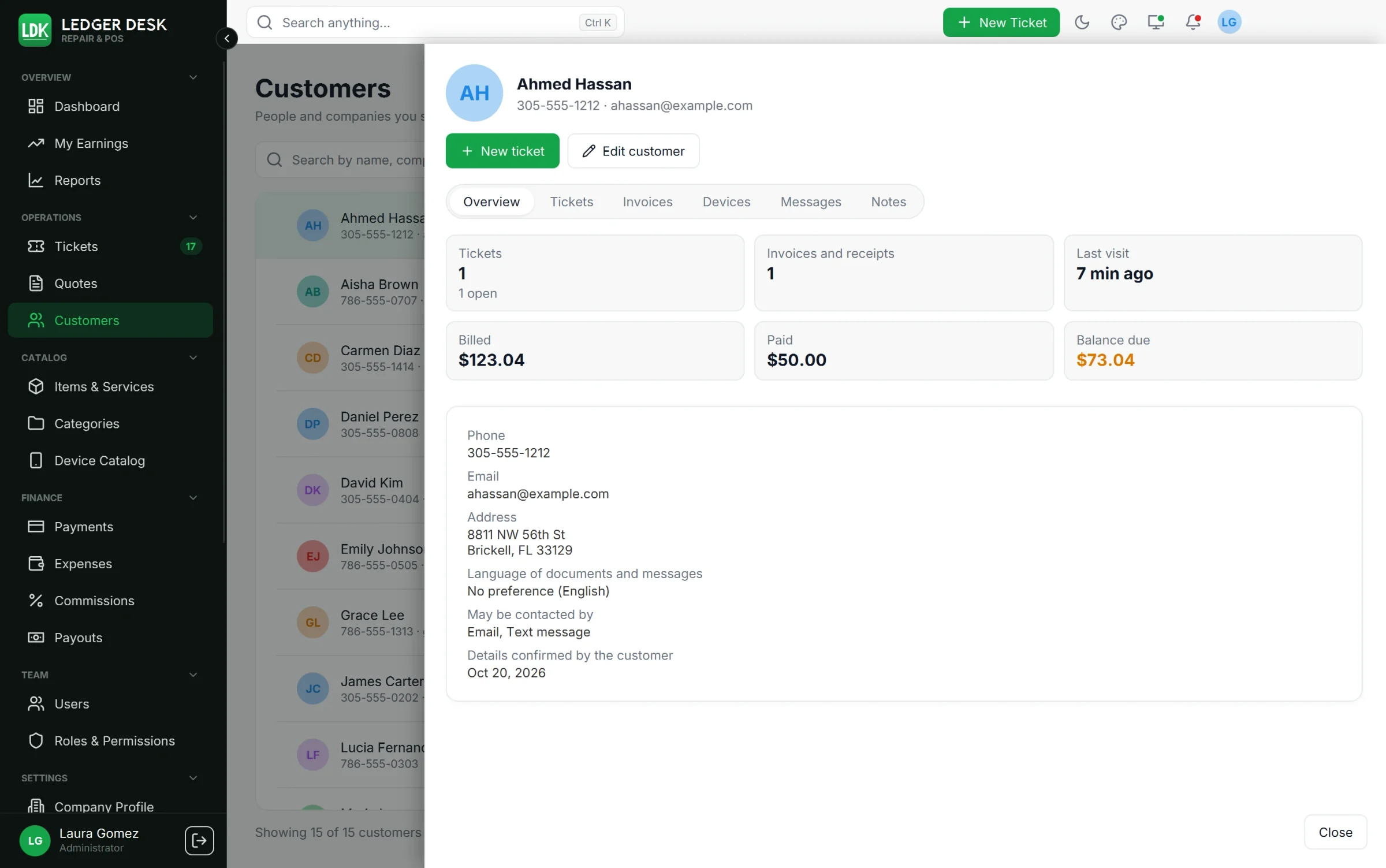
Click a customer to open their drawer. It has six tabs:
| Tab | What it shows |
|---|---|
| Overview | Tickets (and how many are open), invoices and receipts, what was billed, paid and is still due, the last visit, and the contact details. |
| Tickets | Every ticket of the customer; click one to open it. |
| Invoices | Every receipt and invoice; click one to open its ticket. |
| Devices | The devices they brought. Add device, edit or delete; a device a ticket uses cannot be deleted. |
| Messages | Every email and text message sent to them, and whether it was delivered. |
| Notes | Internal notes; press Save notes. |
New ticket in the drawer opens a ticket with this customer already chosen. Tabs the user may not see (for example invoices without the right to see them) are not shown.
Tax exemption
Exempt customers (government, non-profit, resale and similar) pay no tax, and every bill of theirs inherits it. In the Tax exemption section, tick This customer is tax exempt and fill in:
- Reason: Resale, Non-profit, Government, Agriculture or Other.
- Certificate number and Certificate expires.
- Attach certificate to keep a copy of the certificate (PDF, PNG or JPEG). It can be opened, replaced or removed later.
Only staff with the tax exemption permission can change these fields. They get a notice 30 days before a certificate expires and again when it has expired. The customer row shows a pill such as Exempt: Resale.
The walk-in customer
Sales over the counter without a name are booked on one special customer, the walk-in customer. It has no phone, email, consents or tax exemption, never receives messages and cannot be deleted; only its name and notes can be changed.
Delete a customer
Delete removes the customer from searches. Their tickets and documents stay as they are, and their phone number can be used for a new customer.
Last updated November 2, 2026