
Clean up repeated readings
En esta página
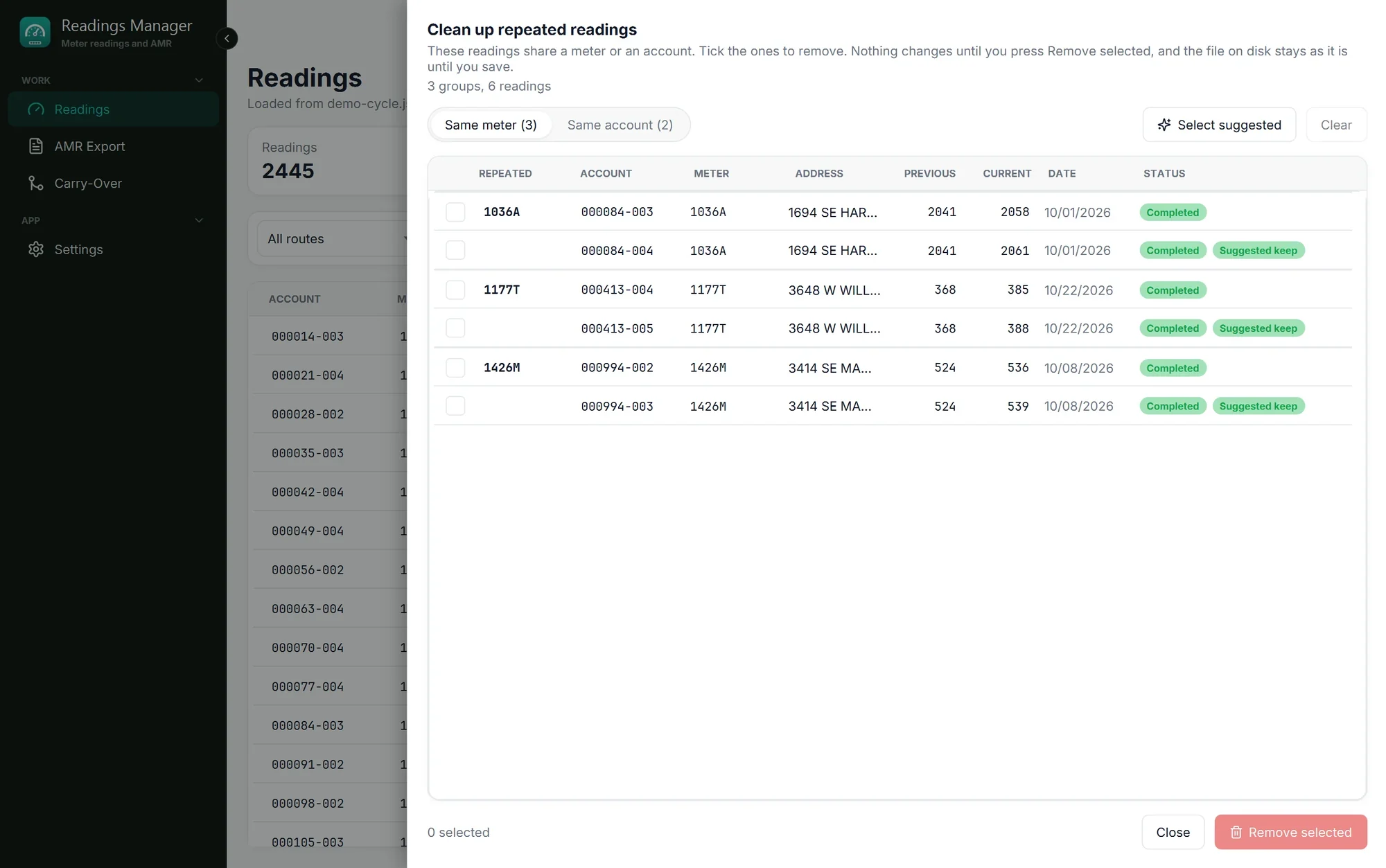
Sometimes a file has the same meter or the same account twice, for example when a meter was read again. Clean up shows these repeats so you can choose which ones to remove.
It opens by itself when an opened file has repeats. You can also open it any time with the Clean up button on the Readings page.
Steps
At the top, choose Same meter or Same account. The number shows how many groups each has.
Look at each group. The repeated value is shown in bold on the first row of the group.
Tick the box at the start of each reading you want to remove. Or click Select suggested: it ticks every reading of each group except the one marked Suggested keep (the highest reading, and if equal, the latest date).
Check the ticks. Clear removes all ticks if you want to start again.
Click Remove selected.
Important: Nothing is removed until you click Remove selected, and your file on disk is not changed until you click Save.
Undo
After removing, a message appears with an Undo button. Click it to bring the removed readings back.
Click Close to leave the panel without removing anything.
If something goes wrong
What you see | What to do |
|---|---|
No repeated readings. Every meter and account appears once. | There is nothing to clean up. Click Close. |
Nothing to undo: other readings were loaded since. | Undo only works on the same readings. Open the file again to get the removed readings back. |
Other readings were loaded while the clean-up was open. | Close the panel and click Clean up again to see the repeats of the readings loaded now. |
You are not sure which reading to keep. | Keep the one the app suggests, or ask your supervisor. You can always reopen the original file. |
Still stuck? See Troubleshooting, or open a support ticket.
Última actualización: 28 de octubre de 2026