
Settings
Click Settings in the left menu. Scroll down to see all the sections.
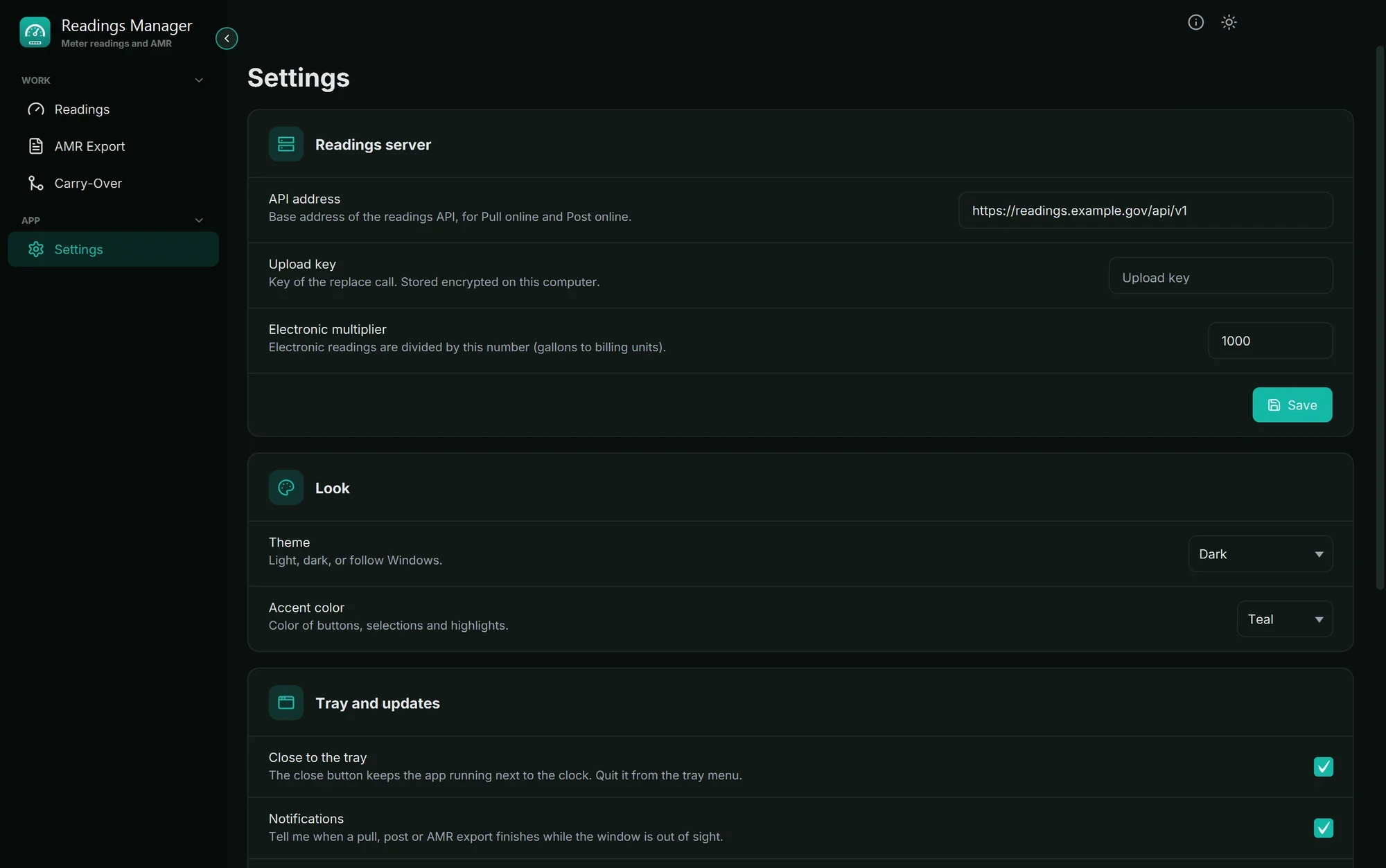
Readings server
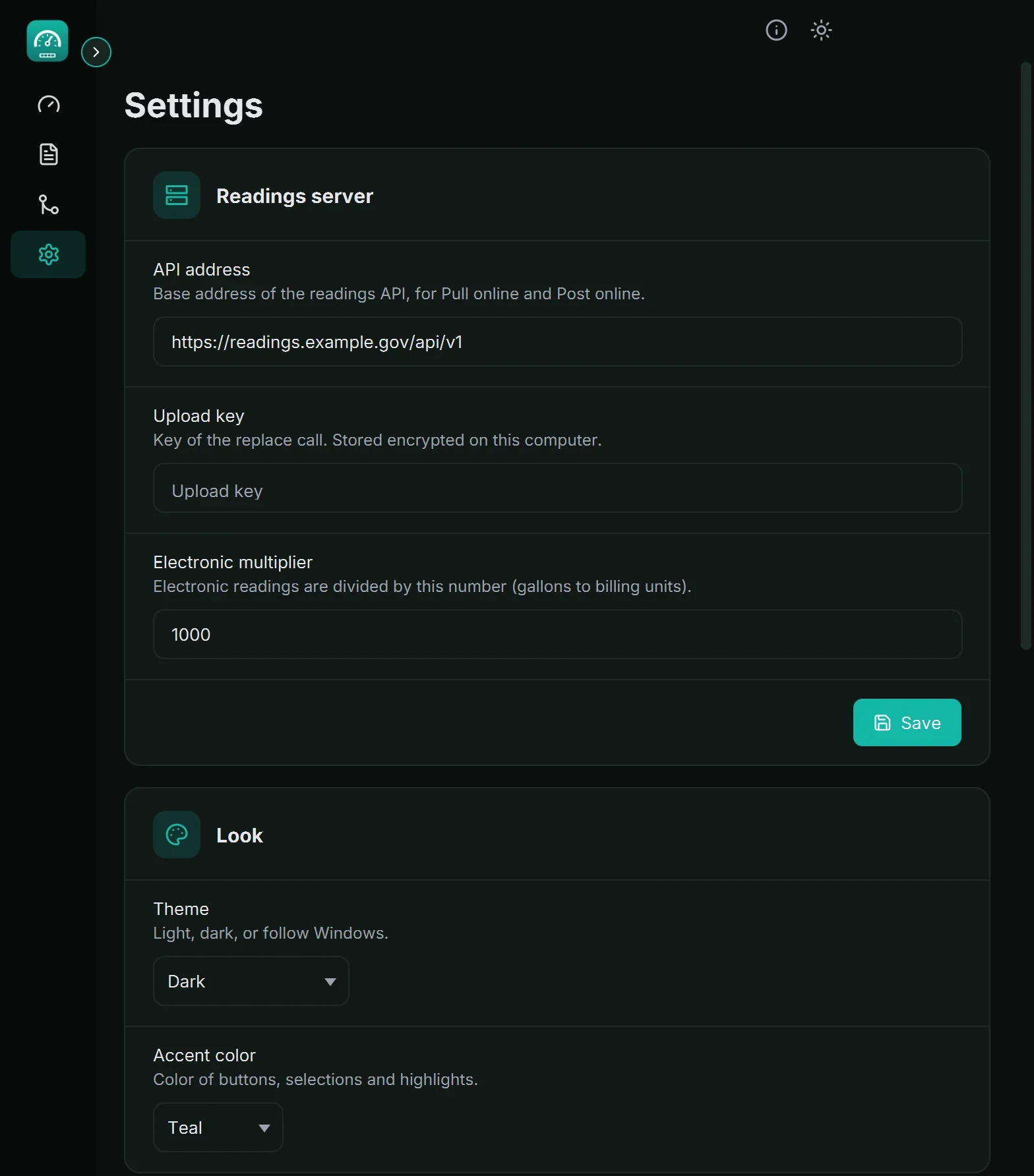
API address: the address of the readings server, used by Pull online and Post online. The IT staff will give it to you.
Upload key: the password that allows Post online. It is saved in a secret (encrypted) form on this computer and is never shown again, so the box stays empty after saving. Type it again only if it changes.
Electronic multiplier: electronic readings are divided by this number (usually 1000).
Click Save under these fields to keep your changes. A green message says Settings saved.
Look
Theme: Light, Dark, or Follow Windows.
Accent color: the colour of buttons and highlights. Nine colours to choose from.
These change at once; there is nothing to save.
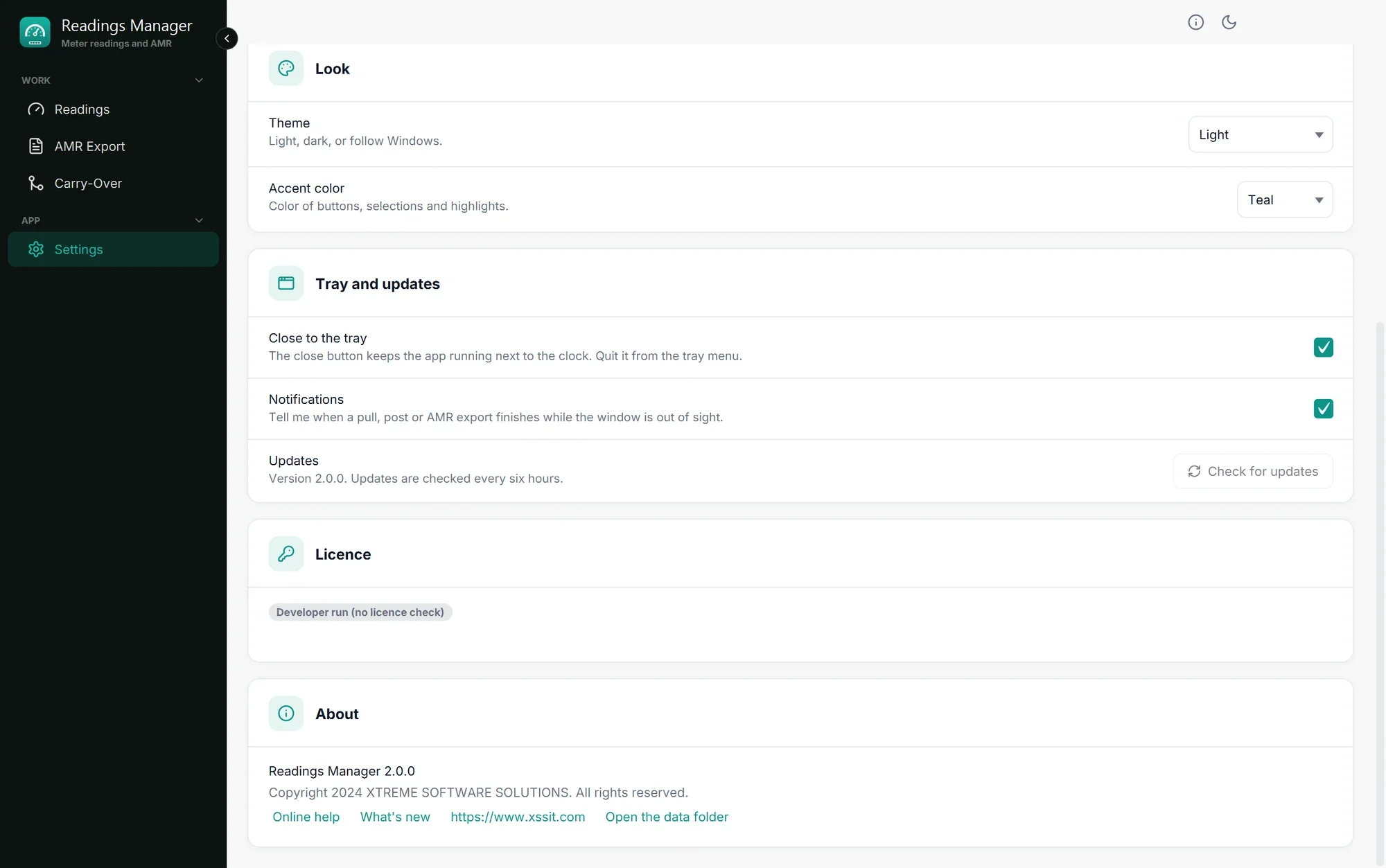
Tray and updates
Close to the tray: when ticked, the window's close button (X) keeps the app running next to the clock. Quit it from the tray icon's menu.
Notifications: when ticked, Windows tells you when a pull, a post or an AMR export finishes while the window is hidden.
Updates: shows the version you have. Check for updates looks for a new one now. See Updates.
Licence
The state and details of the licence, Check now and Remove from this computer. See Your licence.
About
The version of the app, and links: Online help (this guide), What's new, the XSSIT web site and Open the data folder.
If something goes wrong
What you see | What to do |
|---|---|
The multiplier must be a whole number from 1 to 1000000. | Type a whole number, such as 1000, with no letters, spaces or decimals. |
Could not save the settings | Close the app completely and open it again, then save once more. If it keeps failing, tell the IT staff. |
The Upload key box is empty after saving. | That is normal: the key is saved but never shown again, for safety. |
Pull online or Post online still fails after saving. | Check the API address for typing mistakes; it starts with |
Still stuck? See Troubleshooting, or open a support ticket.
Última actualización: 28 de octubre de 2026