
Updates
New versions of Readings Manager install themselves with one click. You never need to run a setup program again.
When the app looks for updates
Every time the app starts. If there is no internet, it simply tries again later, without a message.
Every six hours while it is open.
When you ask: Settings > Check for updates, or the tray icon's menu > Check for updates. Then it always tells you the answer, even Readings Manager is up to date.
Install an update
A card appears: Version ... is available, with what is new in it.
Save your work first (see Export and save).
Click Install now. The app downloads the update and checks it is genuine.
The app closes, installs the update, and opens again by itself. This takes about a minute. Do not turn off the computer meanwhile.
Not a good moment? Click Later: it is offered again at the next check. Skip this version stops offering that version (you can still install it with Check for updates).
Important: A required update (the card says Version ... is required) must be installed before the app can be used. It cannot be skipped.
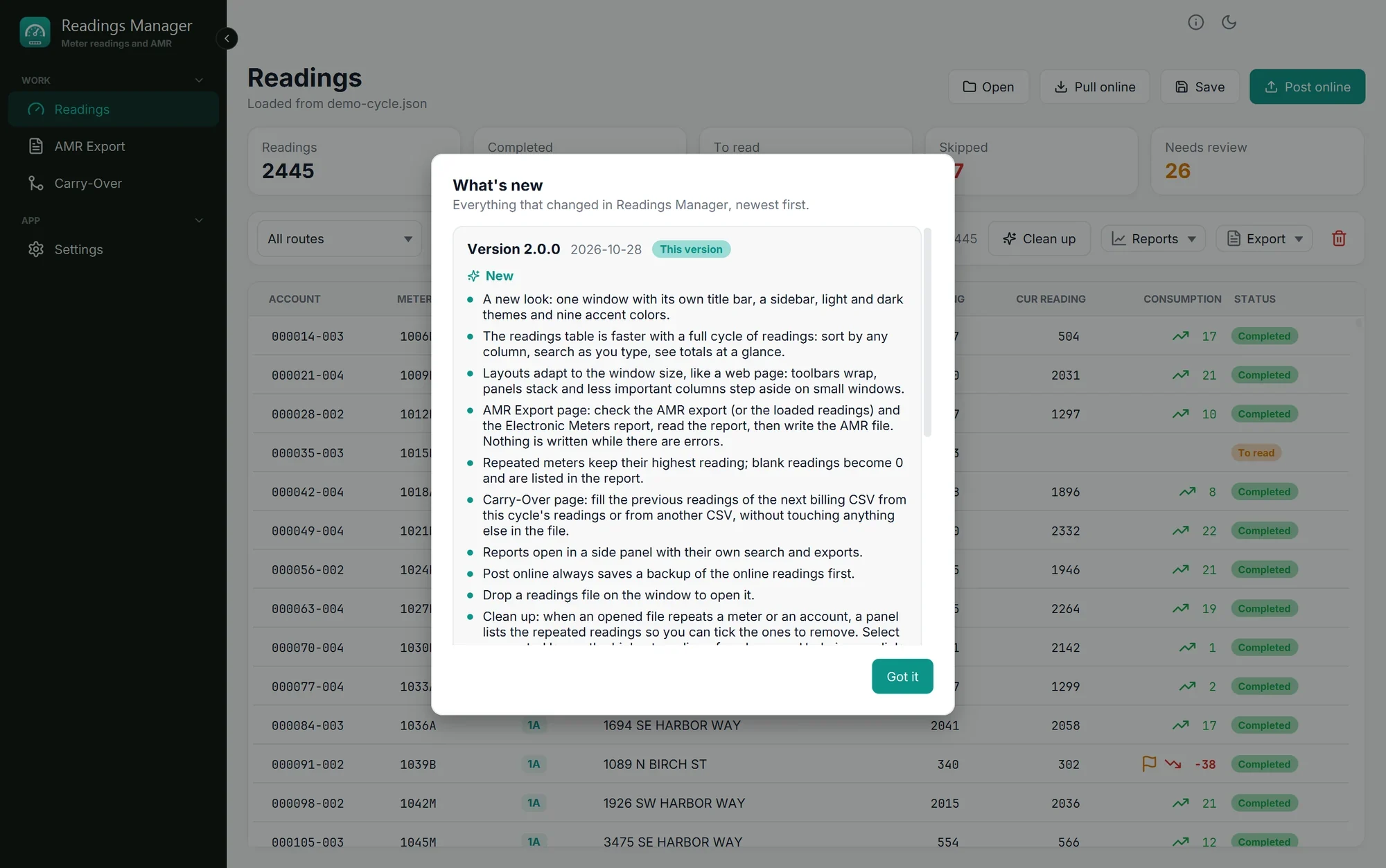
What's new
After an update, What's new opens once with the list of changes. See it again any time: Help > What's new. The same list is in the release notes.
If something goes wrong
What you see | What to do |
|---|---|
Could not check for updates (...) or | Check the internet connection and try again later. |
The update could not be downloaded or | The internet was interrupted. Try again with Settings > Check for updates. |
The update could not be started or | Close the app completely and open it again, then check for updates once more. If it keeps failing, contact XSSIT. |
Updates are only installed in the installed app. | You are not using the installed app. Open Readings Manager from the Start menu. |
This update has no installer for this computer. | Tell XSSIT; the update is not ready for your computer yet. |
The app did not open again after an update. | Wait one more minute, then open Readings Manager from the Start menu. |
Still stuck? See Troubleshooting, or open a support ticket.
Last updated October 28, 2026