
Your licence
On this page
Readings Manager needs a licence key to work. The key is given to the utility by XTREME SOFTWARE SOLUTIONS (XSSIT) and can be used on a set number of computers. It looks like XSSIT-XXXXX-XXXXX-XXXXX-XXXXX.
Activate the app (first start)
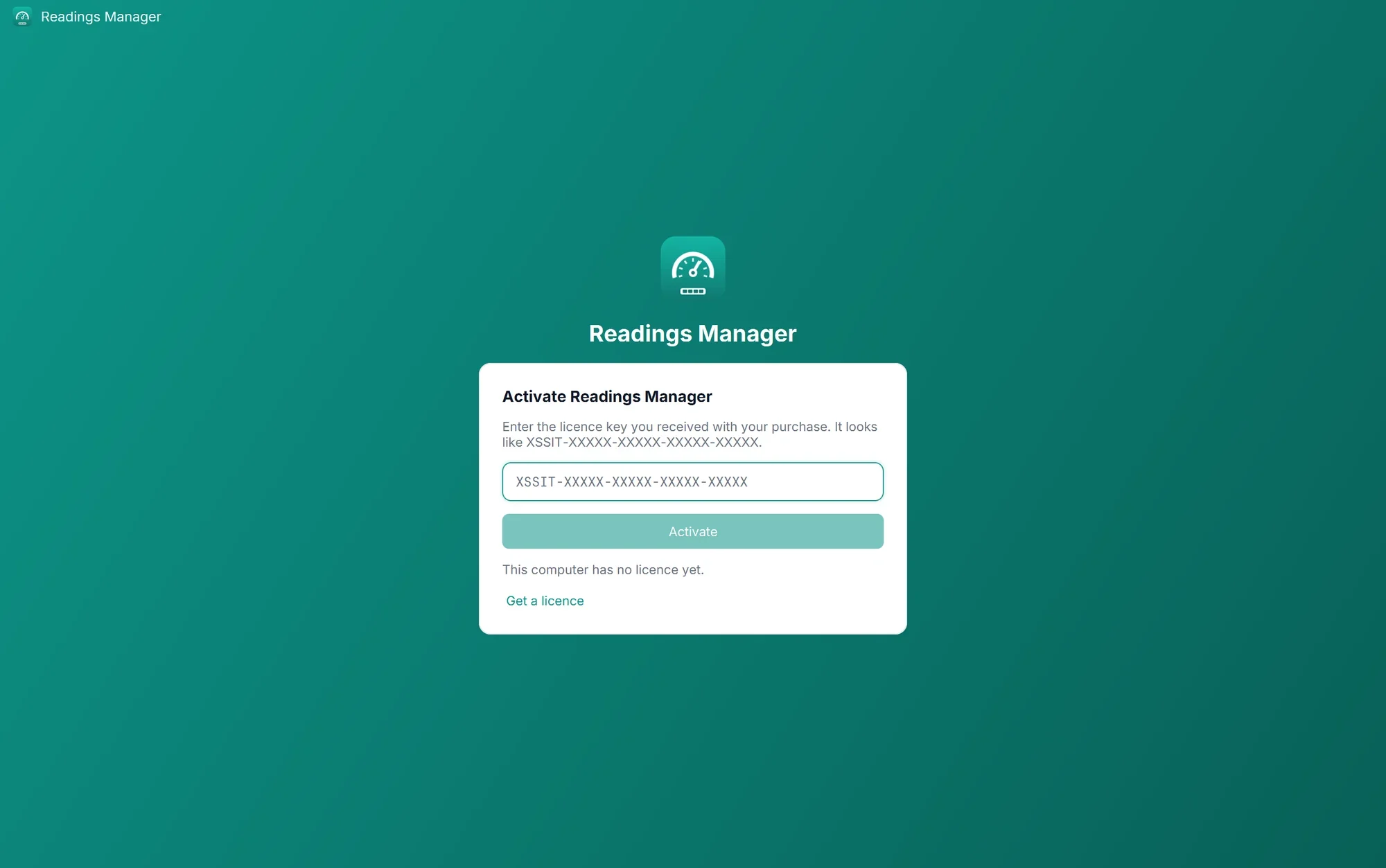
Make sure the computer is connected to the internet.
Click in the box and type the key, or paste it (right-click > Paste, or Ctrl+V). Small letters become capitals by themselves.
Click Activate.
After a few seconds the main screen opens. The licence is now saved on this computer, and you will not be asked again.
See the licence details
Go to Settings (in the left menu) and scroll down to Licence.
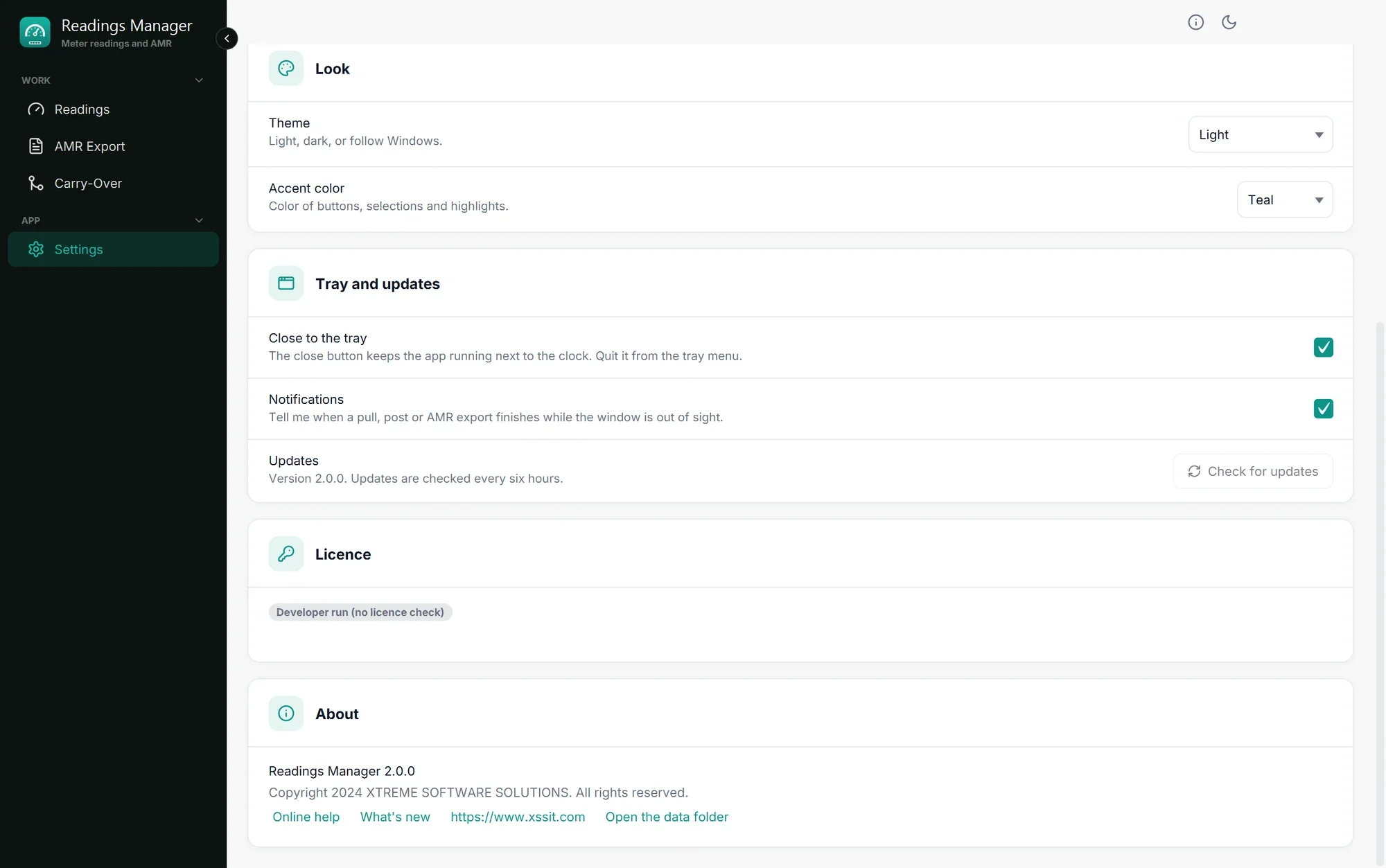
The coloured label says the state of the licence:
Label | Meaning |
|---|---|
Licensed (green) | Everything is fine. |
Licensed (offline) (amber) | The licence could not be checked because there is no internet, but the app keeps working for a while. Connect to the internet when you can. |
Not licensed (red) | The app is locked until a valid key is entered. |
Under the label, one line shows the details: the holder (the utility), the plan, the key (only its last part is shown, for safety), the expiry date ("Expires never" for a licence without an end date), and how many of the allowed computers are using it (for example 2 of 5 computers).
Check now asks the licence server straight away. Use it after the licence was renewed, so the new expiry date shows at once.
Remove from this computer takes the licence off this computer and frees its place for another one.
The app also checks the licence by itself every six hours. You do not need to do anything.
Change the licence key
Go to Settings > Licence and click Remove from this computer.
Read the question and click Remove from this computer again to confirm.
The activation screen opens. Type the new key and click Activate.
Important: Readings that are loaded stay in the app while you do this, but save them first anyway (see Export and save).
Move the licence to another computer
On the old computer: Settings > Licence > Remove from this computer.
On the new computer: install the app and activate it with the same key.
If the old computer is broken and cannot be started, contact XSSIT: they can free its place.
When the licence stops working
If the licence expires or is cancelled while the app is open, the activation screen comes back with the reason. The readings you loaded are kept in memory. As soon as a valid key is active again, they are back on screen.
If something goes wrong
What you see | What to do |
|---|---|
the key does not exist | Check the key for typing mistakes: the letter O and the number 0, the letter I and the number 1. Pasting the key avoids mistakes. |
it is already in use on all the computers it allows | Remove it from a computer that no longer needs it (Settings > Licence > Remove from this computer), then try again. |
it has expired, it is suspended or it was revoked | Tell your supervisor. The licence has to be renewed with XSSIT. |
the licence server could not be reached, with a Try again button | Check that the computer is connected to the internet, then click Try again. |
the app was offline for too long | Connect the computer to the internet. The app unlocks once the licence is checked. |
the computer clock was set back or the computer clock is wrong | Correct the date and time of Windows (right-click the clock > Adjust date and time > Set time automatically), then try again. |
too many attempts | Wait five minutes, then try again. |
The licence check could not start | Close Readings Manager completely (also from the tray) and open it again. |
Still stuck? See Troubleshooting, or open a support ticket.
Last updated October 28, 2026