
Reports and review
Reports
A report is a list of only one kind of reading, for example only the skipped meters.
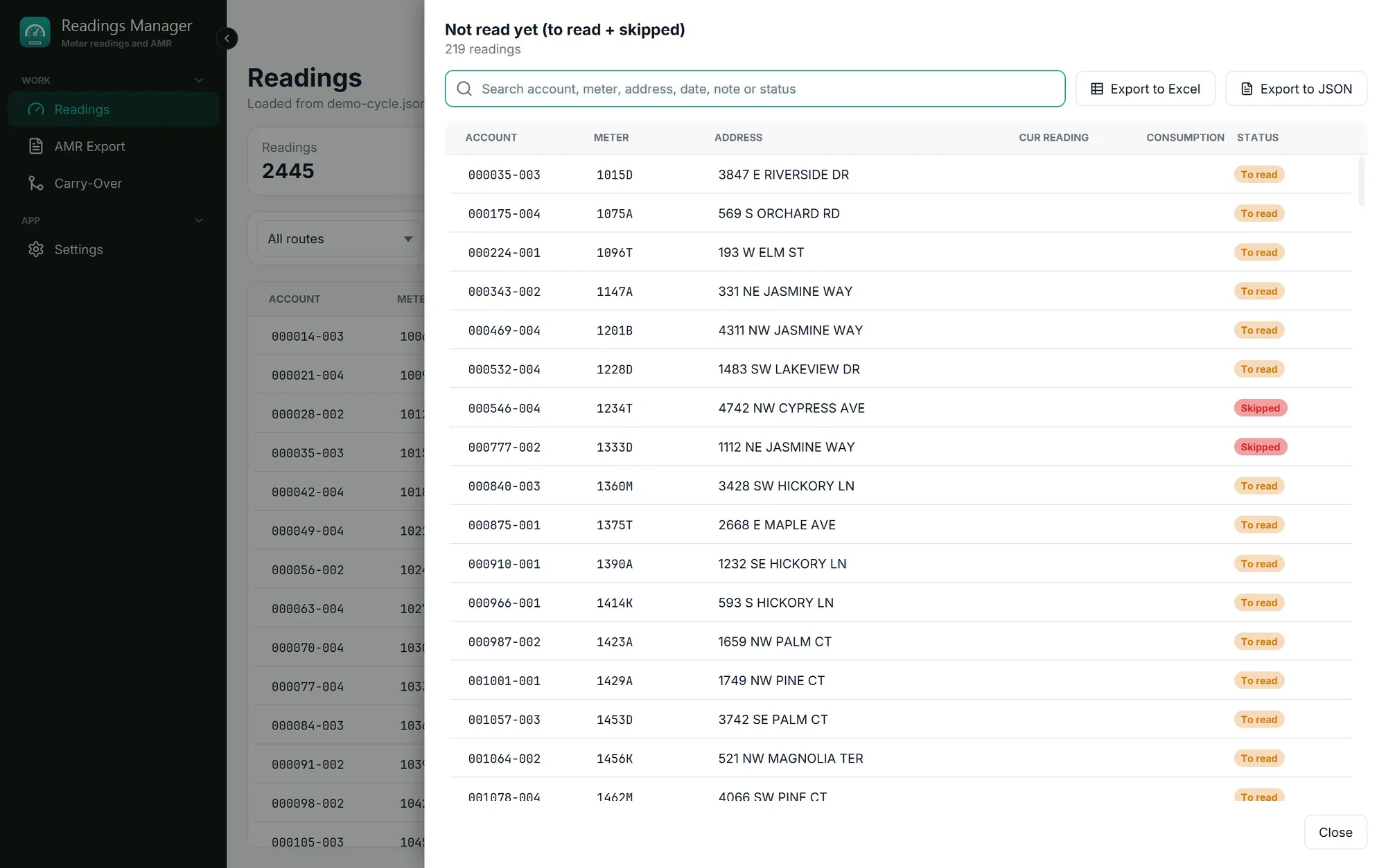
On the Readings page, click Reports.
Click the report you want. It opens in a panel on the right.
The panel has its own search box, and buttons to save the list: Export to Excel and Export to JSON.
Click Close (bottom right) when you are done.
Report | Lists |
|---|---|
Duplicate accounts | Accounts that appear more than once. |
Duplicate meters | Meters that appear more than once. |
With note code | Readings the reader gave a code. |
With note | Readings with a note from the reader. |
Needs review | Readings lower than last month, biggest drop first. |
Completed | Meters that have a reading. |
Still to read | Meters without a reading that were not skipped. |
Skipped by the reader | Meters the reader could not read. |
Not read yet (to read + skipped) | Still to read and skipped together: everything without a reading. |
Readings that need review
Water meters only go up. A reading lower than last month usually means one of these:
a typing mistake by the reader,
the meter was replaced with a new one,
the meter went past its highest number and started again from zero.
These readings have a flag in the table and are counted in the Needs review box. Click that box to list them, biggest drop first. Check each one (the meter, the reading and the reader's note) before anything is billed.
If something goes wrong
What you see | What to do |
|---|---|
Nothing here. No reading matches this report. | Good news: there is nothing of that kind in this cycle. |
Those readings are no longer loaded. | Other readings were opened after the message with the Review button appeared. Open Reports > Needs review to see the ones loaded now. |
The Excel file does not open. | Excel must be installed. The file is still saved; the green message has Open folder to find it. |
Still stuck? See Troubleshooting, or open a support ticket.
Last updated October 28, 2026