
The window
On this page
Everything happens in one window.
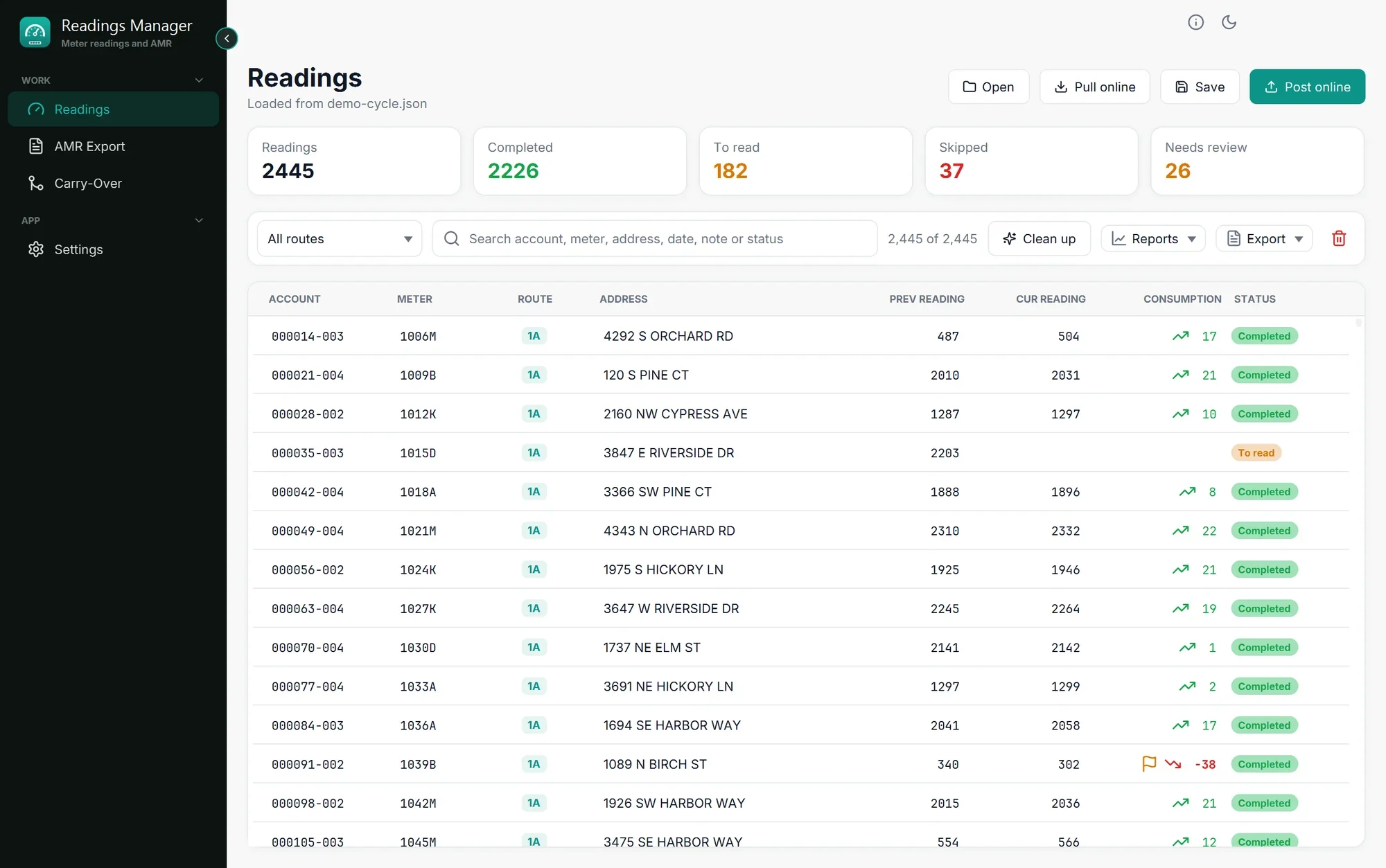
The left menu
The menu on the left has four pages. Click a name to open its page.
Page | What it is for |
|---|---|
Readings | Load, check, save and send the readings of a cycle. You will use this page the most. |
AMR Export | Make the AMR file for billing. See AMR Export. |
Carry-Over | Fill the previous readings in next month's billing file. See Carry-Over. |
Settings | Server details, colours, tray, updates and licence. See Settings. |
The small round arrow at the edge of the menu makes the menu narrow (icons only) or wide again. On a small window it becomes narrow by itself.
The buttons at the top right
Help (the i): Online help opens this guide, Guided tour shows the tour again, What's new lists the changes of each version, Open a support ticket and Report a bug open the support pages of xssit.com (see Get help), and Readings Manager on the web opens the XSSIT web site.
Moon or sun: switches the app between light and dark colours.
Messages
When something is done, a short message appears at the bottom right and goes away by itself. A green message means it worked. A red message means it did not; it stays longer and starts with a code such as RM-2004. Look the code up in Troubleshooting.
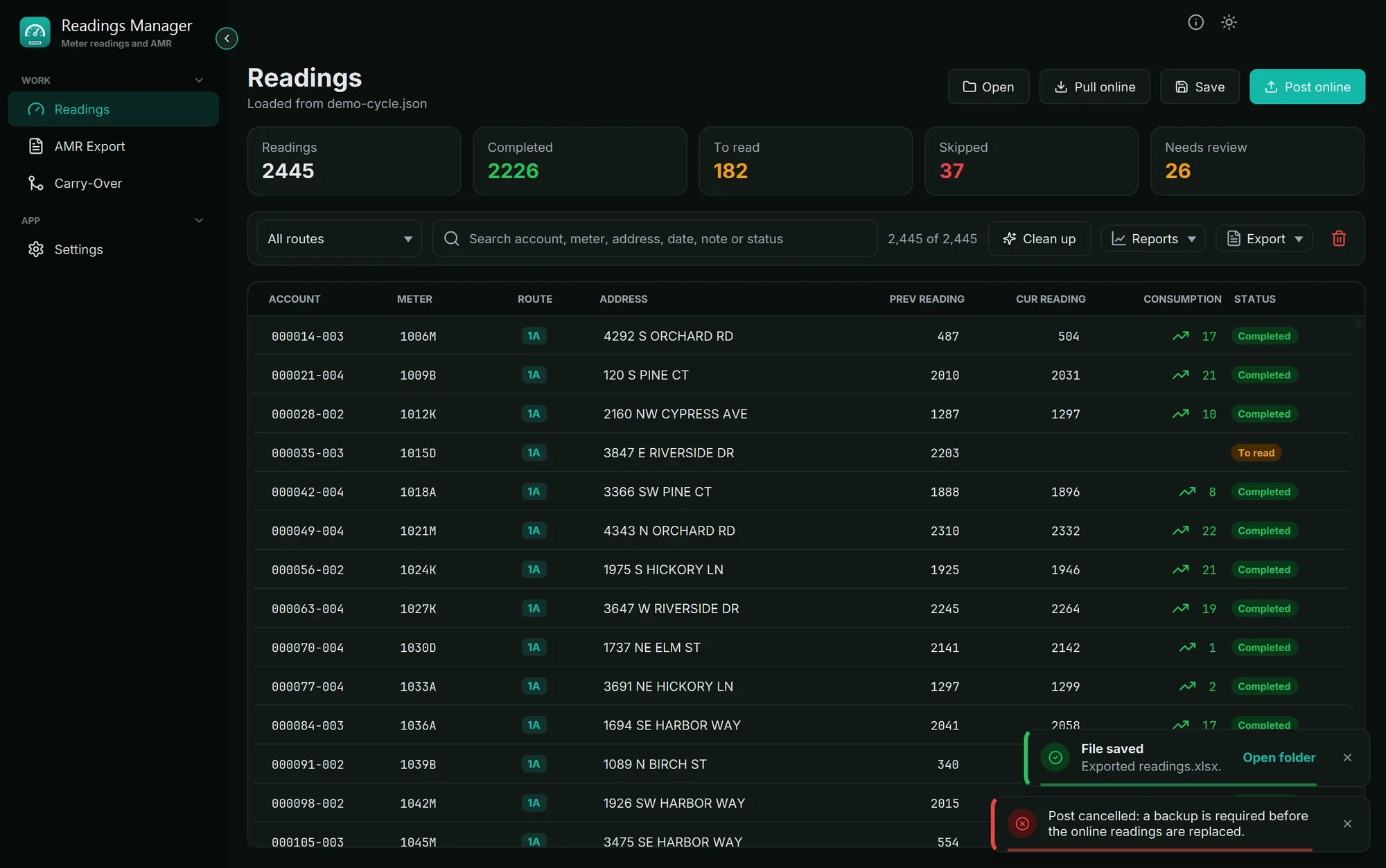
Some messages have a button, such as Open folder (opens the folder where a file was saved) or Undo. Click the x to close a message early.
Small and large windows
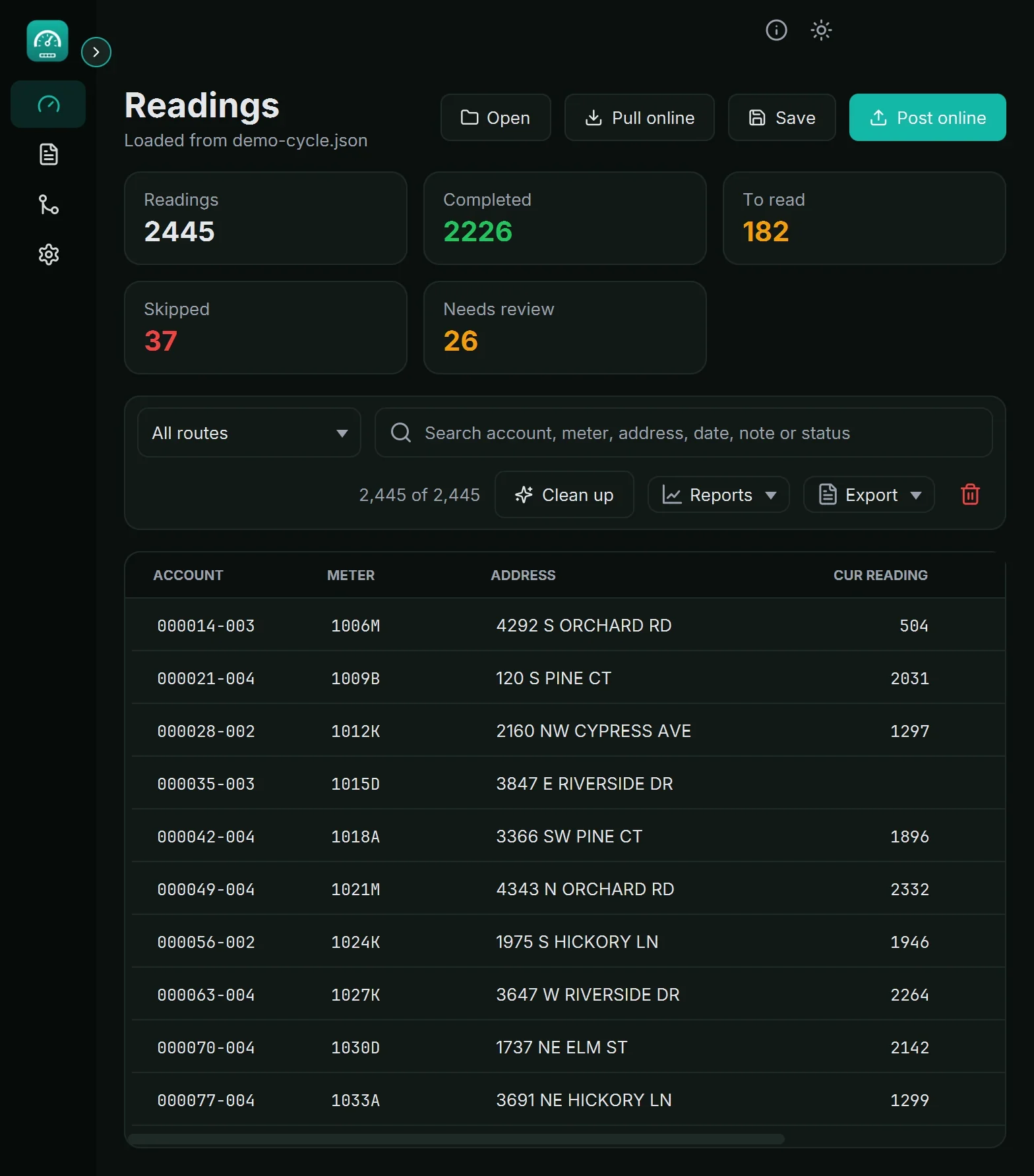
The app fits any window size. On a smaller window the buttons show only their icons, the totals move onto two rows, and the less important columns of the table are hidden so the table never needs to scroll sideways. Make the window bigger to see everything again.
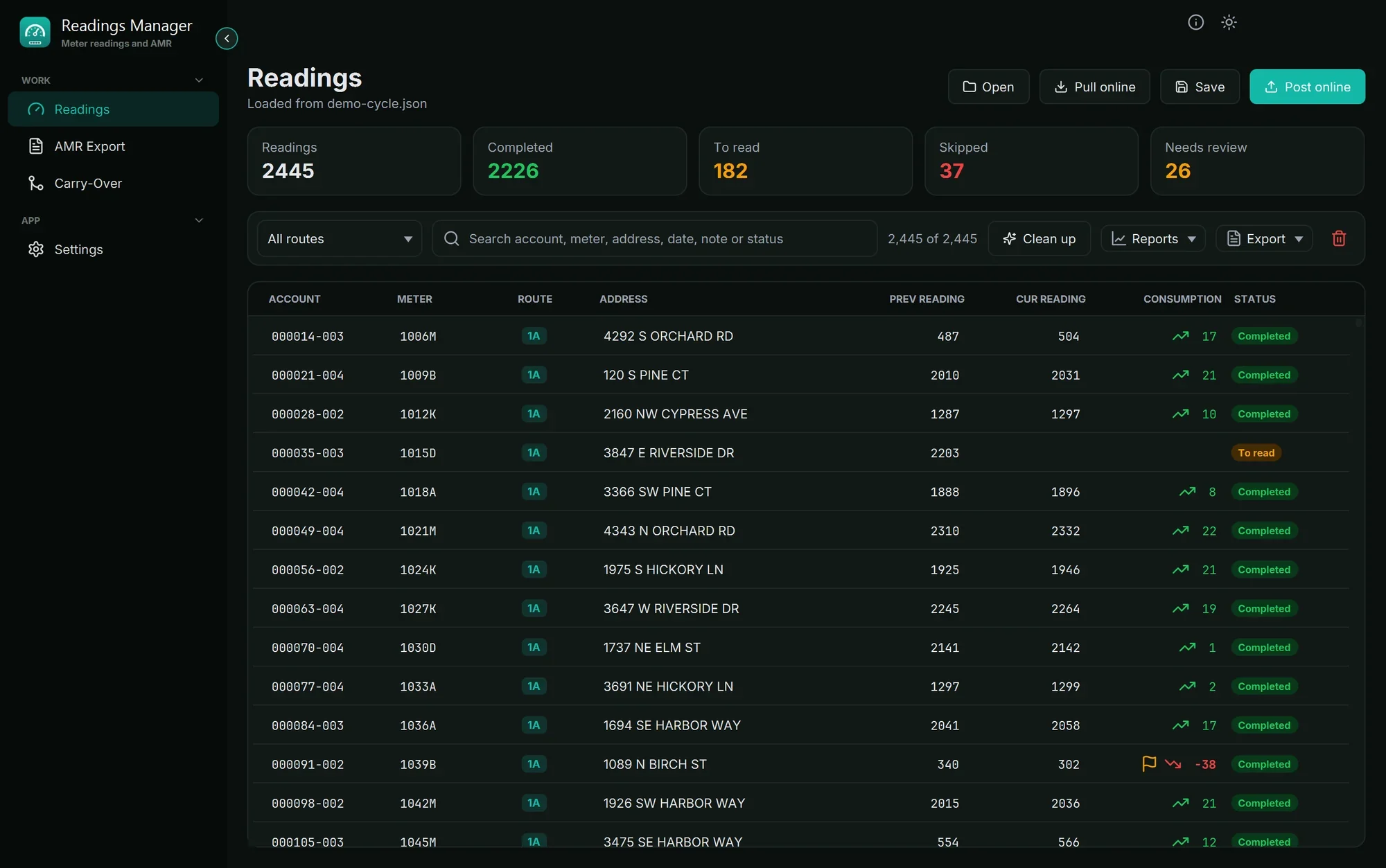
Light and dark
Click the moon or sun at the top right, or choose Light, Dark or Follow Windows in Settings. The colour of the buttons (the accent colour) can be changed there too.
The tray (next to the clock)
When Close to the tray is on in Settings, clicking the window's close button (X) does not quit the app: it keeps running as a small icon next to the Windows clock. Click that icon to open the window again. Right-click it for a menu with Open Readings Manager, Pull online readings, Check for updates and Quit.
If something goes wrong
What you see | What to do |
|---|---|
The window disappeared but the app is still running. | It is in the tray. Click the Readings Manager icon next to the clock (click the small arrow ^ if you do not see it). |
Some columns of the table are missing. | The window is too small for all of them. Make it bigger, or double-click the title bar to fill the screen. |
The left menu shows only icons. | Click the small round arrow at its edge, or make the window wider. |
A red message went away before you could read it. | Do the same thing again and read it slowly; it stays a few seconds longer than a green one. Write down the code (RM-...). |
Still stuck? See Troubleshooting, or open a support ticket.
Last updated October 28, 2026