
Export and save
On this page
Save
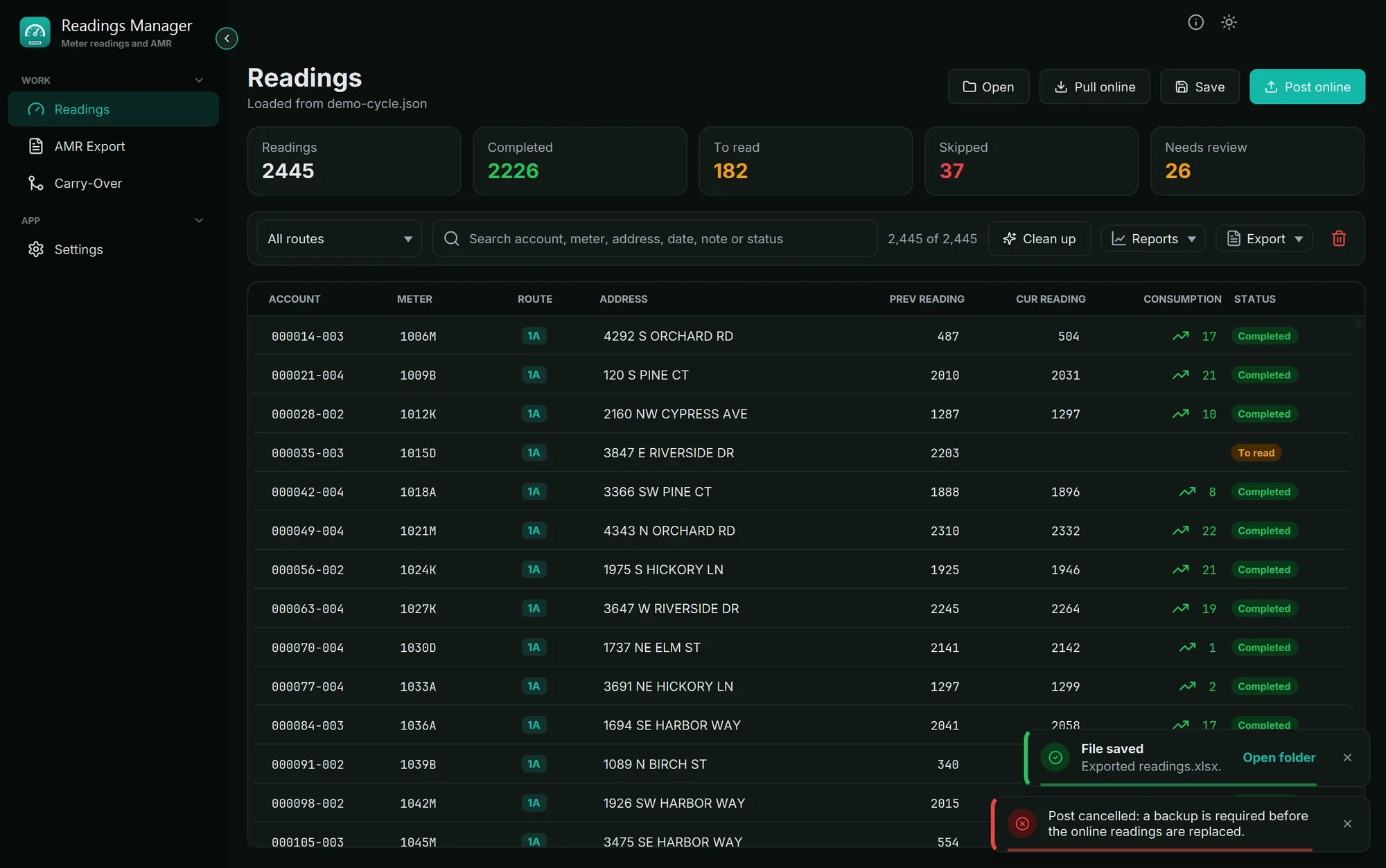
Save keeps all the loaded readings in a readings file (.json). Open it again later with Open to continue where you stopped.
Click Save (top right of the Readings page).
Choose a folder, type a name (for example Cycle October 2026) and click Save.
A green message says File saved. Click Open folder in the message to see the file.
Export
Click Export for these choices:
Choice | What it makes |
|---|---|
Export to Excel | An Excel workbook ( |
Export to JSON | A readings file of the readings shown in the table. |
Generate next import CSV | The import file that starts next month's cycle, always with all the meters. This month's reading becomes next month's previous reading. |
AMR export... | Opens the AMR Export page with the loaded readings. |
Tip: To export everything to Excel, first choose All routes and empty the search box.
A file is only replaced when the new one was written completely, so a problem halfway never leaves you with a broken file.
If something goes wrong
What you see | What to do |
|---|---|
| The file is open in another program, usually Excel. Close it there and try again, or save under another name. |
The Excel file has fewer readings than expected. | A route or search was set. Choose All routes, empty the search box and export again. |
Could not save the file | Choose a folder you can write to, such as Documents or the Desktop. |
Still stuck? See Troubleshooting, or open a support ticket.
Last updated October 28, 2026