
Carry-Over
On this page
Carry-Over fills in the previous reading of every line of next month's billing file, so billing starts from the right number. Only that column is changed; everything else in the file stays exactly the same.
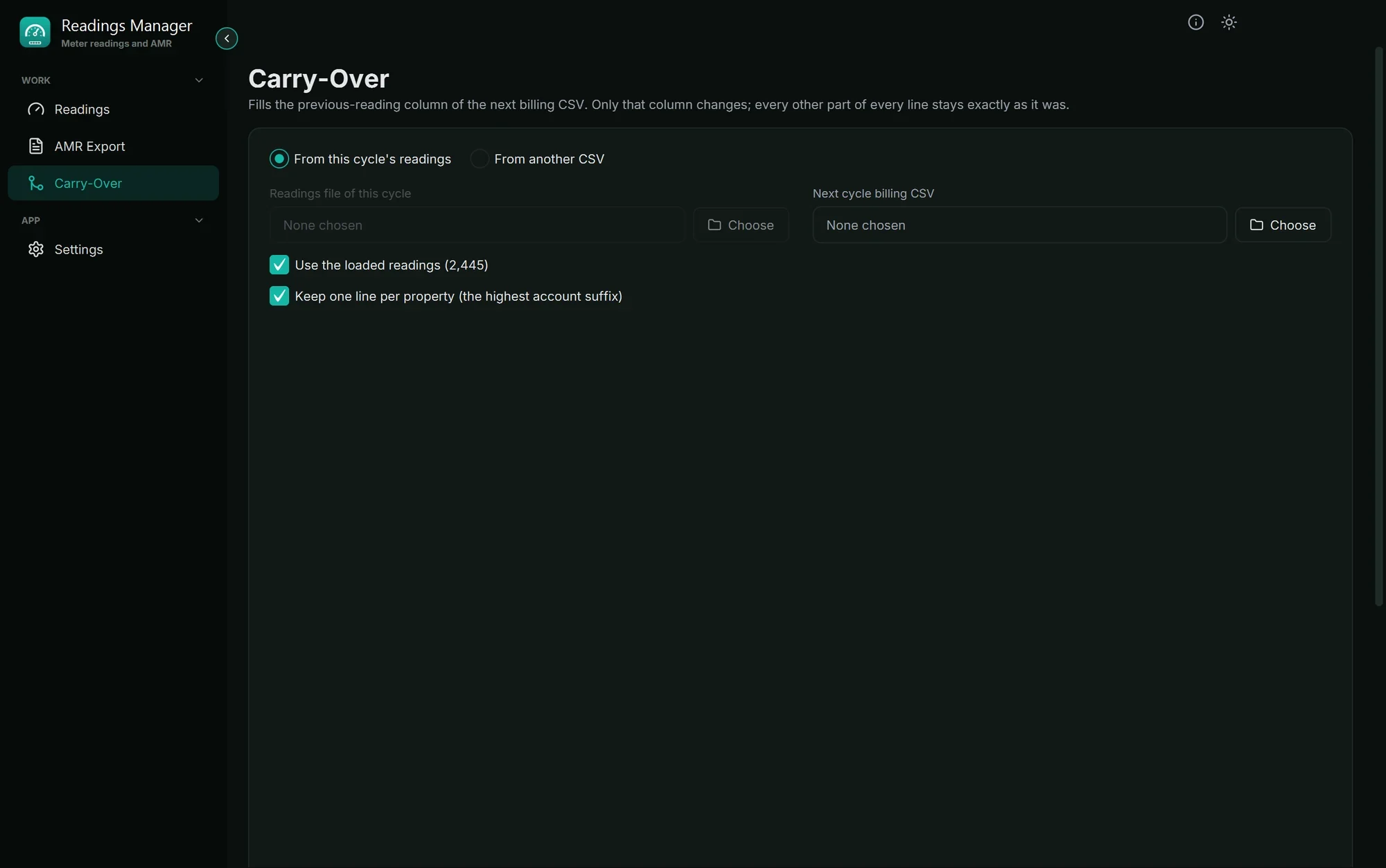
From this cycle's readings (most common)
Click From this cycle's readings at the top.
Tick Use the loaded readings to use the readings on the Readings page. Or untick it and click Choose to pick the readings file of this cycle.
Next to Next cycle billing CSV, click Choose and pick next month's billing file.
Tick The billing CSV starts with a header row if its first line is column names (open it in Notepad to see) and not a customer.
Leave Keep one line per property ticked, unless your supervisor says otherwise. It removes older lines of the same property and keeps the newest account.
Click Carry over, choose where to save the filled file, and click Save.
Lines are matched by the first part of the account number (for example 073097 of 073097-010), because next month's file may already have the next account number. A line with no match gets 000000000.
From another CSV
Use this when the previous readings come from another CSV file with the same layout. Lines are matched by the full account number. A line without a match keeps its value (or gets 0 when it had none). Say for each file whether it starts with a header row.
The result
The green message says how many lines were written, how many were filled, how many had no match (set to 0), and how many older duplicates were removed.
Tip: Open the new file in Excel or Notepad and look at a few lines before you send it to billing.
If something goes wrong
What you see | What to do |
|---|---|
| The chosen file is empty or not the right one. Choose the right file, and check the header row option. |
Almost every line says without a match. | The wrong file was chosen, or the header row option is wrong. Check both and try again. |
The first customer of the file is missing from the result. | The header row box is ticked but the file has no header row. Untick it and try again. |
| The output file is open in Excel. Close it there and try again. |
Still stuck? See Troubleshooting, or open a support ticket.
Last updated October 28, 2026