
AMR Export
The AMR Export page makes the AMR file that the billing system imports. It reads the meter readings, checks every line for mistakes, shows you what it found, and writes the file only when there are no errors.
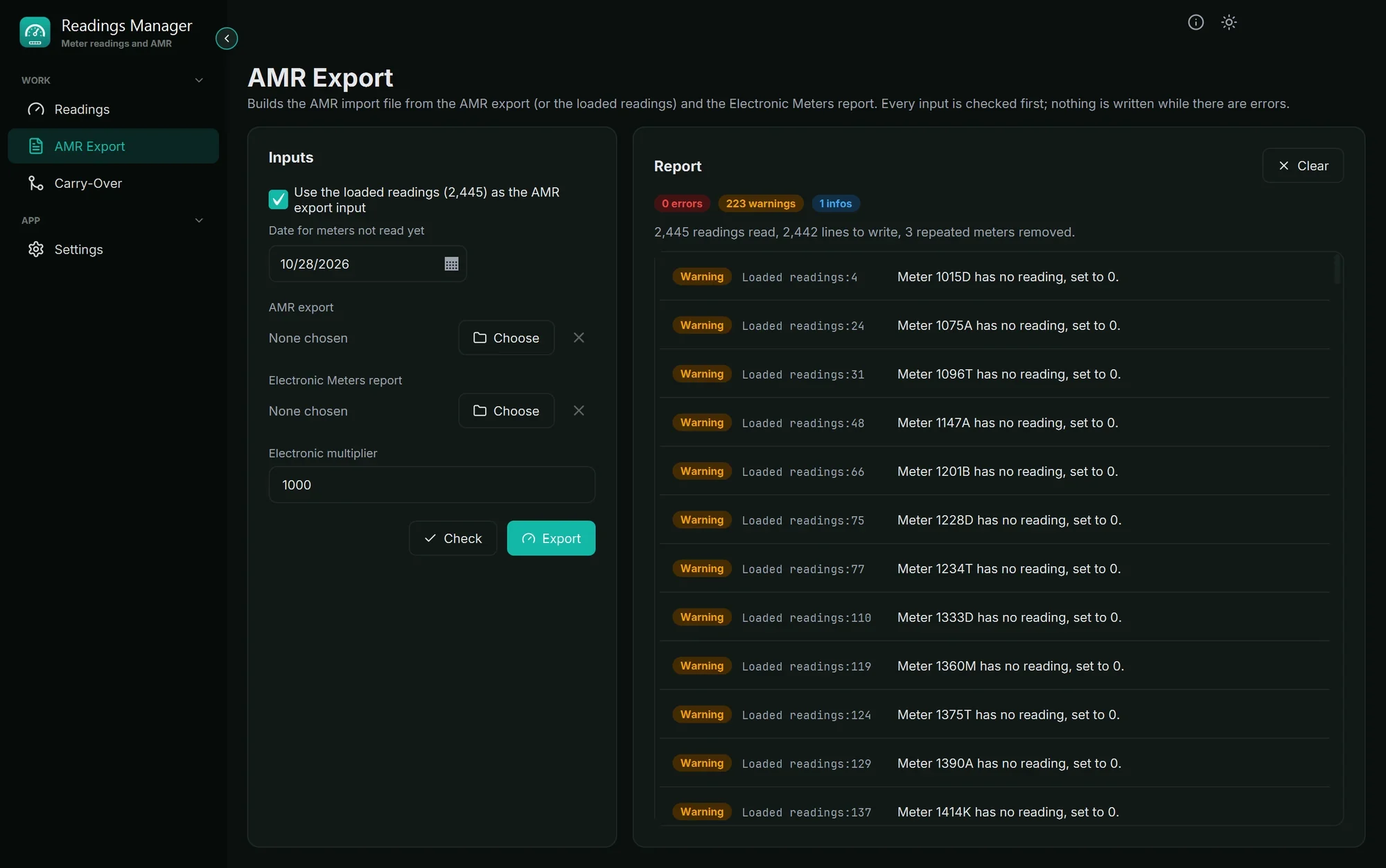
What goes in
Use the loaded readings: tick this to use the readings on the Readings page. Meters with no reading date get the date in Date for meters not read yet.
AMR export: the AMR export CSV file from the billing system. Click Choose to pick it; the x removes it.
Electronic Meters report: the CSV file of the electronic meters. Click Choose to pick it.
Electronic multiplier: electronic meters count in gallons; their readings are divided by this number (usually 1000) to get billing units. Decimals are dropped, not rounded.
You need at least one input. The files can be chosen in any order: the app recognises each one by its first line.
Steps
Choose the inputs (see above).
Click Check. Nothing is written yet. The report on the right lists what the export would do.
Read the report. At the top, the counts: errors (red), warnings (amber) and infos (blue). Each line says which file and which line it is about.
If there are errors, fix the input files and click Check again.
When there are no errors, click Export, choose where to save the AMR file and click Save.
A green message says how many lines were written.
What the report means
Kind | Meaning | Blocks the file? |
|---|---|---|
Error (red) | Something the billing system cannot accept. Must be fixed. | Yes |
Warning (amber) | The app fixed something by itself, but you should know (for example, a blank reading written as 0). | No |
Info (blue) | Just information (for example, a repeated meter was removed). | No |
The rules the app follows
Case | What happens |
|---|---|
A reading is blank or not a number | It is written as 0, with a warning. |
The same meter appears more than once | The highest reading is kept (if equal, the latest date). The others are listed in the report. |
Electronic meter | The reading is divided by the multiplier, and decimals are dropped. |
Dates | Always written month/day/year, for example 10/28/2026. |
The AMR file replaces any old file with the same name; it never adds to it.
If something goes wrong
What you see | What to do |
|---|---|
| The report has errors. Read the red lines, fix those files, click Check, then Export. |
| Tick Use the loaded readings, or choose a file. |
| Type a whole number such as 1000 in Electronic multiplier (no letters, no decimals). |
Error: unknown header | That file is not an AMR export or an Electronic Meters report, or its first line was changed. Choose the right file. |
Error: wrong number of columns | A line of that file is broken. The report names the line; ask whoever made the file. |
Error: invalid date | A date in that line is not a real date. Correct it in the file. |
Error: meter or reading longer than 15 characters | That value is too long for the billing system. Correct it in the file. |
Many warnings has no reading, set to 0 | Those meters were not read yet. Check the readings are complete before you export. |
Still stuck? See Troubleshooting, or open a support ticket.
Last updated October 28, 2026