
Load a cycle
En esta página
To work on a cycle, first load its readings. There are three ways. Each one replaces the readings already on screen, so save first if you changed something.
Which file?
File | What it is | Ends in |
|---|---|---|
Import CSV | The file from the billing system that starts a cycle. It lists the meters to read, with last month's reading. It has no current readings yet. |
|
Readings file | A file saved by Readings Manager (Save, Export to JSON, or the backup made by Post online). It has the current readings, dates, notes and status. |
|
Open a file
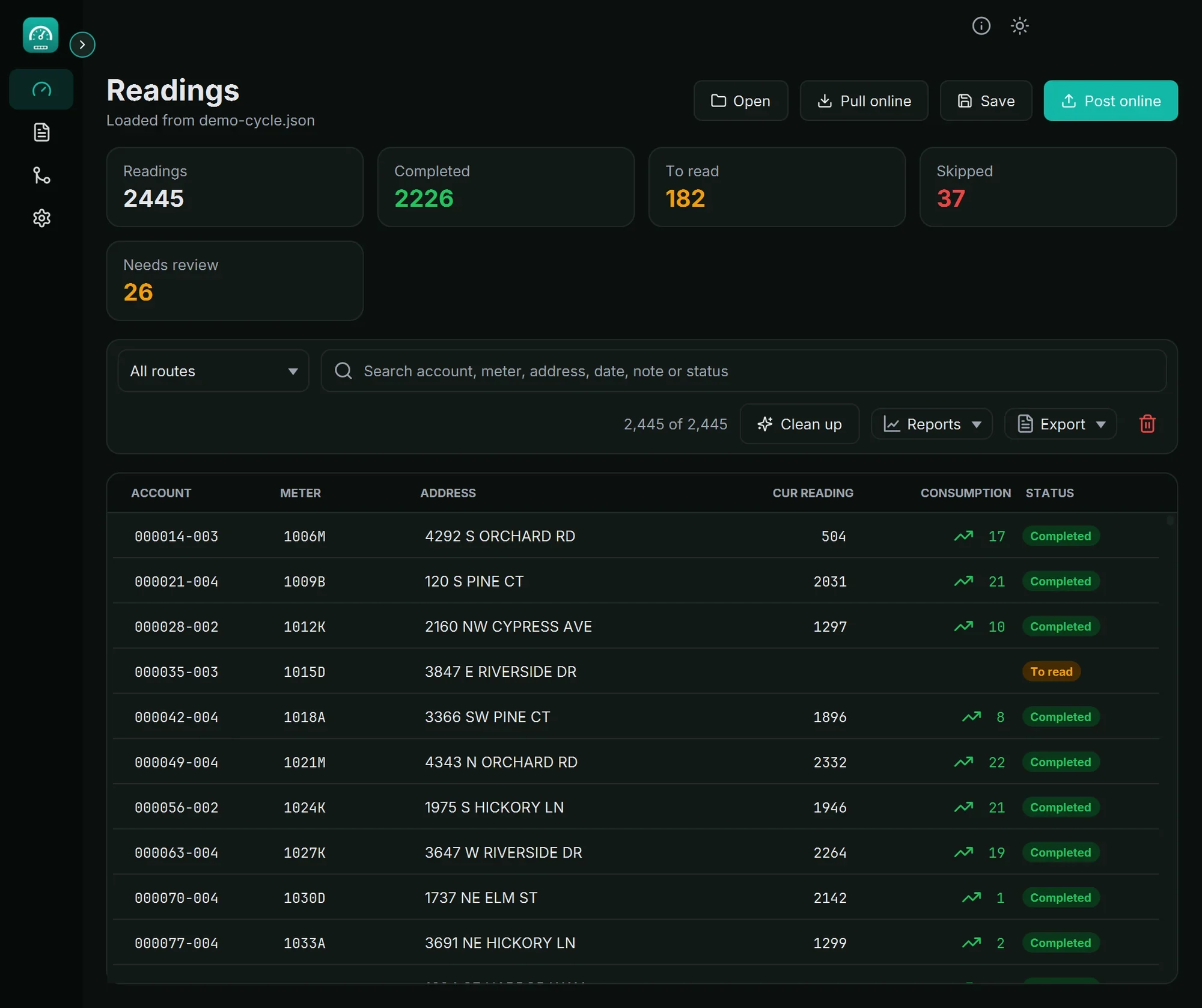
On the Readings page, click Open (top right).
Find the file in the window that opens, click it, then click Open.
Wait a moment. A green message says how many readings were opened, and they appear in the table.
Even quicker: drag the file from a folder and drop it anywhere on the Readings page.
Pull the readings from the server
Pull online gets the readings of this cycle from the readings server, as the meter readers entered them.
Click Pull online.
The app asks if you want to replace the loaded readings. Click Pull and replace.
Wait a few seconds. A green message says how many readings came in.
If some readings are lower than last month, the message says how many and has a Review button that shows them. See Reports and review.
Tip: Pull online needs the internet and the API address in Settings.
Repeated readings
If the file has the same meter or the same account more than once, the Clean up panel opens by itself. See Clean up repeated readings.
Empty the table
The red bin button at the end of the toolbar removes all readings from the screen (after asking). Your files and the server are not changed.
If something goes wrong
What you see | What to do |
|---|---|
| You chose a different kind of file. Open an import CSV (.csv) or a readings file (.json). |
| This .json file was not made by Readings Manager. Open a file made by Save or Export to JSON. |
| One line of the import CSV is incomplete. The message names the line. Ask whoever made the file to correct it. |
| The file is open in another program (often Excel) or was moved. Close it there and try again. |
| Enter the API address in Settings (ask the IT staff for it). |
| Check the internet connection. If it works, check the API address in Settings. |
| Copy the new address from the message into Settings > API address and click Save. |
Another job is still running | Wait for the current job to finish (watch the message at the top of the page), then try again. |
Still stuck? See Troubleshooting, or open a support ticket.
Última actualización: 28 de octubre de 2026