
Card payments
On this page
With the Premium edition the customer pays by card on the customer tablet, and the payment lands on the ticket's bill by itself: nobody types an amount or copies a reference. The second monitor shows everything else, but only the tablet takes cards.
One provider for the shop
| Stripe | PayPal Zettle | |
|---|---|---|
| How the customer pays | Taps a card or phone on the back of the tablet (Tap to Pay) | Uses your Zettle card reader, driven by the tablet |
| Extra hardware | None, but the tablet must qualify (Android 13 or later, NFC, Developer options off) | Your Zettle card reader (Bluetooth) |
| Refunds | From the bill: Refund through Stripe | In the Zettle app, then recorded on the bill |
| Fee on each payment | Recorded as Stripe reports it (or your rate) | Recorded with your card fee rate |
Set it up
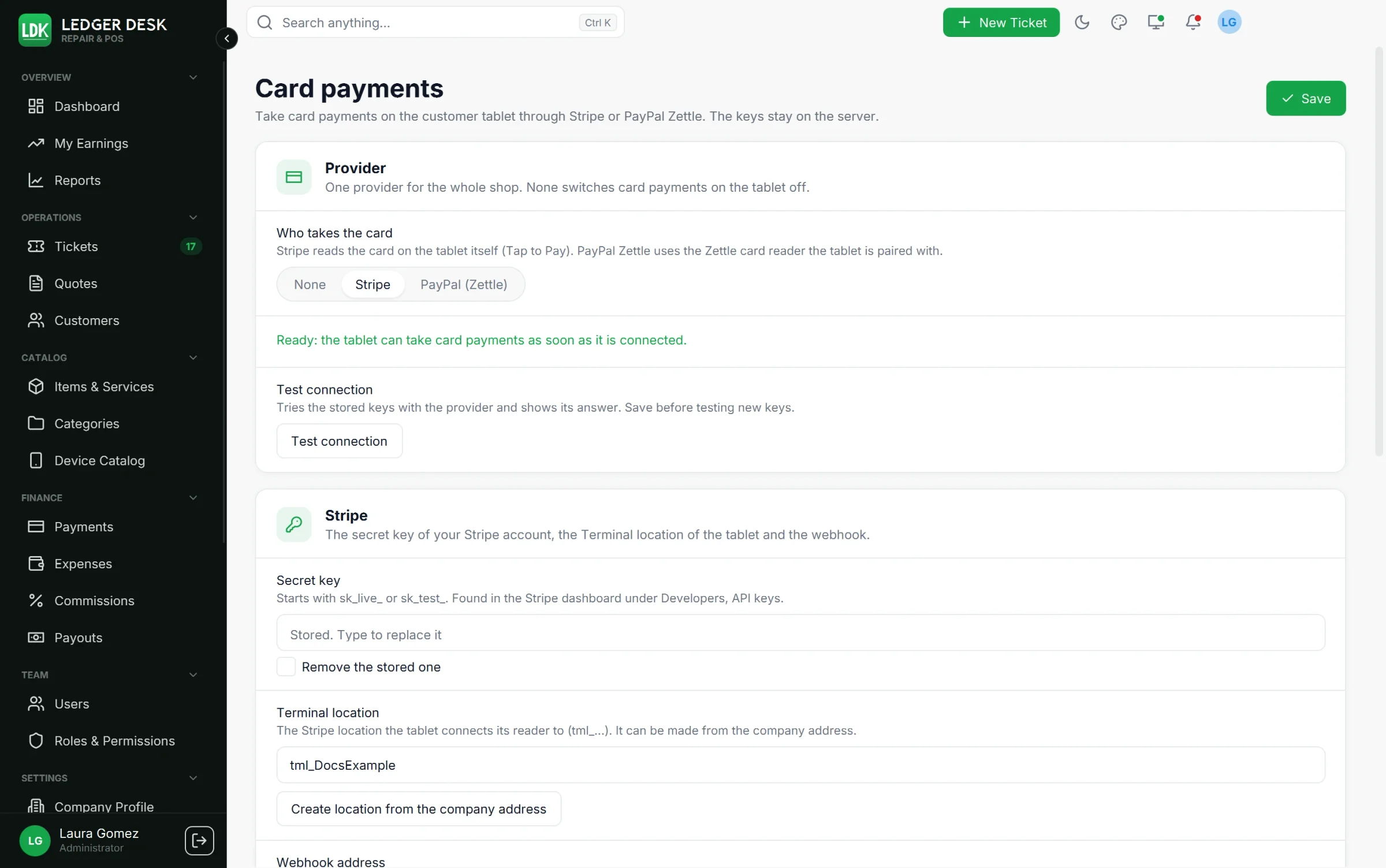
Open Settings → Card payments. You need the permission Set up card payments; Admins and Developers have it. Under Provider, choose Who takes the card: None, Stripe or PayPal (Zettle). The keys stay on the server, never on the tablet.
Stripe
- In the Stripe Dashboard, open Developers, API keys and copy the secret key (
sk_live_..., orsk_test_...to try first). Paste it under Secret key and press Save. - Check that the Company Profile address is complete, then press Create location from the company address. Stripe needs this Terminal location for Tap to Pay.
- In the Stripe Dashboard, open Developers, Webhooks and add an endpoint with the Webhook address shown on the page (use Copy the webhook address). Tick the events
payment_intent.succeeded,payment_intent.payment_failed,payment_intent.canceledandcharge.refunded. - Copy the endpoint's signing secret (
whsec_...) into Webhook signing secret and press Save. The webhook is the safety net: if the counter loses its connection right after the customer paid, Stripe still tells Ledger Desk. - Press Test connection. It shows your Stripe account, or Stripe's own error.
- On the tablet's admin screen, the payment line must say Stripe Tap to Pay, ready.
Ledger Desk needs to be reachable by Stripe for the webhook. Our team sets this up with your server. A refund you make in the Stripe dashboard is booked on the bill by itself, never twice.
PayPal Zettle
- In the Zettle developer portal, create an app for the Android SDK with the redirect address
ledgerdesk-screen://zettleand copy its Client id. - Create an API key that may read purchases. It is required: Ledger Desk records a Zettle payment only after it found the purchase with this key.
- In Settings → Card payments choose PayPal (Zettle), fill in the client id and the API key, Save, then Test connection.
- Press Register the Zettle webhook so Zettle reports each purchase. The company profile needs an email address. If you made the subscription yourself, paste its Webhook signing key.
- On the tablet's admin screen press Sign in to Zettle, sign in with the shop's Zettle account, then Pair Zettle reader. The payment line must say ready.
The page says at the bottom whether everything is ready, or what is still missing.
Surcharge and fees
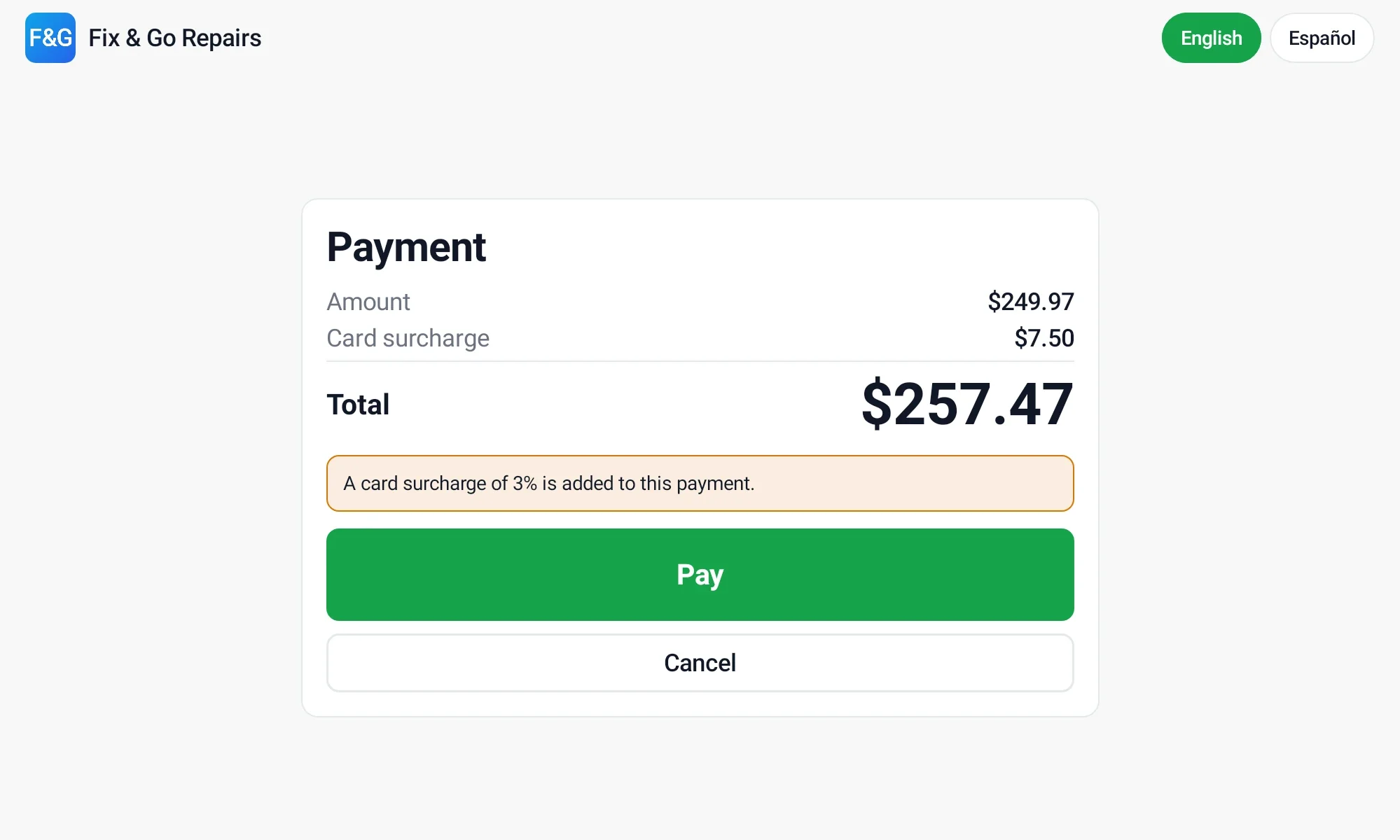
- Add a surcharge for card payments is off by default. When on, a percentage (at most 3%) is added on top of what the customer pays by card on the tablet.
- The customer sees the amount, the surcharge and the total with a notice before the card is read. Write your own Notice for the customer in English and Spanish, or keep the standard one.
- The surcharge is kept on the payment, not on the bill: the bill and its tax stay as issued. Receipts and invoices print it under its payment.
- Fee of the provider: The exact fee the provider reports (Stripe; Zettle uses your rate), The card fee rate of the company (set on the Company Profile) or No fee. Fees lower profit and the commission base; the profit and loss shows card fees minus the surcharges collected.
In the United States a surcharge is not allowed on debit cards, is capped near 3% and is banned in some states, and the customer must be told before paying. The surcharge is not taxed here. Ask your accountant before you switch it on.
Taking a payment
- Open the ticket. Its bill may be issued or still a draft: a draft is issued only when the customer pays.
- Press Pay on the tablet. Check the amount; you can lower it for a partial payment. Press Send to the tablet.
- The counter shows Waiting for the customer. The tablet shows the amount (and the surcharge). The customer presses Pay and taps the card or uses the reader.
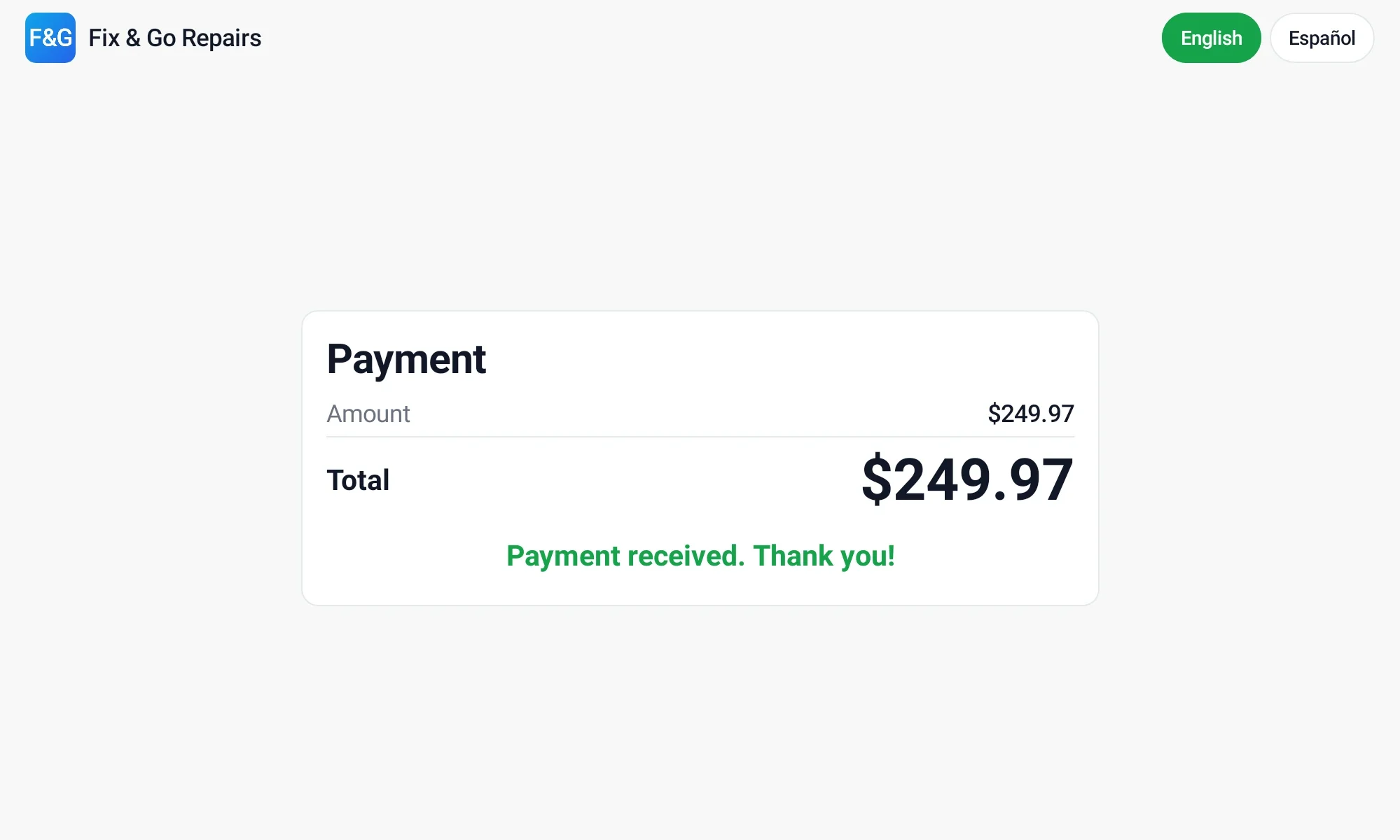
- Ledger Desk checks the payment with the provider and records it on the bill. The counter shows Paid on the tablet, and you can print the receipt.
The button shows only when a provider is set up, the customer screen is a connected tablet and the tablet says it is ready. A bill has one card payment on the tablet at a time; while it waits, its amount is reserved, so a payment taken by hand can only take what is left.
Declined, cancelled, still being verified
- Declined or could not be read: the customer can try again on the tablet.
- Cancel the payment on the counter (or Cancel on the tablet) stops it. Ledger Desk asks the provider first: a card that was already accepted is recorded instead of cancelled.
- Confirming the payment / The payment is still being verified: the card was charged and Ledger Desk records it by itself. Do not charge again.
- A charge that can no longer be recorded (the bill was voided or changed meanwhile) is returned to the card automatically with Stripe. With Zettle it is marked as needing attention, and everybody who takes payments is told in the bell; refund it in the Zettle app.
- A payment nobody finishes is given up after 30 minutes, once the provider confirms nothing was taken.
Refunds
- Stripe: on the payment row of the bill press Refund through Stripe, enter the amount and a reason. The money goes back to the card (the customer does not need the card) and the refund is booked on the bill. At most what that payment paid, less what was already refunded; the surcharge goes back in proportion.
- Zettle: refund in the Zettle app, then record the refund on the bill in Ledger Desk.
- A payment taken through a provider can not be voided on the bill: the money is on the card, so it goes back as a refund.
Every try is kept, no card details anywhere
- Every try of a card is history: Approved, Declined, Failed or Cancelled. A try is never changed or deleted.
- The bill shows a Card attempts card when it has tries.
- Payments, tab Card transactions, lists every try of the shop with filters (days, outcome, provider, search by bill, reference, person or tablet) and Export CSV (needs the right to export reports).
- No card number, last digits, brand, expiry or holder name is ever read, kept or sent, on the tablet, the counter or the server. The reason of a decline is kept in the provider's words, readable only by people who set up card payments.
No card payments while offline
When the server can not be reached (see Offline mode), Pay on the tablet is not offered and the bill says why. Take cash, a check or another payment by hand; card payments on the tablet come back as soon as the server is reachable again.
Codes you may see
| Code | Meaning | What to do |
|---|---|---|
| LDK-4030 | No provider set up, or a key is missing | Finish the set-up above |
| LDK-4031 | The provider refused or could not be reached | Check the keys and the internet |
| LDK-4032 | The provider does not show the payment as paid yet | Wait; it is checked again every 5 minutes |
| LDK-4033 | The payment was already finished or cancelled | Reload the ticket |
| LDK-4034 | The amount taken does not match | Nothing was recorded; Stripe returns the charge, a Zettle purchase needs a refund in the Zettle app |
| LDK-4035 | A card payment of this bill is already waiting | Finish or cancel it first |
| LDK-4036 | The payment was taken through the provider | Refund it instead of voiding it |
| LDK-C013 | The tablet can not take payments right now | Look at the payment line of the tablet admin screen |
Last updated November 3, 2026