
Customer screen
On this page
The customer screen faces the customer at the counter. While nobody is served it shows your welcome: logo, texts, pictures, a clock and a QR code. When you ask for it, the customer types their own details, adds an address if they want, confirms everything, reads and signs the repair agreement, looks at the bill and gets a thank-you. Staff never have to turn the monitor around or spell an email address.
Three choices, one at a time
Each counter computer chooses one way. The choice belongs to that computer, so two counters can work differently.
| Off | Second monitor | Tablet | |
|---|---|---|---|
| Edition | — | Standard and Premium | Premium |
| What it is | No customer screen | A second screen plugged into the counter computer (a touch screen is best) | An Android tablet on a stand with the Ledger Desk Screen app, on the shop Wi-Fi |
| Welcome, details, address, confirmation | — | ✓ | ✓ |
| Repair agreement and signature | — | ✓ | ✓ |
| Bill and thank-you | — | ✓ | ✓ |
| Card payments | — | — | ✓ (see Card payments) |
| Name, brightness, night hours, PIN, restart and status set from Ledger Desk | — | — | ✓ |
With Tablet chosen, only the tablet is used: if the tablet is away, Ledger Desk does not fall back to a monitor. Only one tablet per counter computer. A choice your edition does not include is shown with the edition that has it; it is kept and works as soon as the plan includes it.
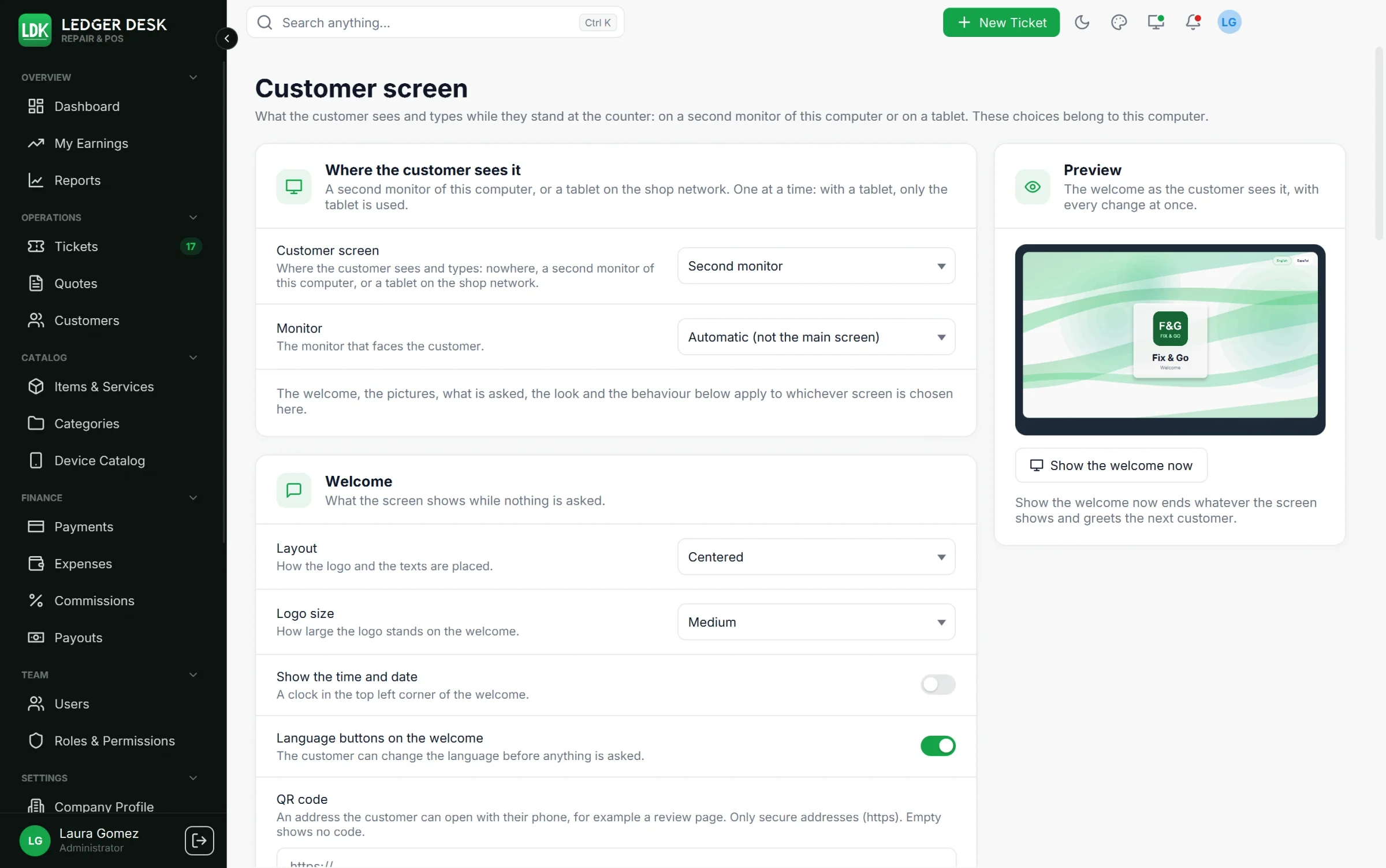
The Customer screen page
Open Settings → Customer screen in the sidebar (the Preferences page also has a short summary with the button Open the customer screen settings). Every change applies at once: the monitor or the tablet shows it within a second. The page is made of cards:
Where the customer sees it
- Off, Second monitor or Tablet.
- With Second monitor, choose the Monitor. Automatic (not the main screen) takes the screen that is not the main one. The window fills that monitor; if it is unplugged, the page says so, and it is used again as soon as it is back.
- With Tablet, press Pair a tablet and follow the steps of the tablet app page.
Welcome
| Option | What it does |
|---|---|
| Layout | Centered, Logo beside the texts, Banner at the bottom (over your pictures) or Logo only. |
| Logo size | Small, Medium or Large. |
| Texts in | A tab per language. Write the Title, the Subtitle and up to four Info lines once per language; the screen shows the texts of the language on screen. A text left empty in Spanish shows the English one; an empty title shows a standard welcome. |
| Info lines | Short lines such as the phone, opening hours or web site. The buttons Phone, Address, Web site and Email fill them from the Company Profile. |
| Show the time and date | A clock in the top left corner; switch on 24 hour clock for 15:45 instead of 3:45 PM. |
| Language buttons on the welcome | Lets the customer change the language before anything is asked. |
| QR code | An address the customer opens with their phone, for example your review page. Only secure addresses that start with https://. Add a Line under the QR code per language, such as “Leave us a review”. Empty shows no code. |
Background and pictures
- Background: Page color (the theme), A color (pick a swatch or type
#RRGGBB), A picture (one of your pictures, with Darken the picture so the texts stay readable) or Moving background, a slow animated background in the color of the screen. - Show pictures on the welcome: your pictures (services, offers, the team) fill the welcome one after the other.
- Add a picture: PNG or JPEG, up to 12 pictures, each at most 1.5 MB and 4096 pixels on its longer side (8 megapixels). They are kept on this computer. Use Show earlier and Show later to change the order.
- Each picture can have its own time (or the usual Time per picture) and a Caption per language.
- Change of picture: Fade, Slide or None. Picture size: Fill the screen (edges may be cut) or Whole picture.
What the customer is asked
For each detail choose Not asked, Asked (optional) or Required:
| Detail | Notes |
|---|---|
| First name | Always asked and always needed. |
| Last name | Not asked, Asked or Required. |
| Phone number | When required, the customer can not go on without it. It is written in the phone pattern of your shop. |
| Email address | When required, the customer can not go on without it. A wrong address is marked at once. |
| Language for papers and messages | Not asked keeps what the counter already knows. |
| May we write by email and text message | A free choice of the customer: Asked or Not asked, never Required. |
| Offers and promotions | A free choice of the customer: Asked or Not asked, never Required. |
- Offer to add an address: shows the button Add my address (optional) on the confirmation step. The address is never required.
- Show the total: lets the screen show the lines and what is to pay of a bill you share.
- Ask for a signature after a new ticket: a new ticket with a device asks the customer to sign by itself. With the repair agreement switched on, the customer reviews the work order and the agreement first (see Repair agreement).
Look
- Look like Ledger Desk: the customer screen uses the theme and color of your window. Switch it off to choose a Theme of the customer screen and a Color of the customer screen of its own.
- Text size from 85% to 150%: larger text is easier to read from a distance.
- Show the logo and Show the name of the shop on the welcome and at the top of every step.
Behaviour
- Starting language: the language each customer is greeted in (or the language of this window). Customers can still change it on the screen.
- Waiting time: a request nobody touches for this long (30 to 300 seconds) is given up and the welcome comes back.
- For a tablet also: Dim the tablet, Sounds on the tablet and Orientation of the tablet (Turn with the tablet, Upright, On its side).
Preview
The Preview card shows the welcome exactly as the customer sees it, in a monitor frame or a tablet frame (with an On its side / Upright switch). The monitor and the tablet draw the same welcome, so the preview is true for both. Show the welcome now ends whatever the screen shows and greets the next customer; while a customer is typing, signing or paying it asks first.
The monitor button in the header
While a customer screen is chosen, the header of Ledger Desk has a monitor button with a dot:
| Dot | Meaning |
|---|---|
| Green | A customer can see the screen. |
| Amber | A tablet is paired but not connected yet. |
| Grey | The customer screen is off or can not be seen right now. |
Press it for a small panel with Show the welcome and Customer screen settings. On a narrow window it is in the More menu. The shortcut Ctrl+Shift+D shows the welcome from anywhere.
What the customer does
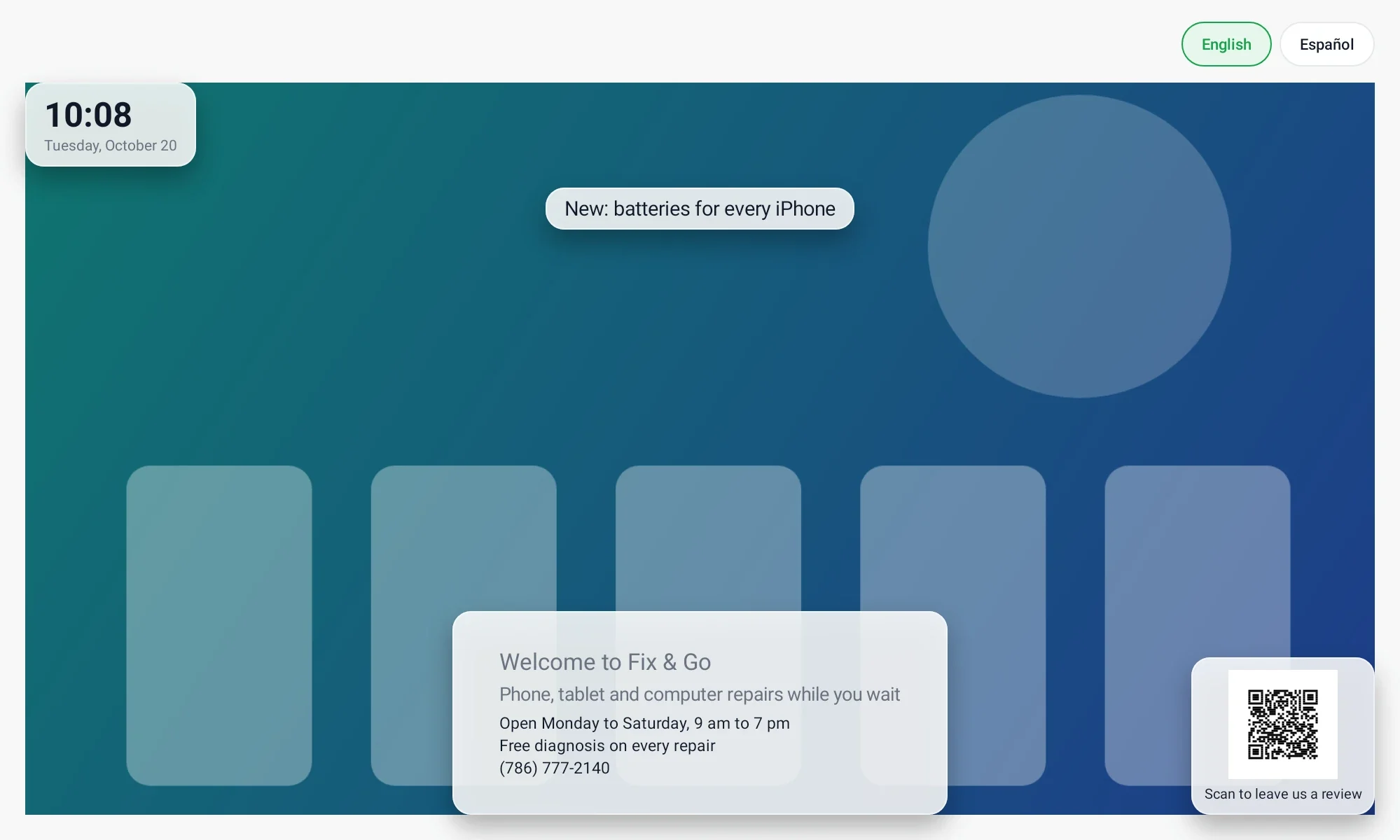
- Welcome: the screen rests on your welcome until you ask for something.
- Their details: in a new ticket or a new customer, press the button that lets the customer type. The customer types with an on-screen keyboard; the counter keeps its own keyboard.
- Address (optional): street, apartment or unit, city, state and ZIP. No address clears it.
- Confirm: a summary of what was typed, the optional switch for offers and promotions, and the required switch I confirm that these details are correct. Done works only with it.
- Repair agreement and signature: for a repair, the customer checks the work order with the prices, reads the agreement, ticks that they accept it and signs with a finger.
- Bill: shown only when you press Show bill to customer at the top of the ticket (see below).
- Thank you! for a few seconds, then the welcome again.
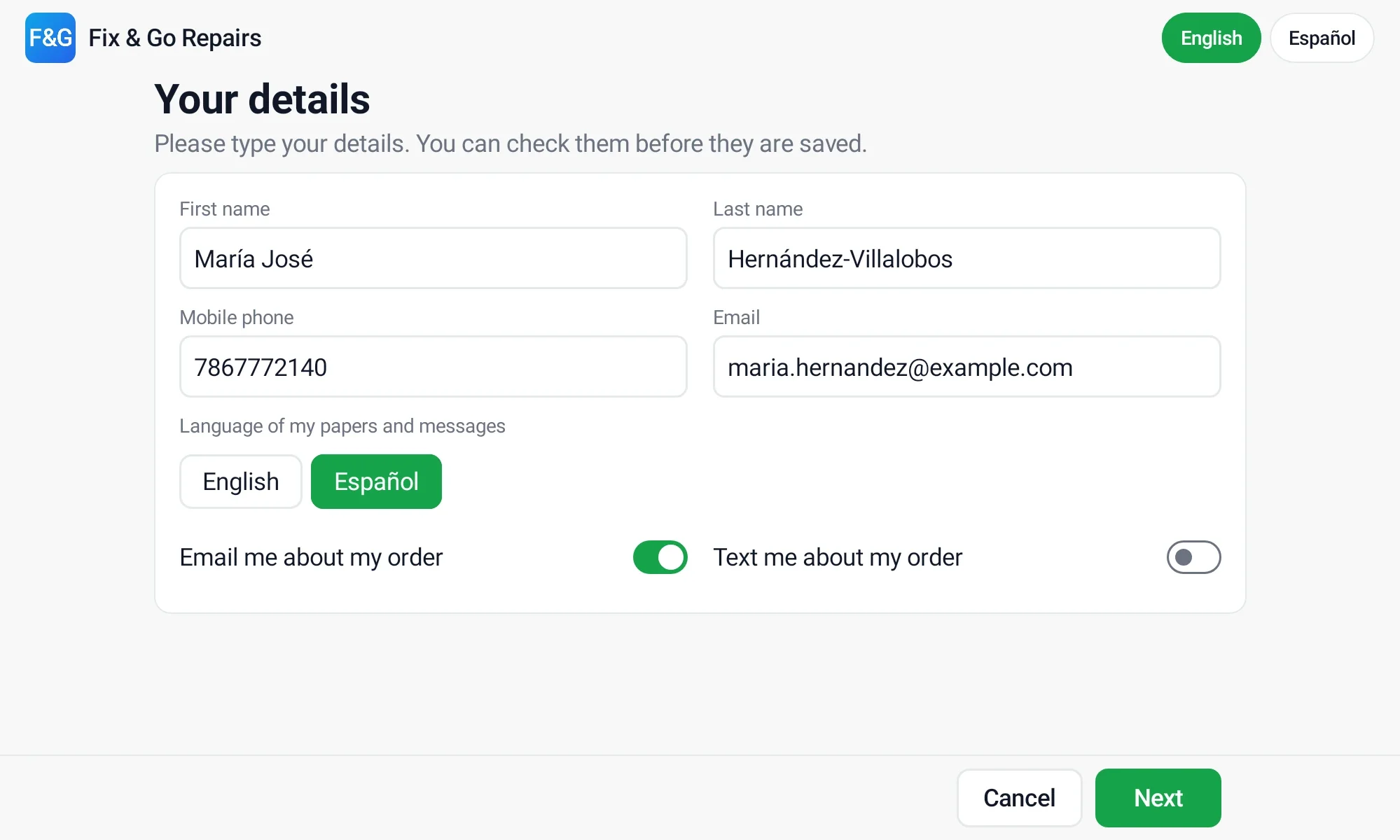
Details are saved by themselves
When the customer presses Done, the details are saved at once: you do not press Save again. A new customer from a ticket is chosen on the ticket and the form moves on to the device. Before a new customer is saved, Ledger Desk checks whether the phone number (or the email with the same first name) already belongs to a customer. If so, that customer is used, nothing is saved twice, the counter shows Already a customer, and the customer screen says Welcome back! instead of the thank-you. Nothing of the stored record is ever shown on the customer screen.
Details that can not be saved (for example a phone number that is not a number) stay in the open form at the counter with their marks, so you can fix them there.
Showing the bill
- Opening a ticket does not put its bill on the customer screen.
- Press Show bill to customer at the top of the ticket. The bill then follows every change you make.
- Press Hide bill from customer to take it off. Every ticket you open starts hidden, and leaving the ticket or the Tickets page takes the bill off the screen.
- A request (details, signature, card payment) always comes before the bill; the bill comes back afterwards.
Good to know
- What the customer types goes only to the form that asked for it. The screen never lists or searches customers.
- While the counter computer is locked, the customer screen shows a lock screen.
- A touch on the customer screen counts as activity, so the request does not give up while the customer reads.
- Closing Ledger Desk closes the customer screen window.
Ads while nobody is served
With Premium, the customer screen can play your own offers, pictures and videos, while nobody is being served, and stop the moment you need it for a customer. See Customer ads.
Last updated November 3, 2026