
The desktop app
On this page
- System requirements
- The installer
- The first start
- The user agreement
- The server address
- Signing in
- The main window
- The sidebar
- The header
- The command palette
- Keyboard shortcuts
- Lists update themselves
- When somebody else changes what you have open
- The tray: closing keeps Ledger Desk running
- Help, support and the product page
- Locking the screen
- Where Ledger Desk keeps its files
- The desktop log and System Info
- What's new
- Updates
- Seats and moving to another computer
- Uninstalling
The desktop app is where the counter works: tickets, customers, bills and everything else. This page explains how it is installed, how it starts, how the window is laid out and where it keeps its files.
System requirements
| What | Needs |
|---|---|
| Windows | Windows 10 or Windows 11, 64-bit. |
| Space | About 130 MB for the app, plus the offline copy of the shop's data in Premium. |
| Screen | Works best at 1280 pixels wide or more. Below 1200 pixels the sidebar folds to icons by itself. |
| Network | A connection to your Ledger Desk server, over the internet or the shop network. |
| Memory | The app usually uses around 300 MB while you work and gives most of it back to Windows after 30 seconds of rest or when the window is minimised. |
The installer
- The wizard speaks English and Spanish.
- For the current user (the default): no administrator password is needed, and the app is installed for the Windows account that runs the installer.
- For everybody: run the installer as an administrator, or choose it in the first dialog. This also adds two Windows firewall rules on private networks: one so a customer tablet can connect to this computer, one for the shop network that computers use to share offline work. Uninstalling removes them.
- With a per-user installation, Windows asks once whether Ledger Desk may use private networks the first time a tablet or another computer tries to connect. Choose Allow.
- A Start menu entry is always made; a desktop shortcut only when you tick it.
- The last step prepares a startup cache so Ledger Desk opens in well under a second afterwards.
- Running a newer installer over an older one upgrades it and keeps your settings.
- The installer, its uninstaller and
Ledger Desk.exeare signed by XTREME SOFTWARE SOLUTIONS & IT; Windows shows that name as the publisher, also under Installed apps, where Ledger Desk links to its product page and support.
The first start
The user agreement
The first time Ledger Desk starts on a computer, the sign-in card shows the User agreement. Scroll to the end of it (the box can not be ticked before), tick I have read and accept the agreement and press Continue. I do not accept (close Ledger Desk) closes the app. When the agreement changes in a later version it is shown once more. You can read it again at any time under Preferences → Behavior → Read the user agreement.
The server address
Right after the agreement, the Server window opens by itself when no server is set. Type the Server address our team gave you and press Test connection. When it says Connected. Server saved. you can sign in. Press F12 on the sign-in screen to open this window again, for example when the shop moves to another address. The window also opens by itself when the server can not be reached. If the address starts with plain http and is not this computer, Ledger Desk warns you, because the connection would not be encrypted.
Signing in
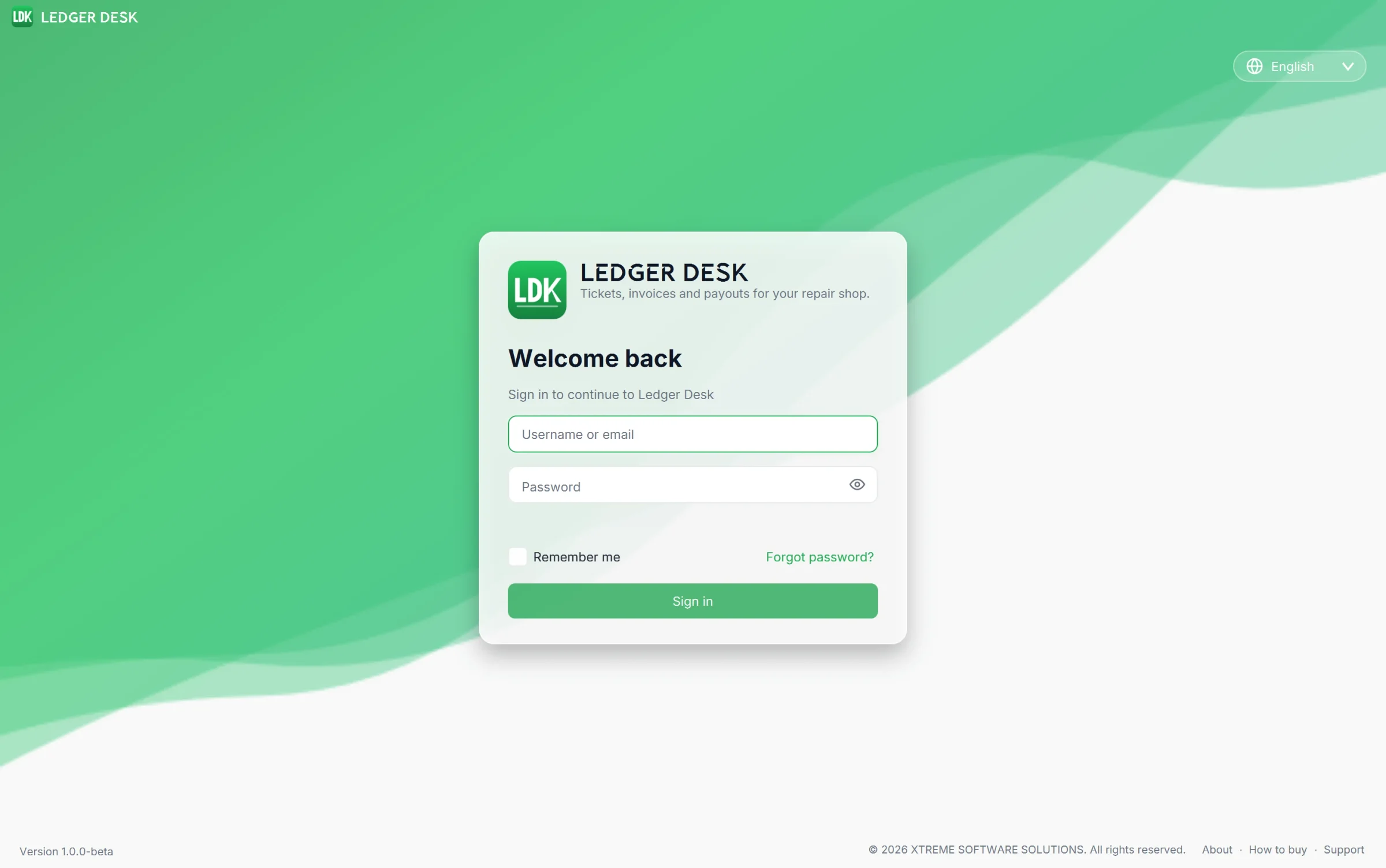
- Type your Username or email and your Password. A warning shows when Caps Lock is on; the eye button shows the password.
- Remember me keeps you signed in on this computer (up to 30 days by default) so the next start goes straight in. Without it a sign-in lasts while you use the app (14 days by default). Never tick it on a computer other people use with their own account.
- Forgot password? asks for the email of your account and sends a 6-digit code (when email is set up for the shop). Type the code and a new password. If email is not set up, ask an administrator to reset your password.
- Two-step verification: after the password, type the 6-digit code from your authenticator app. Use a recovery code takes one of your ten recovery codes instead.
- A new password is asked for at your first sign-in and after an administrator reset your password. It needs at least 10 characters with upper and lower case letters, a number and a symbol.
- If the licence is not activated, or this computer has no seat, the card shows that step instead. See Activate your licence.
- The language of the app is chosen at the top right of the sign-in screen and changes at once.
The main window
The sidebar
The sidebar on the left lists the pages you may use, grouped in sections. Pages your role can not open are not shown. The small round arrow on its edge folds it to icons; hover an icon to see its name.
| Section | Pages |
|---|---|
| Overview | Dashboard, My Earnings, Reports |
| Operations | Tickets (with a count), Quotes, Customers |
| Catalog | Items & Services, Categories, Device Catalog |
| Finance | Payments, Expenses, Commissions, Payouts |
| Team | Users, Roles & Permissions |
| Settings | Company Profile, Agreement & Pickup, Taxes & Numbering, Card payments, Licence, Plugins, Offline review, Printers & Labels, Preferences, Customer screen |
| Developer | Logs, Audit Trail, Scheduled Jobs, Email (SMTP), SMS (Twilio), Templates, Sessions, Security, Backups, System Info |
Your name, role and picture are at the bottom of the sidebar, with the log out button. An accountant who sees papers but not tickets gets Invoices and Receipts lists under Finance.
The header
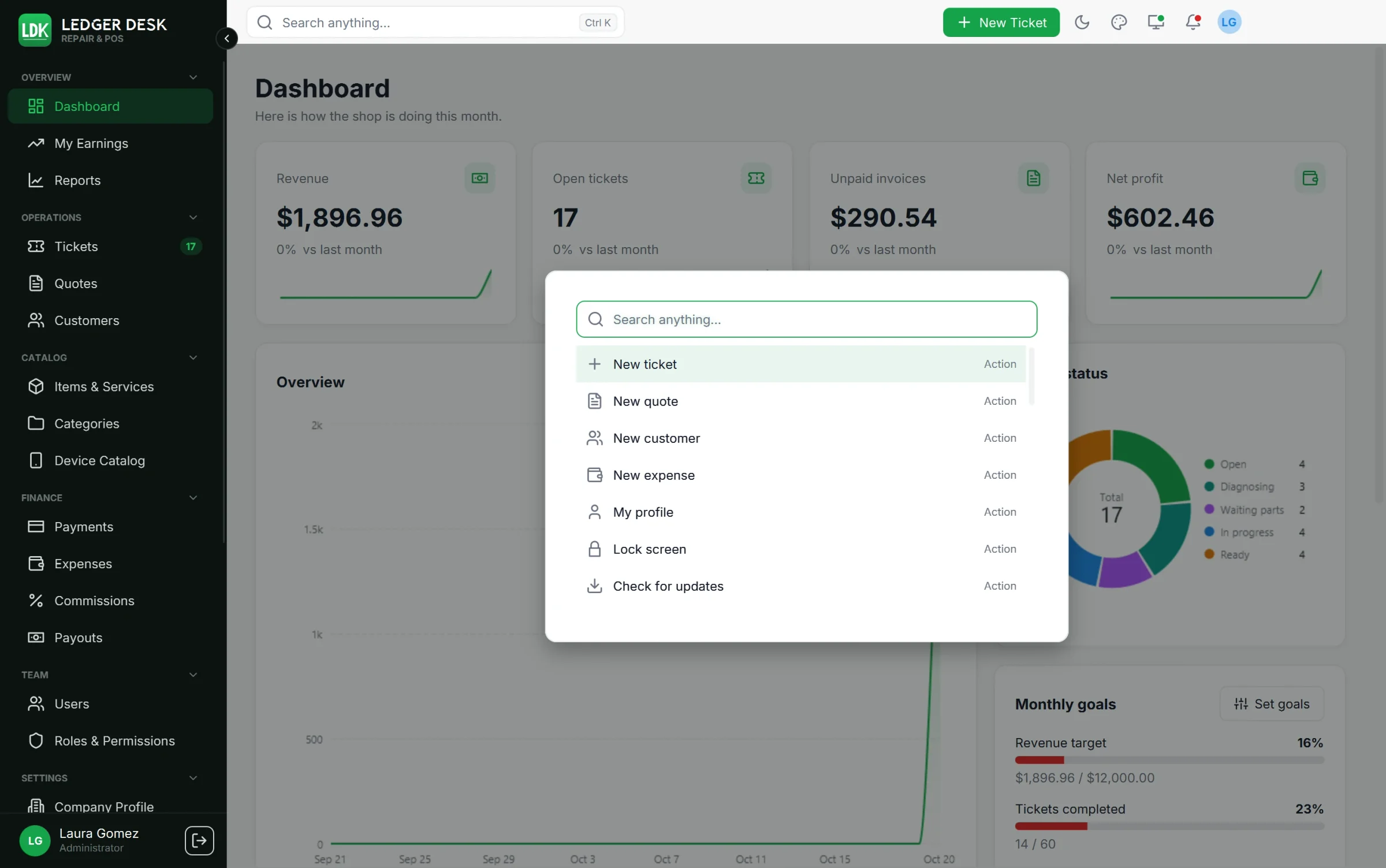
- Search anything... opens the command palette (Ctrl+K).
- + New Ticket starts a ticket from any page.
- The moon or sun button switches between light and dark.
- The palette button chooses the accent color.
- The bell lists your unread notifications; a red dot means something new. Click one to mark it as read, or press Mark all as read.
- The monitor button (when this computer uses a customer screen) shows whether the customer can see it.
- Your picture opens the user menu: My profile, Preferences, Notifications, Lock screen, Help and documentation (these pages), Contact support (the support ticket form of your account on xssit.com), About and Log out. About shows the version, opens What's new and links to the Ledger Desk page, the documentation and support.
- When the window is narrow, the icons fold into a More button.
The command palette
Press Ctrl+K anywhere and start typing. From two characters on, the palette looks up customers, tickets and documents by name, number or phone. It also offers actions (New ticket, New quote, New customer, New expense, My profile, Lock screen, Check for updates, Help and documentation, Contact support) and every page you may open. Use the arrows and Enter, or click.
Keyboard shortcuts
| Keys | What it does |
|---|---|
| Ctrl+K | Search and commands |
| Ctrl+L | Lock the screen |
| Ctrl++ / Ctrl+− | Larger or smaller text |
| Ctrl+0 | Text back to 100% |
| Esc | Close a dialog or a drawer |
| Enter | Confirm the form that is open (for example a payment) |
| Ctrl+Shift+D | Show the welcome on the customer screen |
| F12 | Server address, on the sign-in screen |
A barcode scanner pointed at a ticket label opens that ticket from anywhere. See Barcode scanner.
Lists update themselves
You never need to press refresh. When somebody at another computer adds a ticket, takes a payment or edits a customer, your lists, the badge next to Tickets and the bell follow within a few seconds. When you are deep in a long list, a chip New changes — refresh appears instead of moving the rows under your mouse. Changes are not applied while you have a form open with unsaved input; they wait until you are done.
When somebody else changes what you have open
A form, a drawer or a ticket you have open follows changes made on another computer too, and says who made them:
- If you have not typed anything, the form takes the new version and shows a quiet line such as Updated by Ana on FRONT-PC · 3:45 PM.
- If you typed in other fields, what you typed is kept and the rest is brought up to date.
- If you both changed the same field, the field is marked and you choose: Use their version drops what you typed, Keep mine lets you save yours over theirs. Save waits until you choose.
- If the record was removed on another computer, the form says so and can no longer be saved.
The tray: closing keeps Ledger Desk running
- While you are signed in, Ledger Desk has an icon in the Windows tray, next to the clock. The close button of the window hides Ledger Desk there instead of quitting, so notifications keep coming and you are back in one click. The first time, a card says Ledger Desk is still running.
- Click the icon to open the window again. If the lock time passed while it was hidden, the screen is locked; otherwise you are still signed in.
- Right-click the icon for its menu: Open Ledger Desk, New ticket, Lock screen, Notifications (show desktop notifications, mute for 1 hour, until tomorrow morning or until you turn them on), Keep running in the tray when closed and Quit Ledger Desk. Quit asks first about unsaved work and the backup on close, like closing used to.
- While the window is hidden, minimized or behind another program, a desktop notification card appears next to the tray for each new notification; click it to open Ledger Desk. Muting stops the cards and the sound; the bell still counts.
- These choices are yours on this computer: Preferences → Behavior → Tray and notifications. Turn off Close to the tray and the close button quits again.
- Ledger Desk runs once per computer user. Starting it again (from the Start menu or a shortcut) brings the open window forward instead of opening a second one.
Help, support and the product page
The sign-in screen has About, How to buy (the Ledger Desk page with its plans), Help (this documentation) and Support (the support ticket form of your account on xssit.com) at the bottom right. Once signed in, the same pages are in the user menu, the command palette and the About window. They open in your browser, in the language of the screen.
Locking the screen
- The screen locks itself when nobody touches the app for the time chosen under Preferences → Behavior → Lock screen after (Never, 5, 10, 15, 30 or 60 minutes). The company can set a maximum.
- Lock it yourself with Ctrl+L or Lock screen in the user menu.
- Unlock with your password (and your code, with two-step verification). Nothing you typed is lost.
- Lock screen PIN: on My profile you can Set a PIN of six digits that opens the lock screen of this computer instead of your password. The PIN is kept on this computer only; after 5 wrong tries the password is asked again.
- On a computer nobody else can reach, Preferences → Behavior → Use the lock screen can be switched off: you then stay signed in until the app is closed. It can not be switched off while the company sets a longest idle time.
- While a customer is paying by card on the tablet, Ledger Desk asks before it locks.
Where Ledger Desk keeps its files
| Folder | What is in it |
|---|---|
%APPDATA%\Ledger Desk | Settings of this computer (server address, printers, window size), the remembered sign-in (encrypted), cached pictures, downloaded plugins and updates, and the desktop log in logs. |
Documents\Ledger Desk\Data | The offline copy of the shop's data and the work done offline (Premium), encrypted. When Documents is kept in OneDrive or on a network share, a folder on this computer is used instead. It can be moved under Preferences → Behavior → Offline copy. |
The data of the shop itself (customers, tickets, bills) lives on your server, not on the counter computer.
The desktop log and System Info
When something goes wrong, the app writes what happened to its log. Developers find System Info under Developer: versions of this computer and the server, whether they are compatible, Copy as text for support, and Open log folder. Send the log file to support when asked.
What's new
After an update, Ledger Desk shows once what changed in the new version, over the first page after you sign in. Open it again any time from About in the user menu, or from System Info.
Updates
- Ledger Desk looks for a new version when you sign in and every six hours. Check for updates in the command palette asks at once.
- When one is available you choose Install, Later or Skip this version. A required update can not be skipped: the server no longer works with the older version.
- The installer is downloaded and checked against its signature. Ledger Desk closes, asking first about unsaved work, installs the update and opens again.
- Before signing in: when the server needs a newer Ledger Desk, the sign-in screen says Update required first and installs the update with one button, Download and install, before anybody signs in.
- A final version gets final updates; a beta version gets beta ones.
- Your licence says until when new versions are included (Licence page). Only an installed Ledger Desk can update itself.
- See Plugins and updates.
Seats and moving to another computer
Each counter computer takes one seat of the licence, recognised by its hardware. Copying the Ledger Desk folder to another computer does not take the seat along: the other computer needs a seat of its own.
To move to a new computer:
- Make sure no offline work waits on the old computer (Premium: the banner shows nothing waiting).
- Install Ledger Desk on the new computer. The first sign-in there must be by an Admin or a Developer, which adds the computer to the licence; after that everybody can use it. If every seat is taken, first free one:
- An administrator opens Settings → Licence, picks the old computer and presses Give back the seat. The old computer is then blocked until it is allowed again.
- Set the printers and the customer screen of the new computer; they belong to each computer.
Uninstalling
Open Windows Settings → Apps, find Ledger Desk and choose Uninstall. The settings folder and the offline copy stay on the computer, so a reinstall picks up where it left off; delete them by hand if the computer leaves the shop. Free its seat on the Licence page too.
Last updated November 3, 2026