
You are reading the documentation for 1.0.3. The current version is 1.0.6.Go to 1.0.6
Barcode scanner
On this page
Every ticket label carries the ticket number as a barcode (and, if you choose, as a QR code). Point a barcode scanner at the label and Ledger Desk opens that ticket, from any page of the app. There is nothing to install and nothing to switch on: as soon as a user who can see tickets signs in, the scanner works.
What happens when you scan
- You scan the label on a device (or the barcode at the end of a receipt, which carries the same number).
- Ledger Desk recognises that the characters came from a scanner, not from someone typing.
- It looks the number up among the tickets you are allowed to see.
- It goes to the Tickets page and opens the ticket full screen, with its bill beside it.
If no ticket has that number, a notice says No ticket has the number LDK-000123. Nothing else changes on screen.
Which scanners work
Almost every scanner sold for shops works, as long as it behaves like a keyboard:
| Scanner | Works? | Notes |
|---|---|---|
| USB scanner (wired) | ✓ | Plug it in. Windows sees it as a keyboard; no driver is needed. |
| Wireless scanner with a USB receiver | ✓ | Plug in the receiver. Works the same as a wired one. |
| Bluetooth scanner | ✓ | Pair it with Windows in keyboard mode (often called HID or HID keyboard). |
| 1D (laser or linear) scanner | ✓ | Reads the Code 128 barcode on the label. |
| 2D (imager) scanner | ✓ | Reads the barcode and also the QR code. Choose one if you print small labels. |
| Scanner in serial (COM port) or app mode | — | Switch it to keyboard (HID) mode. |
| Phone camera apps | — | They do not type into the computer. |
Two things matter: the scanner must type the code like a keyboard, and it must send Enter (or Tab) after the code. Most scanners come set up this way.
Set up a scanner
Scanners are set up by scanning special barcodes printed in their manual (the programming or configuration guide). Check these settings:
| Setting | Choose | Why |
|---|---|---|
| Interface or mode | USB keyboard / HID keyboard | Ledger Desk reads the scanner as keyboard input. |
| Suffix or terminator | Enter (CR) or Tab | This tells Ledger Desk the code is complete. |
| Symbologies | Code 128 on; QR code on (2D scanners) | Labels use Code 128; the QR code is optional. |
| Keyboard layout or country | US (same as Windows) | A different layout can turn digits into other characters. |
| Transmit speed or key delay | Fastest / no delay | Ledger Desk tells a scan from typing by its speed. |
| Beep | On | So you hear that the code was read. |
| Prefix | None | Extra characters before the code are not needed. |
Test the scanner first
- Open Notepad on the computer.
- Scan a ticket label.
- You should see the number, for example
LDK-000123, and the cursor should jump to a new line.
If the number appears but no new line, the suffix is missing. If other characters appear (such as &é"' instead of digits), the keyboard layout of the scanner does not match Windows.
How Ledger Desk tells a scan from typing
- A scanner types very fast: Ledger Desk accepts a run of at least 4 characters that arrive on average no more than 50 ms apart, followed by Enter or Tab.
- A pause of more than 0.3 seconds between two characters starts over, so normal typing is never taken as a scan.
- Very long runs (more than 64 characters) are ignored.
Where you can scan
- Anywhere in the signed-in app: the dashboard, a customer, a report. You do not need to open the Tickets page first.
- With the cursor in a text box (a search box, a note): the ticket still opens, and the scanned number is taken out of the box again. An unknown number gives no notice in this case, because you may simply be typing.
- Never in a password field: a scan there is left alone.
- Not while a dialog or form is open, and not while the screen is locked.
- If the page you are on has unsaved changes, Ledger Desk asks first. If you stay on the page, the scan is dropped; scan again after saving.
How the number is matched
- Only letters and digits are compared, without regard to capitals.
LDK-000123,LDK000123andldk-000123all find the same ticket, so a scanner that leaves out the dash still works. - You only find tickets you are allowed to see. A technician who sees only their own tickets gets the notice for a ticket assigned to someone else.
- The number of a replacement bill (for example
LDK-000123-2, made after a bill was voided) is not a ticket number: scan the ticket label instead. - Labels from another shop, or tickets made offline that do not have their final number yet, are not found.
Labels that scan well
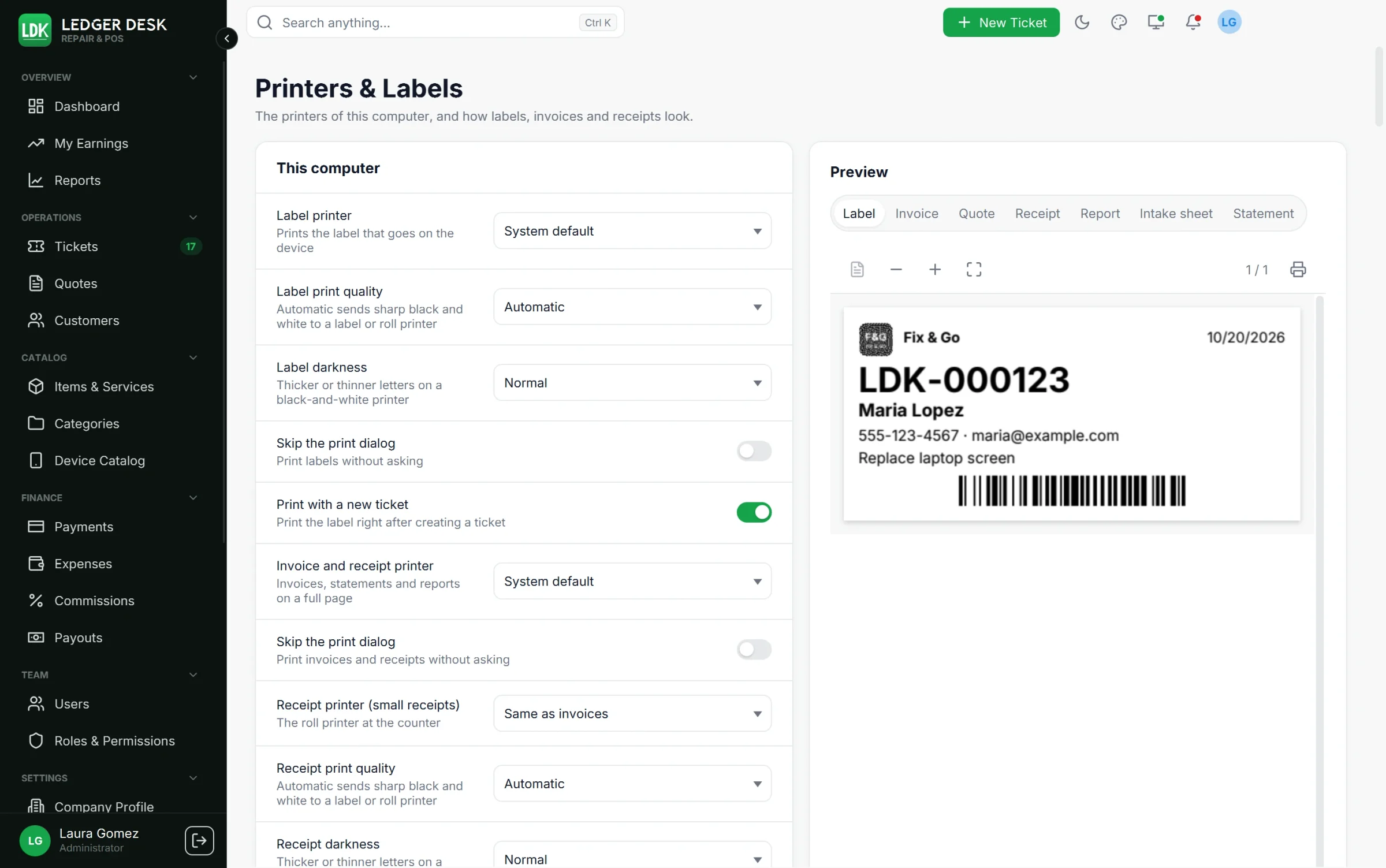
Open Printers & Labels (Settings). The ticket label options that matter for scanning:
| Option | Recommendation |
|---|---|
| Barcode size | Small (narrow bars) is the default and fits most labels. As wide as the label allows gives bigger bars that old or cheap scanners read more easily. |
| Barcode position | Left, Center or Right. Keep the barcode away from the edge of the label so the blank margin on both sides stays clean. |
| Label printer resolution | 203 dpi (most label printers), 300 dpi or 600 dpi. It is printed on the printer or in its manual. A wrong value makes barcodes harder to scan. |
| Label print quality | Sharp black and white (Automatic chooses it for label printers). |
| Label darkness | Darker if the bars look grey or broken, Lighter if they run into each other. |
| QR code | Turn it on if you use a 2D scanner, especially on small labels. |
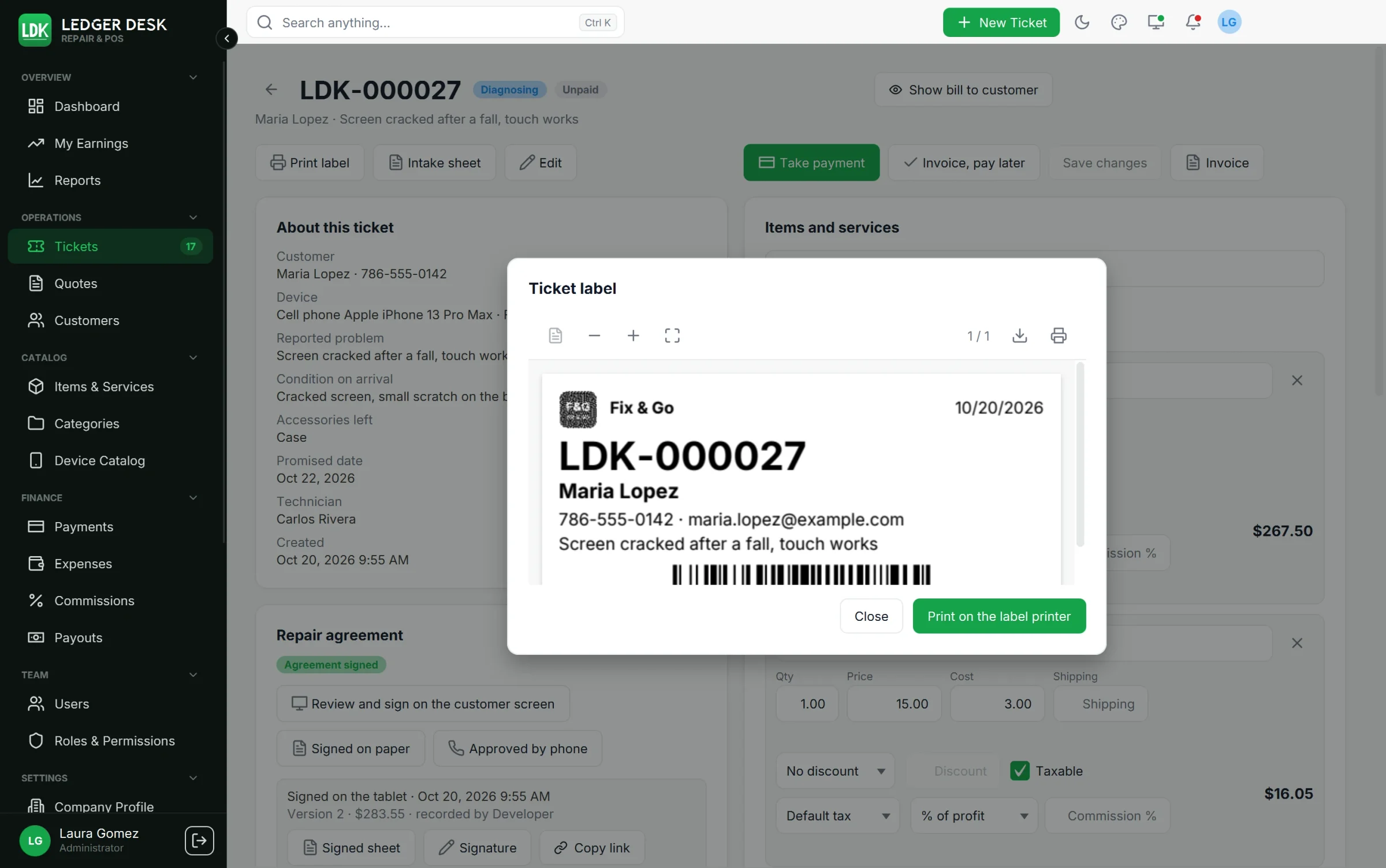
- Ledger Desk never prints a code that cannot be scanned. On a very small label where the barcode does not fit, it prints the QR code instead; if even that does not fit, the label carries the number in text only.
- Press Test page: label printer once: its rulers show whether the size is true, and its fine lines and small letters show whether the print is sharp.
- Set the paper size in the driver of the label printer to the label size.
- Keep labels clean and flat. A label wrapped around a curved edge or covered by tape is hard to read.
Troubleshooting
| Problem | What to do |
|---|---|
| Nothing happens | Test in Notepad. If there is no new line after the number, set the suffix to Enter (CR) or Tab. Make sure no dialog is open and the screen is not locked. |
| The number appears in the search box but the ticket does not open | The scanner is too slow, often a Bluetooth scanner with a delay. Set its transmit speed to the fastest or switch off the key delay. |
| Wrong characters appear | Set the keyboard layout of the scanner to the same as Windows (US recommended). |
| "No ticket has the number..." | The label is from another shop, the ticket was made offline and has no final number yet, or it is assigned to someone else and you see only your own tickets. |
| The QR code is not read | A 1D (laser) scanner cannot read QR codes. Use the barcode, or a 2D scanner. |
| The barcode reads only now and then | Print a test page, check the printer resolution setting, try a darker print or the wider barcode. |
| The scanner opens the ticket but also leaves text in a box | This happens when the box changed the text while you scanned; delete the extra text. |
Last updated October 29, 2026