
You are reading the documentation for 1.0.3. The current version is 1.0.6.Go to 1.0.6
Users, roles and security
On this page
Every person who works at the counter has their own account, with a role that says what they may see and do. The server checks every action again, so hiding a button is never the only protection.
Users
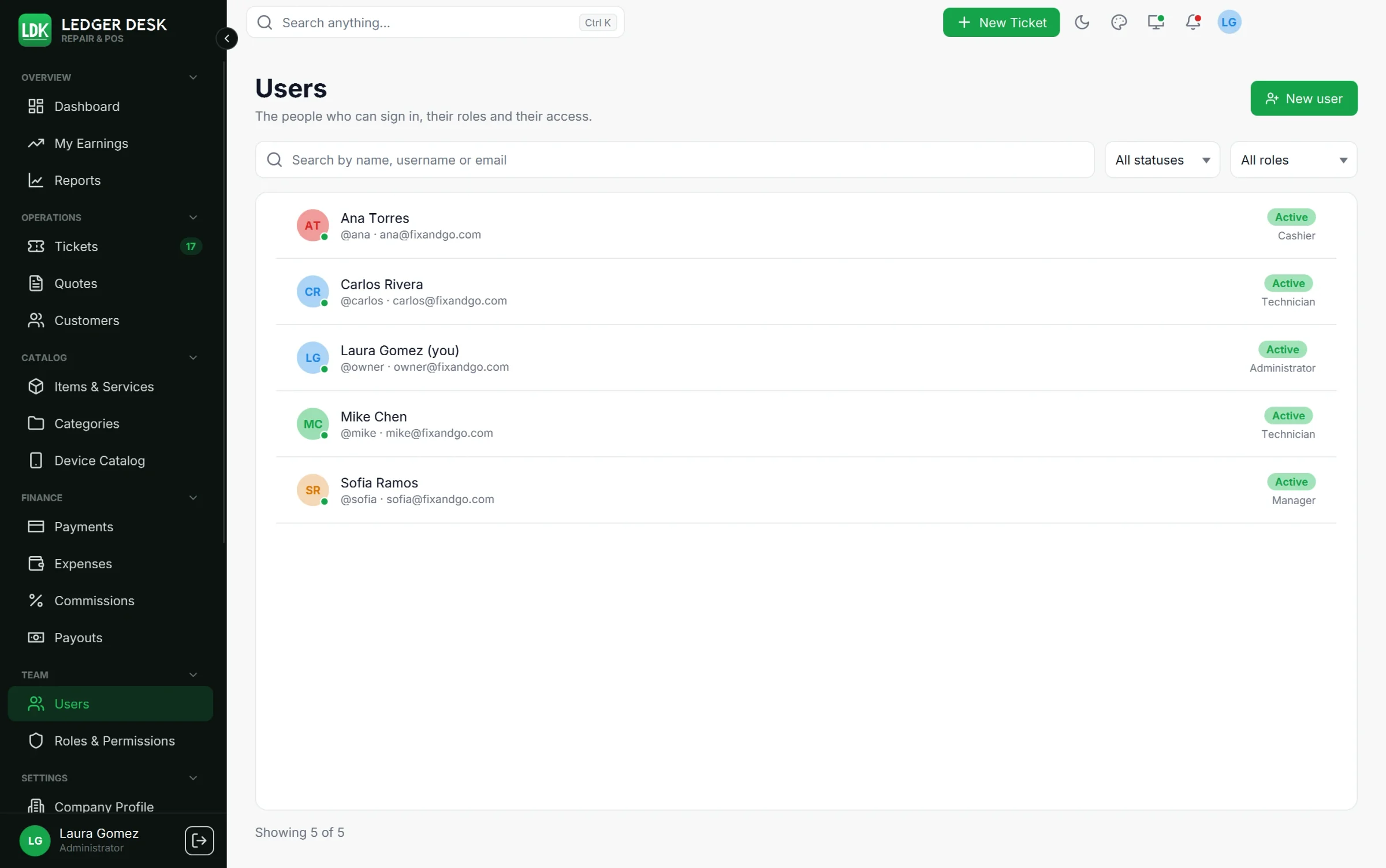
Team → Users lists every account with its role, its status and marks such as Two-step verification and Temporary password. Search by name, username or email and filter by status or role.
A dot on each picture shows who is Online now (green), Away (the app is locked, minimised or untouched for five minutes) or offline, with the computer they use and when they were last seen. The filter Online now lists only the people who are working at this moment.
Create a user
- Press New user.
- Fill in the Full name, Username, Email, optional Phone, the Role and the Language of their emails.
- Optional: a Code for document numbers (2 to 4 letters or digits, for number patterns that use it) and a Commission rate (%) (empty uses the company default).
- Press Create user. A Temporary password is shown once. Give it to the person; they choose their own password at their first sign-in.
Account actions
- Reset password: makes a new temporary password, shown once, and signs the person out everywhere. The old password stops working at once.
- Reset two-step verification: switches it off for a person who lost their phone and signs them out. They set it up again from their profile.
- Disable account: signs the person out at once and keeps them out until Enable account. Accounts are never deleted, so their history stays.
- Your edition sets how many accounts can be active (3, 10 or unlimited). Disable one to make room.
Roles
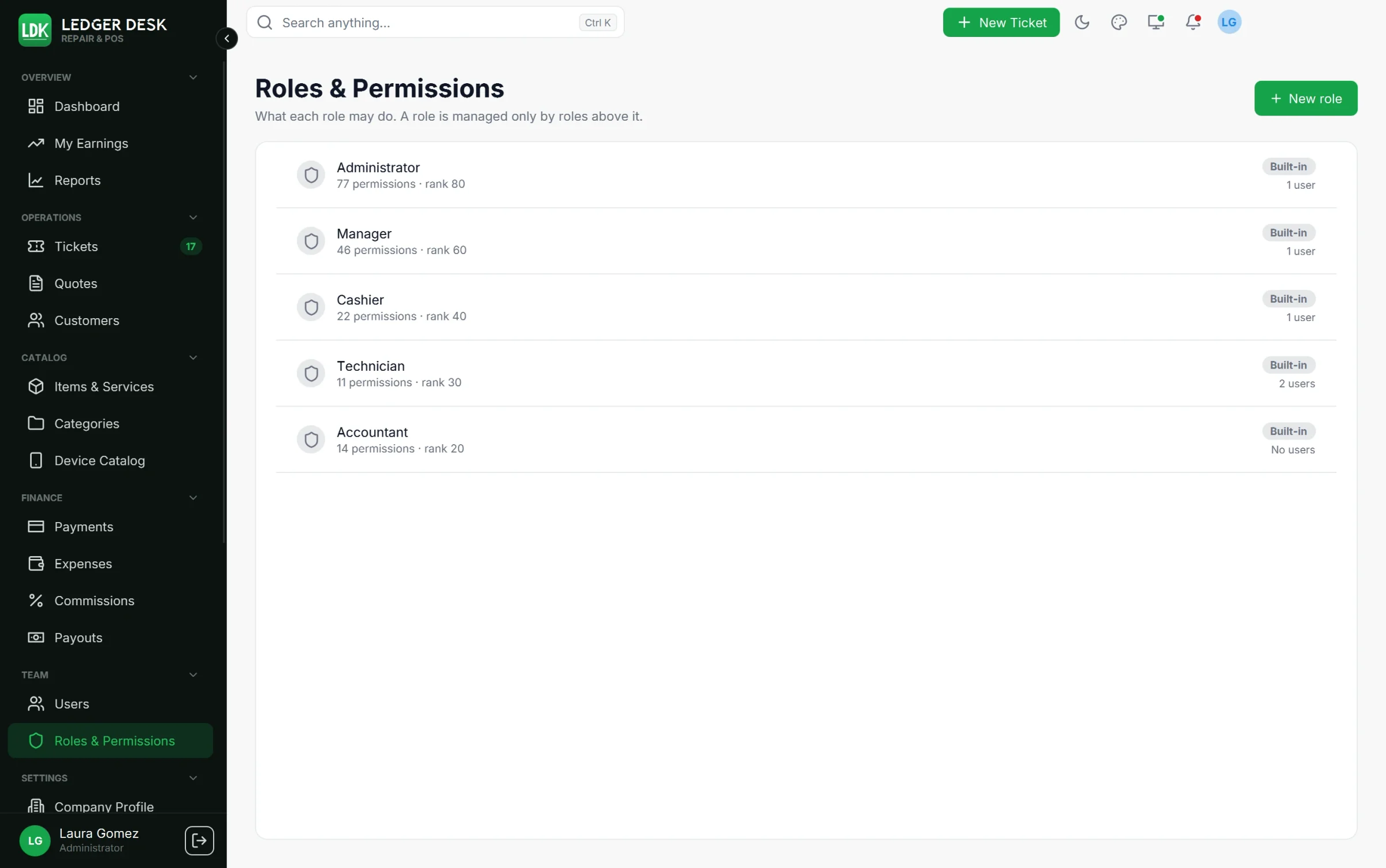
Six roles come built in. Their names and ranks are fixed; administrators may change their permissions (except the Developer role).
| Role | In short |
|---|---|
| Developer | Everything, including the Developer tools (logs, scheduled jobs, mail and SMS settings, templates, sessions, security limits, backups). Locked: it can not be changed. |
| Administrator | Everything except the Developer tools, including the licence, plugins, card payment settings and the audit trail. |
| Manager | Tickets (all, assign, cancel), quotes, customers and export, bills with discounts, payments, catalog with costs, expenses and their approval, job costs, every report with exports, payouts up to approval, users to look at. |
| Cashier | Customers, tickets (create, change status), quotes, bills and payments, catalog without costs, their own reports. |
| Technician | The tickets assigned to them: edit, change status, see device passcodes; quotes to look at; catalog without costs; their own commissions, payouts and reports. |
| Accountant | Read-only finance: invoices and receipts, payments, quotes, expenses, job costs, commissions, payouts and every report with exports. |
Settings of a computer. The permission Change the settings of this computer (printers and labels, customer screen and tablet, offline folder, lock screen) is held by every built-in role except Technician. Technicians change only their own look; an Administrator or Developer can tick it for any role.
Resetting another user's password or two-step verification, and changing their email, are only offered when you hold every permission of that user's role.
Custom roles
- Open Team → Roles & Permissions and press New role.
- Give it a Name and a Rank (1 to 99; higher ranks manage lower ones). Roles carry no commission rate: a technician's own rate is set on the user.
- Tick the permissions, section by section. All / none fills or empties a section. A box you do not hold yourself is greyed out.
- Tick Users of this role must use two-step verification if you want it.
- Press Create role. A role can be deleted while no user has it.
Rules that always apply
- You can only manage users and roles below your own rank, and only give permissions you hold yourself.
- Nobody changes their own role, disables their own account or resets their own password from the Users page.
- Only Developers see Developer accounts and the Developer role, and only they can manage other Developers.
- The last active Developer can never be disabled or demoted.
- Developer accounts are not offered as ticket technicians to other users. A shop owner who uses the Developer account should keep a second account (Administrator) to be assigned tickets.
What a technician sees
- A technician sees only the tickets assigned to them, and the customers, devices and history of those tickets.
- Quotes: only the ones they wrote or that became one of their tickets.
- If the role is allowed to create tickets, a ticket a technician creates is assigned to them. Handing it to somebody else is done by a person who may assign tickets.
- Costs and profit stay hidden unless the role may see costs; the technician always sees their own commission.
Your own account
Open My profile from the user menu.
- Picture: Change picture, drag and zoom inside the circle, then Use this picture.
- My details: name, phone, language of your emails. Changing your email asks for your password.
- Change password: your other sessions are signed out.
- Two-step verification: Turn on, scan the code with an authenticator app (Google Authenticator, Authy, 1Password and others), type the 6-digit code and your password, then save the ten recovery codes (each works once). Turn off with your password and a code. New recovery codes replaces the old ones.
- Where you are signed in: every computer with an open session; sign one out, or Sign out other sessions.
- Notifications: choose which notices you get in the app and by email. Security notices (a new sign-in on your account) are always on.
Passwords and sign-in protection
- A password needs at least 10 characters with upper and lower case letters, a number and a symbol. It can not be your username or email, a well-known password, or one of your last 5 passwords.
- After 5 wrong passwords in a row the account locks for 15 minutes; the next lock lasts 4 times as long and later ones 96 times (about 24 hours). A successful sign-in starts over. A lock ends by itself; the sign-in screen still just says Invalid credentials, so nobody can tell whether an account exists.
- A reset code from Forgot password? lives 15 minutes and allows 5 tries. At most 3 codes an hour are sent to one email.
- You get an email when your account is used from a new computer, when your password or two-step verification changes, and when your account is disabled (when email is set up).
Security limits (Developers)
Developer → Security holds the limits above as settings: tries before the account locks, length of a lock, longer lock each time, sign-in attempts per address, requests per user, two-step codes, reset codes, how long a sign-in lasts with and without Remember me, how many old passwords are refused, and the largest picture, attachment and backup file that may be uploaded. Changes apply as soon as they are saved. The password character rules and the 10-character minimum can not be lowered.
Sessions and the audit trail
- Developer → Sessions lists every open session of the shop; select one to sign it out.
- Audit Trail (Administrators and Developers) keeps who did what and when: sign-ins and failed sign-ins, password and two-step changes, user and role changes, issued, voided and corrected documents, payments, refunds, payouts, settings changes and messages sent. Filter by action, text or days; each entry shows its details and a reference to copy.
- Every error message shows a reference such as
Ref 7f3a9c2e. The same reference is in the logs and the audit trail, so support can find the exact moment.
The idle lock
The screen locks itself after the minutes each person chooses in Preferences. On Company Profile, Screen lock limit (minutes, 0 = none) sets the longest time anybody may choose. Unlocking needs the password of the person who was signed in, or the six-digit PIN they set for this computer on their profile. While a company limit is set, nobody can switch the lock screen off.
Last updated October 29, 2026