
You are reading the documentation for 1.0.3. The current version is 1.0.6.Go to 1.0.6
Quotes
On this page
Quotes (Standard and Premium editions), in the Operations section of the sidebar, are offers for a customer: what a job or a sale would cost, and until when the price holds. A quote has a customer, a title (What it is for, for example camera installation, eight cameras), lines like a bill, a discount, notes and a Valid until day (30 days from today unless you change it).
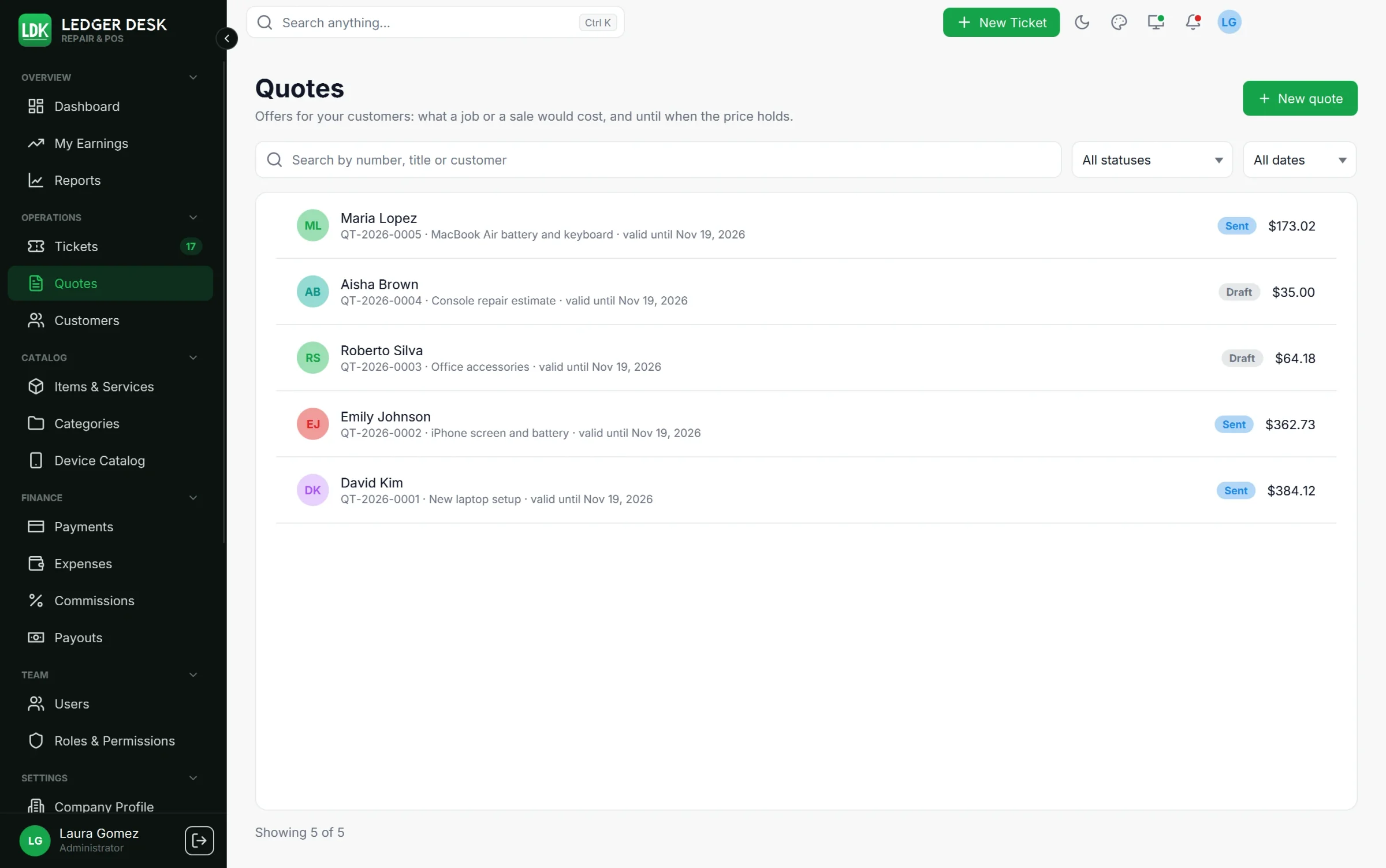
The Quotes page
- Search by number, title or customer, filter by status (including Expired) and by date.
- Press New quote, or use New quote in the command palette.
- A quote gets its number (for example
QT-2026-0012) as soon as it is saved. A deleted draft does not give its number back. - Technicians who see only their own work see the quotes they wrote and those that became one of their tickets.
Write a quote
- Choose the customer. It cannot be changed after the first save.
- Fill in What it is for and Valid until.
- Add lines from the catalog or custom lines, with discounts per line and a Discount on the whole quote. Taxes work as on a bill.
- Add Notes printed on the quote.
- Press Save.
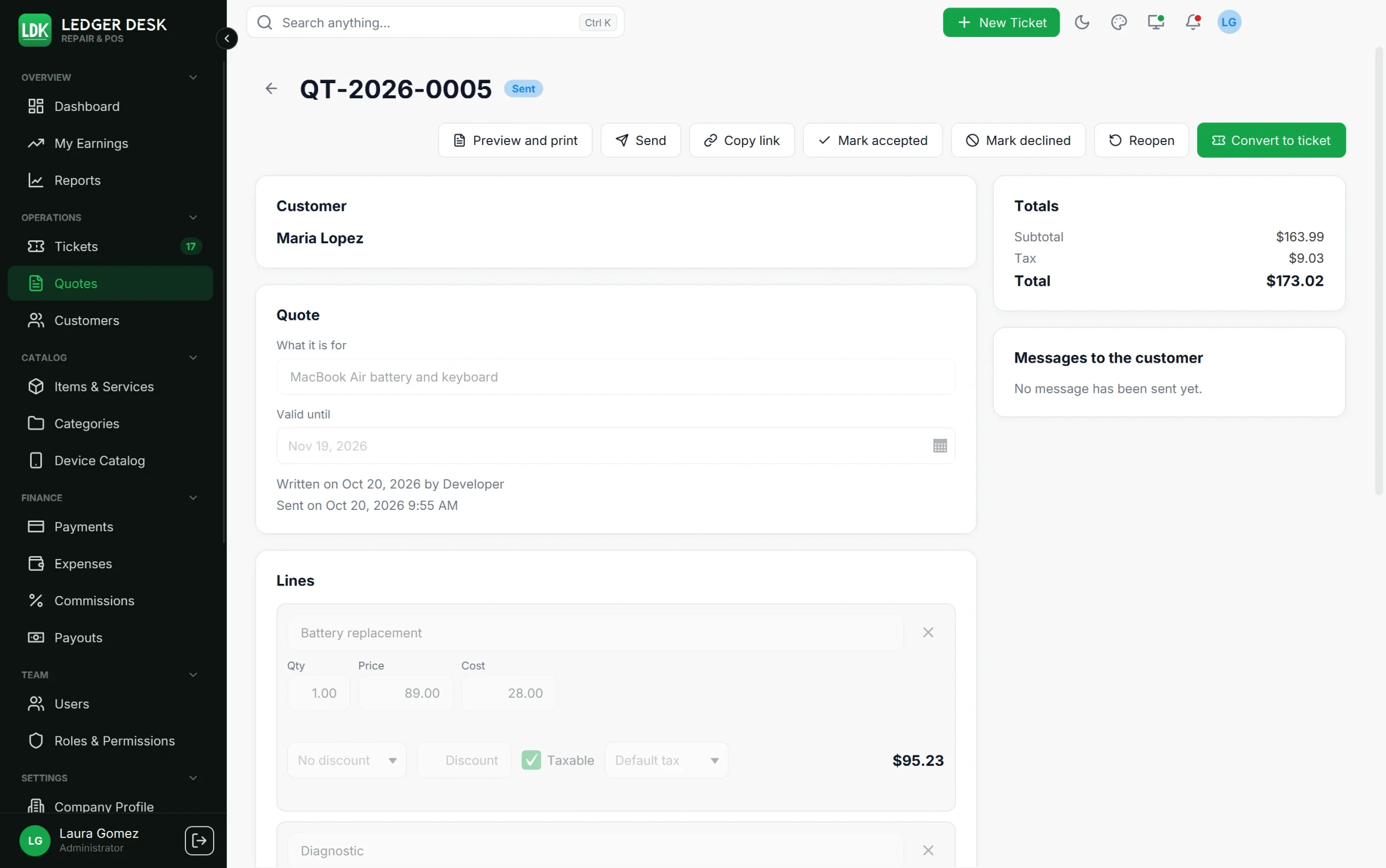
Statuses
| Status | Meaning | What you can do |
|---|---|---|
| Draft | Being written; it can be changed. | Save, Send, Mark as sent, Mark accepted, Mark declined, Convert to ticket, Delete |
| Sent | Sent to the customer or handed over. | Reopen, Mark accepted, Mark declined, Convert to ticket |
| Accepted | The customer said yes. | Convert to ticket, Mark declined |
| Declined | The customer said no. | Reopen |
| Converted to ticket | A ticket was made from it; the quote links to it. | Open the ticket |
A draft or sent quote past its valid-until day shows as Expired. It can still be accepted or converted if you honor the price.
Prices are fixed when the quote leaves
A draft always follows today's taxes. When it is sent, marked as sent or accepted, its prices and taxes stay exactly what the customer was told. To change a sent or declined quote, press Reopen: it becomes a draft again and is worked out with today's taxes the next time it is saved.
Send, print and share
- Send emails the quote with its PDF, or sends an SMS. The customer must have agreed to the channel. A draft becomes sent. While the message is still waiting to go out, the button waits.
- Mark as sent is for a quote you printed and handed over or told on the phone. No message goes out.
- Preview and print shows the quote on A4 or Letter and prints it on the document printer. Quotes can have a page style of their own and their own size on Printers & Labels.
- Copy link (on a quote that is not a draft) makes a link that opens the quote in a web browser, to paste into a message of your own.
- Mark accepted and Mark declined (with an optional reason) record the customer's answer.
Convert to ticket
Press Convert to ticket on a draft, sent or accepted quote. In the same step you can add the Device (optional: a sale or an installation needs none), the technician and the promised date, then press Create the ticket. A new ticket is created for the customer, and its bill carries the lines, discounts and taxes of the quote. The quote is closed and links to the ticket, and the customer gets the usual ticket created message.
If tax rates changed between the quote and the day the bill is issued, lines on default tax are charged the rate of the issue day. Check the bill before you take the payment.
Delete
Delete removes a draft for good; its number is not used again. A quote that was sent stays for the record: decline it instead.
Last updated October 29, 2026