
You are reading the documentation for 1.0.3. The current version is 1.0.6.Go to 1.0.6
Offline mode
On this page
With the Premium edition, every computer keeps a complete, encrypted copy of the shop records its user may see. When the server or the internet is down, the counter keeps working from that copy: you find customers and tickets, create tickets, take cash and print receipts. When the server is back, everything done meanwhile is sent by itself, in order. There is no time limit: an outage of a day or of two weeks is worked through the same way.
How you notice it
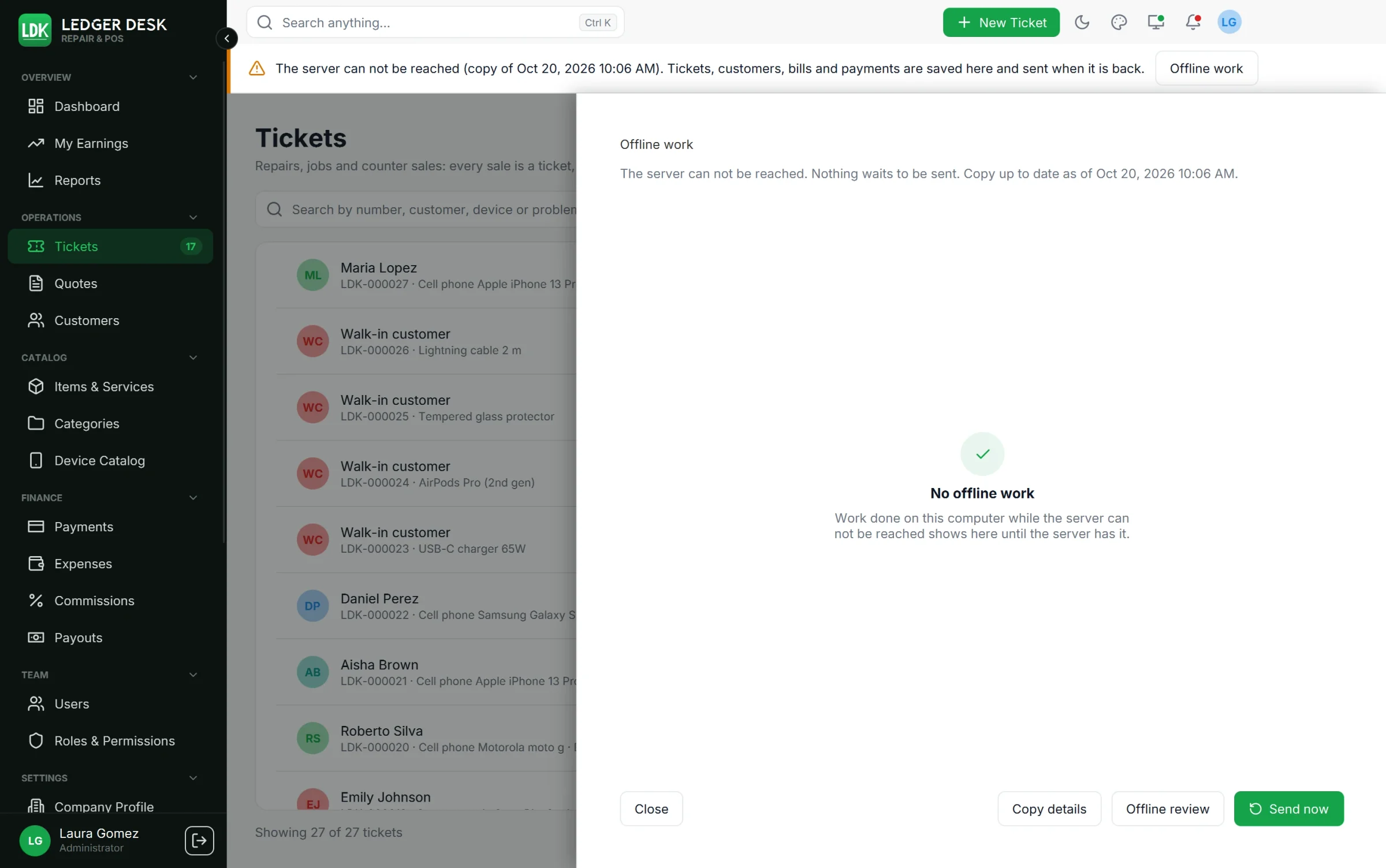
- A banner at the top says: The server can not be reached. Tickets, customers, bills and payments are saved here and sent when it is back. It also says how recent the copy is.
- The banner has a button Offline work with the number of actions waiting, for example Offline work (3 waiting).
- Parts of a page that need the server say Available when the server can be reached again.
- When the server answers again you see Connected to the server again, and the waiting work goes out.
What works offline
| Works offline | Needs the server |
|---|---|
| Find customers, tickets, catalog items and bills | Card payments on the tablet (Stripe, Zettle) |
| Create and edit customers | Refunds, voids and corrections of a bill |
| Create and edit tickets and counter sales, add notes, change the status | Quotes, expenses, payouts and commissions |
| Change the lines of a bill, issue it and take cash, check or other payments | Reports and dashboard figures |
| Add and remove files on tickets | Phone approvals of the repair agreement |
| Repair agreement signatures on the customer screen or the tablet | Settings, users, roles, the licence and backups |
| Print labels, intake sheets, receipts and invoices from the copy | Sending email and SMS (they go out after the server has the work) |
| Sign in and unlock with your password (see below) |
The customer screen and the tablet talk to the counter computer, not to the server, so welcome, details, signatures and the bill keep working. Only card payments stop: the bill says why, and you take cash, a check or another payment by hand.
Signing in while offline
- You can sign in offline only on a computer where you signed in with the server before.
- Use your password. Accounts with two-step sign-in use the password only while offline.
- The lock screen also unlocks with your password while offline.
- After five wrong passwords, offline sign-in waits 15 minutes (longer after more tries).
- When the server is back, you are asked to sign in again normally; your waiting work is then sent.
Temporary numbers
Numbers are issued only by the server. A ticket made offline gets a temporary number that starts with OFF-, followed by a code of the computer and a counter. It is printed on the label and the receipt. When the work reaches the server, the ticket gets its real number (for example LDK-000123). The temporary number is kept with the ticket, so a search or the barcode scanner still finds the ticket by the label already stuck on the device. The ticket screen says Made offline on this computer (or names the computer).
When the server is back
- Each computer sends its waiting work by itself, in the order it was done, with the moment it really happened.
- Nothing is lost and nothing is paid twice: an action that was sent before is recognised and not applied again.
- The work is applied as the person who did it, with the rights that person has now.
- Two people who changed the same customer or ticket are merged field by field. A customer created twice (same phone) becomes one customer.
- What can not be applied as it was goes to the Offline review list (below). Nothing is thrown away.
The Offline work panel
Open it from the banner button, or from the System Info page. It shows:
- each action that waits, with its temporary number, its state (Waiting, Needs a sign-in, Done, Merged, On review, Refused), its tries and the last answer;
- how up to date the copy is;
- Send now to try at once instead of waiting for the next automatic try;
- Copy details for our support team;
- a link to Offline review.
Needs a sign-in means the work waits until that person signs in on this computer while the server is reachable.
Offline review
Settings → Offline review lists offline work the server could not apply as it was, for people with Decide about offline work that waits for review (Admins and Developers by default). People who may decide are told in the bell. Each entry shows the record, the field, what was done offline, what is on the server now, and who did it on which computer. Typical cases:
- The same field was changed differently offline and on the server: the server value was kept.
- A status step taken offline was no longer possible: it is a note in the ticket's timeline.
- Money taken offline did not fit the bill: it was not recorded and is kept here.
- The person may no longer do this: applying it does it as you.
Choose Apply the offline work, Keep the server value, or write a note and Mark handled. Show decided entries shows the history.
Computers of one shop help each other
While the server is away, the computers of the shop show each other the tickets, customers and payments made offline, over the shop network. So a ticket made at the front counter is found at the back bench, and a computer that reaches the server again can send the work of a computer that still can not. Only computers of this shop take part, and everything sent is encrypted.
- It is on by default. Switch it per computer on Preferences → Behavior: Share offline work with the other computers of the shop.
- Network port: the computers meet on 47830 and find each other on 47831. Every computer of the shop uses the same port.
- Addresses of other computers: only needed when the network keeps the computers from finding each other. Type the name or address of each computer, separated by commas.
- Computers met lists the computers this one met and how many of their actions it holds.
- Windows may ask once whether Ledger Desk may use the network: allow it on private networks.
- Work done on a computer after it was removed from the licence is not accepted.
Where the copy lives
- The copy is kept in
Documents\Ledger Desk\Data. When Documents is kept in OneDrive or on a network share, a folder on this computer is used instead. - Change it on Preferences → Behavior → Offline copy with Choose folder... (or back to the Usual folder). The new folder is used from the next sign-in, and each person signs in once with the server before they can sign in offline again.
- The folder can not be changed while offline work still waits to be sent from it.
Privacy and safety
- The copy is encrypted, and each user has a copy of their own: it holds only what that person may see.
- The copy is kept up to date continuously while the server is reachable; the sync never deletes a record from it.
- Work done offline is signed, so it can not be changed before it reaches the server.
- Keep computers locked when you leave them: the lock screen works offline too.
Last updated October 29, 2026