
You are reading the documentation for 1.0.4. The current version is 1.0.6.Go to 1.0.6
Messages
Ledger Desk tells customers what happens with their job, and tells staff about their account and their pay. Every message exists in English and in Spanish and is written in the language of the person who gets it. Email is included in every edition; SMS (through Twilio) is part of Premium.
When a customer gets a message
| Message | When it goes out | Channels |
|---|---|---|
| Ticket created | A ticket is created for the customer | Email, SMS |
| Ticket status changed | The status changes and Tell the customer about this change was ticked | Email, SMS |
| Ticket ready for pickup | The ticket moves to Ready (also by dragging on the board) | Email, SMS |
| Invoice issued / Receipt issued | The bill is issued; the PDF is attached | Email, SMS |
| Payment received | A payment is recorded on an issued bill | Email, SMS |
| Invoice overdue | Once, when an invoice passes its due date unpaid | Email, SMS |
| Quote sent | You press Send on a quote | Email, SMS |
| Repair agreement signed | The customer accepted the agreement (if the option is on) | Email, SMS |
| Pickup reminder / Pickup deadline passed | Before and after the pickup deadline | Email, SMS |
A customer message goes out only when all of these are true:
- The channel is switched on (email or SMS settings below).
- The template has that channel switched on (Send this message by email / by SMS).
- The customer agreed to the channel (May receive email, May receive text messages) and has an email address or phone number.
- It is not the walk-in customer and not a deleted customer.
Send to customer on a bill and Send on a quote send on purpose: they still respect the customer's consent. While a copy is still waiting to go out, the button waits, so a customer never gets the same document twice. A message never stops the action that caused it: if the mail server is down, the ticket or payment is saved anyway and the message waits.
Staff get their own emails: password reset code, password changed, two-step sign-in changed, new sign-in alert, account disabled, payout paid, the daily summary and failed backups. Each person can switch some of them off on their Profile.
Email (SMTP)
Open Email (SMTP) in the Developer section of the sidebar. Tab Settings:
- Send emails on or off.
- Server, Port, Security, User name and Password of your mail provider.
- Sender name, Sender address, Reply-to address and Copy every email to (BCC).
- Advanced options, only for servers that need them: sign-in method (including OAuth 2 with a refresh token), lowest TLS version, trusted host names, the greeting name and the bounce address.
- Send a test message sends a real email with the saved settings and shows the Conversation with the server (passwords hidden), with a Copy button for your mail provider's support.
Stored passwords are never shown again. Leave the box empty to keep the stored one, or type to replace it.
SMS (Twilio)
Open SMS (Twilio). Turn on Send SMS and enter the Account SID with the Auth token (or an API key SID and API key secret), the Sender number or Messaging service SID, and the Default country code. Send test sends a real SMS and shows Twilio's own answer.
Templates
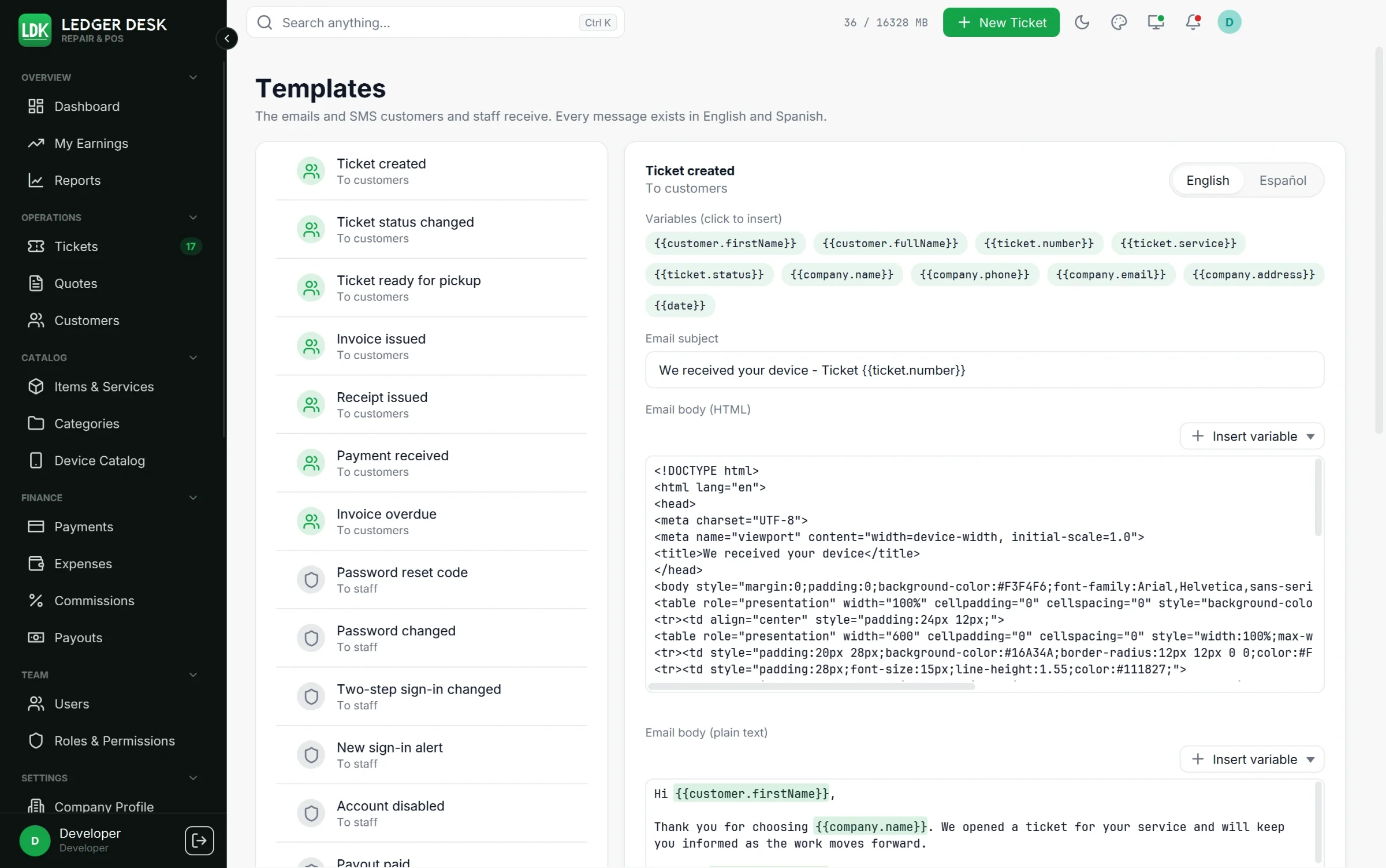
Open Templates. The list on the left is grouped To customers and To staff; the editor on the right has a tab per language.
- Each message has an Email subject, an Email body (HTML), an Email body (plain text) and, for customer messages, an SMS text.
- Variables (click to insert) or Insert variable add values such as
{{customer.firstName}},{{ticket.number}},{{invoice.total}}or{{company.name}}. Each message offers only the variables it can fill; an unknown one is marked and cannot be saved. - Links:
{{invoice.link}},{{quote.link}}and{{agreement.link}}show a link to the document when document links are on (see Repair agreement and pickup).{{invoice.codes}}carries the codes of digital products once the bill is paid in full. - The SMS counter shows the characters and how many SMS parts the text takes: 160 per SMS with the standard alphabet, 70 with special characters (Spanish accents count as special).
- The Live preview fills the message with sample data as you type; Open the HTML email in the browser shows the full email.
- Save template, or Reset to default to bring back the original text.
- A message without a template in a language is sent in English.
Delivery log
Tab Delivery log on the Email and SMS pages lists every message, newest first, with its status (queued, sent, failed), the number of tries and the provider's answer. Search by recipient and press Enter.
- A message that fails is tried again by itself, after 2, 4, 8 and 16 minutes. After the fifth try, or when the provider refuses it for good, it is marked failed.
- Send again queues a failed message once more.
- The Messages tab of a customer, and the message lists of a ticket and a quote, show their own messages and whether they were delivered; they update by themselves when a message goes out.
These pages are for Developers. Ask your administrator if a message does not arrive.
Last updated October 31, 2026