
You are reading the documentation for 1.0.4. The current version is 1.0.6.Go to 1.0.6
Repair agreement and pickup
On this page
When a customer leaves a device, Ledger Desk can ask them to accept your repair agreement: they check the work and the price, read the terms and sign. Ledger Desk keeps exactly what they accepted. Once they have accepted, a ready device has a pickup deadline, and the customer gets reminders before it passes.
All of it is set on Agreement & Pickup in the Settings section of the sidebar, which has four tabs: Agreement, Signing, Pickup and reminders and Document links. Changing them needs the right to edit the company.
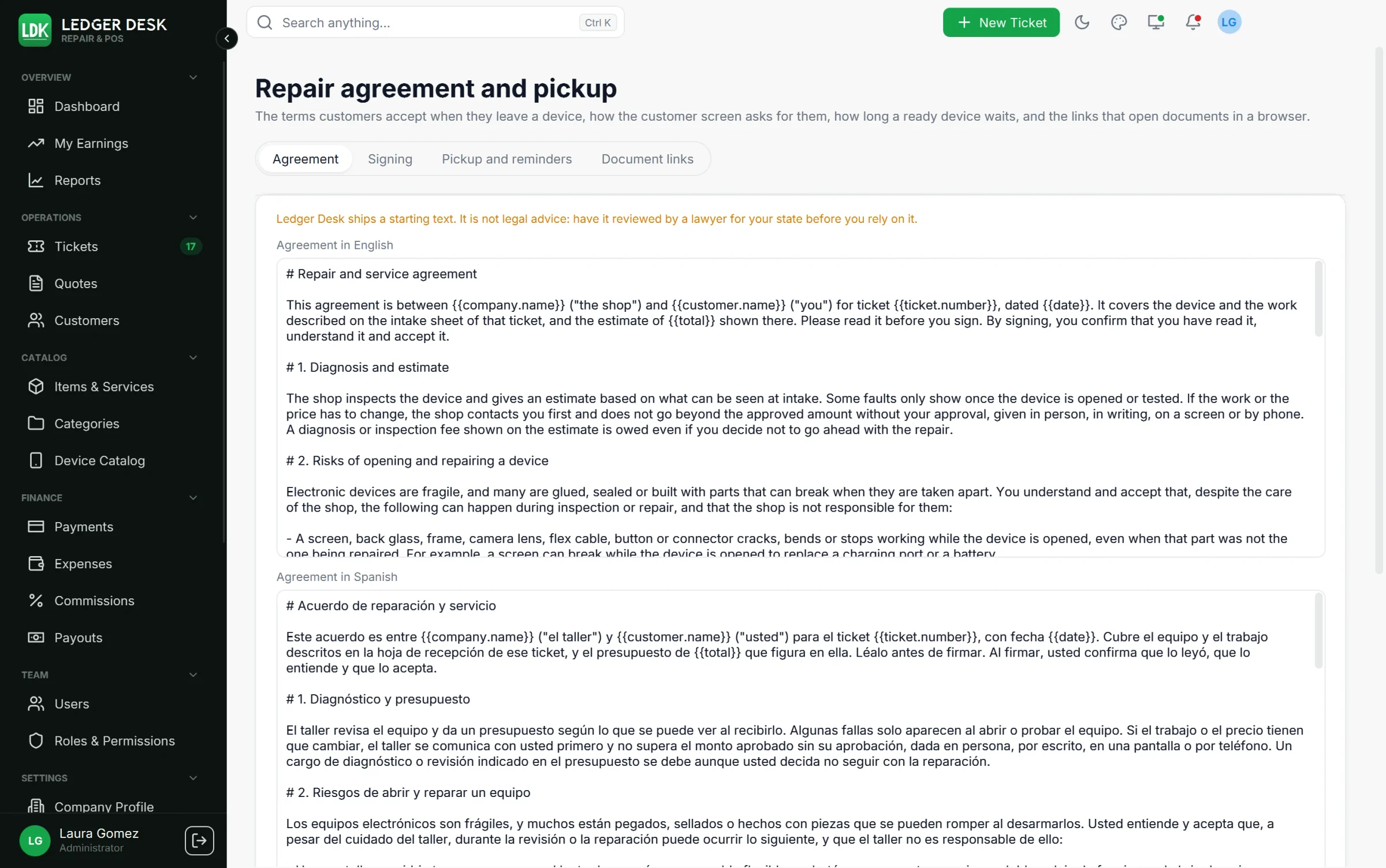
Ledger Desk ships a starting text. It is not legal advice: have it reviewed by a lawyer for your state before you rely on it.
The agreement text
The agreement is written in English and in Spanish (Agreement in English, Agreement in Spanish). The starting text covers the diagnosis and estimate, the risks of opening a device, parts that were not repaired, data and backups, water resistance, replacement parts, the warranty, sales tax, the pickup deadline, the limit of liability, your right to change these terms and the electronic signature.
Values filled in for you
Press a value under the text boxes to insert it where you were writing; hover it to see what it holds.
| Value | What it holds |
|---|---|
{{company.name}} | The name of the shop |
{{pickup.days}} | Days a ready device must be picked up within |
{{warranty.days}} | Days of the warranty on a repair |
{{ticket.number}} | The ticket number, for example LDK-000123 |
{{customer.name}} | The name of the customer |
{{device}} | The device, for example Apple iPhone 13 Pro |
{{device.serial}} | The serial number or IMEI of the device |
{{service}} | The service asked for (the problem the customer reported) |
{{total}} | The total the customer accepts, with tax |
{{promised.date}} | The day the device was promised for |
{{date}} | The day the customer signs |
The first three are Shop values, the same on every ticket. The others are Values of the ticket being signed. A value a ticket does not have (a serial number, a promised day) reads as nothing. A line that starts with # is a heading; a line that starts with - is a point.
Versions
Press Save as a new version. Every save is a new version, listed under Versions with how many customers accepted it. A customer who signed keeps the exact words of the version they signed. Reset to the text of Ledger Desk saves the shipped text as a new version. Changing the pickup or warranty days also makes a new version.
How the customer accepts
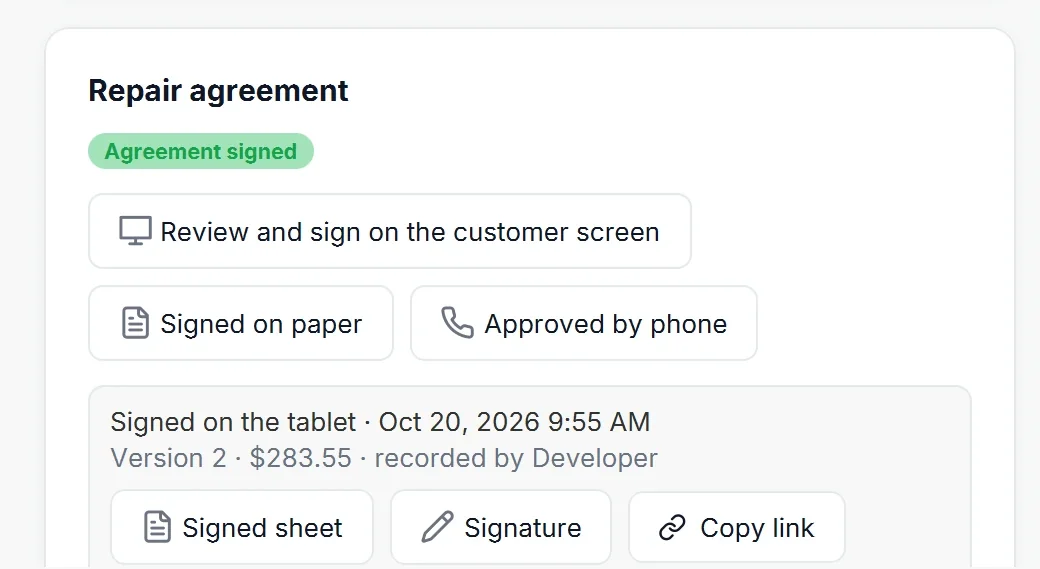
A ticket with a device has a Repair agreement block. Until the customer accepts, the ticket and the list show Agreement not signed.
On the customer screen or the tablet
Press Review and sign on the customer screen. The second monitor or the tablet shows three steps:
- The intake sheet: the device and its condition, the service asked for, every price, the tax and the total. A line under the total says that prices are subject to sales tax unless the customer is exempt; an exempt customer sees that no tax is charged.
- The agreement, in the language chosen on the screen, with the pickup deadline highlighted. The customer ticks I have read and accept the repair and service agreement.
- The signature, with a finger or a stylus.
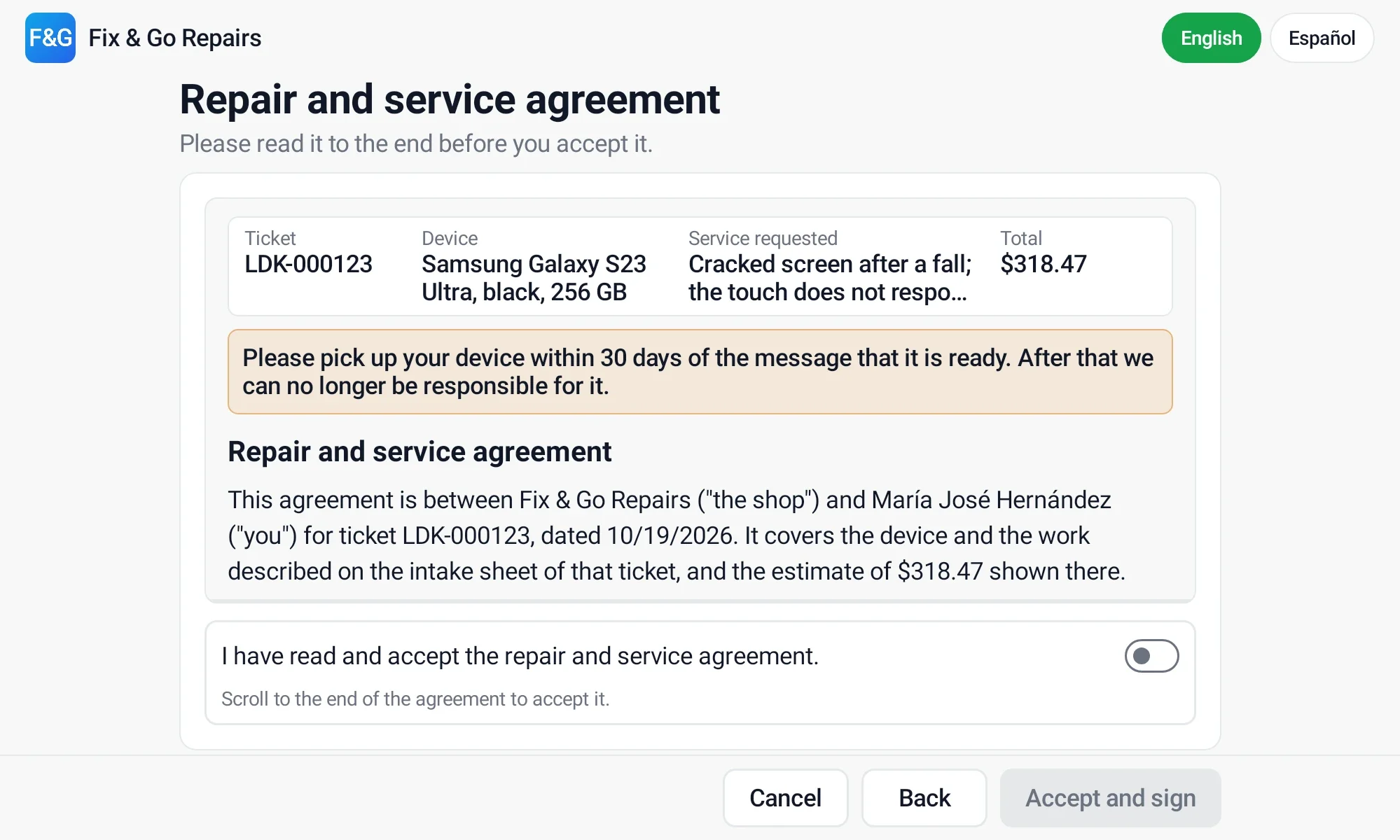
Ledger Desk then keeps, unchanged: which version was accepted, for what total and when, how it was accepted (monitor or tablet) and in which language, the signature, and the signed intake sheet exactly as it was at that moment. If the price or the agreement changed while the customer was reading, nothing is saved and you are asked to request the signature again.
Signed on paper
Print the Intake sheet from the ticket: it carries the current agreement and empty signature lines. Have it signed, keep the paper, and press Signed on paper to record who saw it signed and when.
Approved by phone
When the customer cannot come in, for example after the price changed, press Approved by phone. Fill in Who you spoke to, the Number called and, if you want, what was agreed, then press Record. The customer's newest signature from an earlier ticket is shown with the record, clearly marked as a signature on file plus a phone approval, never as a new signature. The customer receives the updated sheet by email.
When the price goes up
If the bill later rises above the total the customer accepted, the ticket shows Needs new approval. Ask again on the customer screen or record a phone approval. A newer acceptance stands beside the older one, which is marked as replaced; acceptances are never changed or deleted.
The signed sheet
The history of the block lists every acceptance with its Signed sheet and Signature. A signed sheet also has Copy link. The customer receives the signed sheet by email when they agreed to email and the option is on.
Signing options
| Setting | What it does |
|---|---|
| Ask when a repair ticket is created | The customer screen shows the review as soon as a ticket with a device is saved. |
| Show the intake sheet first | The customer checks the device, the work and the prices before the agreement. |
| Read to the end before accepting | The customer can only tick I agree after scrolling to the end. |
| Print the signature on the sheet | The signed sheet shows the signature on its line. |
| Email a copy to the customer | Sends the signed sheet (template Repair agreement signed). |
| Confirm by text message | Also sends a short text message, with a link to the sheet when document links are on. |
| Allow approval by phone | Shows the Approved by phone button. |
Pickup deadline and reminders
- Days to pick up a ready device (30 by default) are counted from the day the ticket becomes Ready. The ticket and the list show Pick up by with the date, and the ready message tells the customer the date.
- The deadline only applies once the customer accepted the agreement. Tickets without an accepted agreement get no deadline and no reminders.
- Reminders before the deadline: the days before the deadline a reminder goes out, separated by commas (for example
14, 7, 3, 1, 0; 0 is the deadline day). Each reminder goes out once. - Notice after the deadline: one last message the day after the deadline passed.
- If a device becomes ready again, its deadline and reminders start over.
- Reminders are sent every morning by a scheduled job (its time can be changed on Scheduled Jobs). The words are the templates Pickup reminder and Pickup deadline passed, in English and Spanish; see Messages.
- Warranty days is the warranty the agreement names.
Document links
A text message cannot carry a PDF, so it carries a link instead. Links open invoices, receipts, quotes and signed intake sheets in a web browser, on a small page with Open the PDF and Save a copy.
- Turn on Send links to documents.
- Enter the Public address of the server, starting with
https://. Our setup team gives you this address; without it no link is made. - Choose Days a link works (30 by default). After that the link shows that it expired.
- Each link opens exactly one document and is a long random key; links are kept out of search engines.
- When a bill is voided, every link to it stops working.
- Copy link on a bill, a sent quote or a signed sheet makes a new link and copies it, to paste into a message of your own.
- The default email and SMS templates show the link when there is one.
Last updated October 31, 2026