
You are reading the documentation for 1.0.4. The current version is 1.0.6.Go to 1.0.6
Preferences
On this page
Preferences (Settings → Preferences, or from the user menu) belong to you. Most of them are saved with your account and follow you to any computer of the shop; a few belong to the computer and say so. Every change applies at once, with a live preview beside the settings. Reset to defaults asks first, then brings back the look, language, region and behaviour of a new installation; the printers of this computer stay.
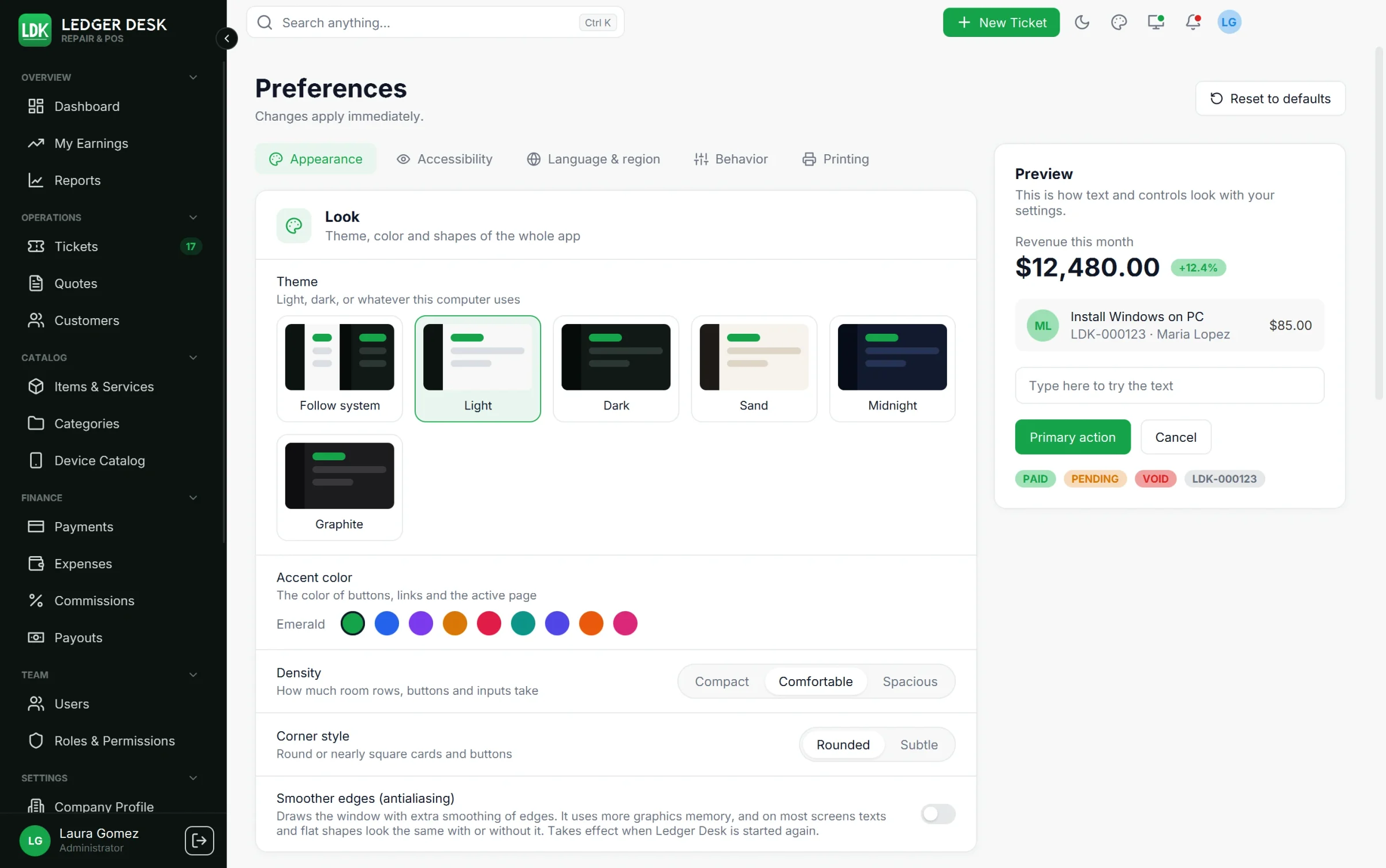
Appearance
Look
- Theme: Follow system, Light, Dark, Sand (warm paper), Midnight (deep navy) or Graphite (neutral greys). Follow system switches with Windows.
- Accent color: Emerald, Blue, Violet, Amber, Rose, Teal, Indigo, Orange or Pink. It colors buttons, links and the active page. The palette button in the header changes it too.
- Density: Compact, Comfortable or Spacious: how much room rows, buttons and inputs take.
- Corner style: Rounded or Subtle.
- Smoother edges (antialiasing), this computer only: extra smoothing of edges, using more graphics memory. On most screens nothing looks different. It takes effect after a restart; Restart now does it for you.
Text
- Text size from 85% to 150%, with the buttons Small, Default, Medium, Large and Extra large. Everything in the app grows with it. Ctrl++, Ctrl+− and Ctrl+0 work anywhere.
- Font: Inter (default), Atkinson Hyperlegible (made for easy reading) or the system font.
- Numbers font: Same as text, or JetBrains Mono to line digits up in amounts and numbers.
- Printed papers keep their own sizes; the text size of the screen never changes them.
Sidebar
- Start collapsed: open the app with the icon-only sidebar.
- Count badges: show the number of tickets and unpaid invoices next to their pages.
- Tickets count, this computer only: what the number next to Tickets adds up: Not delivered (the default), In work, Ready for pickup or No count.
- Section headings: group the sidebar under Overview, Operations, Catalog...
Charts
- Animation, Data labels (values on the charts) and Grid for the charts of the dashboard and the reports.
Accessibility
- High contrast: Follow system, On or Off. Stronger text, borders and focus rings. Follow system uses the high contrast setting of Windows.
- Reduce motion: Follow system, On or Off. Shortens or skips animations.
- Reduce transparency: solid backgrounds behind dialogs and menus.
- Focus ring: always outline the control that has the keyboard focus.
- The Keyboard shortcuts card lists what works without the mouse.
Language & region
- Language: Follow system, English or Español, for every screen. Papers and messages for a customer follow the customer's language, not this choice.
- Time zone: the company time zone (default), this computer's, or any zone. It only changes how times are shown to you; reports always use the zone of the company so everybody sees the same totals. When your zone differs, times show the zone and the tooltip shows both.
- Clock: 12 hours (3:45 PM) or 24 hours (15:45).
- Date, Long date, Time and Date and time: the usual way of the language, a preset such as
MM/dd/yyyyordd/MM/yyyy, or a pattern you type, with a live preview. A pattern that can not work is refused with the reason. - Week starts on: the first column of calendars and the start of "this week".
- Numbers: Like the language,
1,234.50or1.234,50. This changes how you read and type numbers on screen; amounts keep the dollar sign in front, and printed papers are not affected.
Behavior
The settings of the computer itself (its printers, its customer screen and tablet, its offline folder and shop network, the lock screen switch and the lock time) are only shown to people whose role may change the settings of this computer. Everybody changes their own look, language, sidebar, charts and tray choices.
- Start page: the page that opens after you sign in, or Where I left off.
- Use the lock screen, this computer only: off, you stay signed in until the app is closed and are never asked for a password or a PIN to come back. Only for a computer nobody else can reach; not possible while the company sets a longest idle time.
- Lock screen after: Never, 5, 10, 15, 30 or 60 minutes without use. The company can set a maximum; longer choices are then not offered.
- Notification sound: a short sound when a new notification arrives.
- Tray and notifications, yours on this computer: Close to the tray (the close button hides Ledger Desk next to the clock and it keeps running), Desktop notifications (a card next to the tray while Ledger Desk is hidden, minimized or behind another program) and Mute notifications for a while (no cards and no sound; the bell still counts).
- Unsaved changes: ask before closing a form, leaving a page or signing out with changes that were not saved.
- Read the user agreement: the terms you accepted on this computer, with the version and date.
- Offline copy (Premium), this computer only: the Folder of the offline copy (Choose folder... or Usual folder; it can not move while offline work waits to be sent), Share offline work with the other computers of the shop, the Network port, Addresses of other computers for networks where computers do not find each other, and the Computers met. See Offline mode.
- Customer screen: a summary of the customer screen of this computer, with a button to its page. See Customer screen and tablet.
Printing
The This computer card holds the printers of this computer, saved the moment they change: the Label printer, Receipt printer (small receipts) and Invoice and receipt printer; Label print quality and Receipt print quality (Automatic, Sharp black and white, Smooth with grey and color); Label darkness and Receipt darkness (Lighter, Normal, Darker); Print the label right after creating a ticket; Print labels without asking and Print invoices and receipts without asking. Paper sizes and the look of labels and documents are company settings on Printers & Labels. See Printing.
Defaults for new users
On Company Profile, an administrator chooses what a user who never saved preferences starts with:
- Use my current look for new users makes your own preferences the starting point.
- Choose the starting settings edits them without changing your own screen (look, sidebar, charts, accessibility, language, clock and first day of the week); Copy my current settings fills the form with yours.
- Back to the built-in look goes back to the defaults of Ledger Desk.
- Users who already saved preferences keep theirs.
Before the first sign-in, the sign-in screen already uses the last look of this computer, so it looks the same as when you left.
Last updated October 31, 2026