
You are reading the documentation for 1.0.4. The current version is 1.0.6.Go to 1.0.6
Tickets and bills
On this page
- The Tickets page
- Open a new ticket
- 1 Customer
- 2 Device and problem
- 3 Work
- Statuses
- Handing a ticket to another technician
- Notes, timeline and files
- The ticket screen
- The bill
- Lines
- Taxes and exempt customers
- Take the payment
- Print, send and share
- Refunds, voids and corrections
- Sales over the counter
- Labels, the intake sheet and the scanner
- The Tickets count in the sidebar
A ticket is the whole job: the customer, the device when there is one, the work, the notes, the files and its bill. Ledger Desk has no separate invoice screen. The customer pays on the ticket, and the receipt or invoice carries the ticket number (for example LDK-000123).
The Tickets page
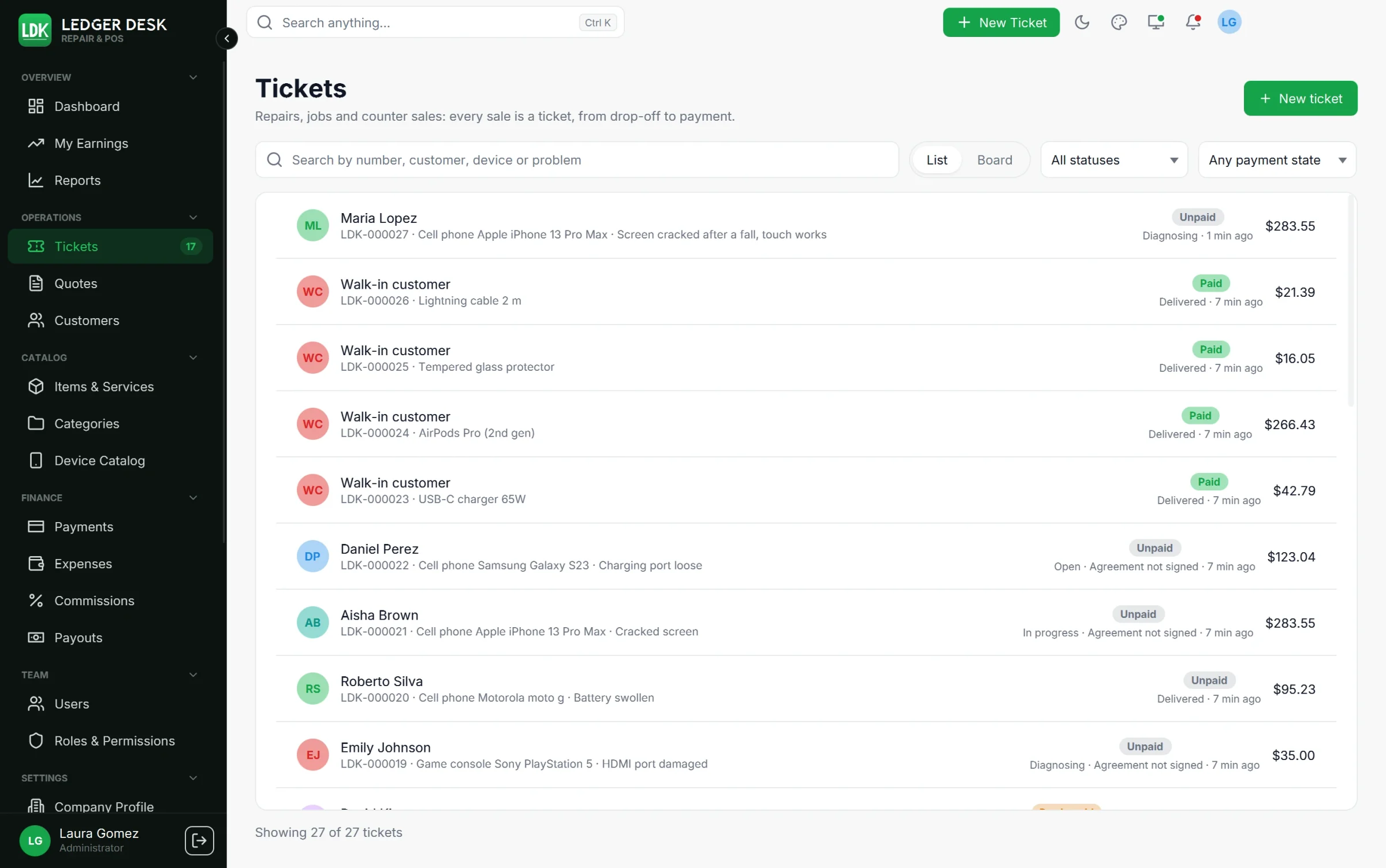
Open Tickets in the Operations section of the sidebar. Two views are offered at the top: List and Board.
- Search by number, customer, device or problem. A ticket number can be typed whole or in part:
123,#123andLDK-123all findLDK-000123. A phone number can be typed in any format. - Technician filter: All technicians or one person (shown when more than one person can be assigned).
- Newest first / Oldest first changes the order of the list and of every board column.
- Status filter: All statuses or one status.
- Payment filter: Any payment state, Not billed yet, Money owed, Overdue or Paid.
- The list leaves out the tickets that are finished: delivered with nothing left to collect, or cancelled. Tick Show finished & cancelled to see them too. A delivered ticket that still owes money always stays in the list.
- Each row shows the payment state as a colored pill (for example Paid, Partly paid, $45.00 due or Overdue), the customer, the number and the problem, and a third line with the device and the technician (Unassigned when nobody has it yet).
On the Board every status is a column. Drag a card to another column to change its status; only the steps allowed from that status are accepted. Dropping a card on Ready also tells the customer, if they agreed to receive messages, and moving a card to Cancelled asks first.
The board fills the window and each column scrolls on its own. Drag a card up or down in its column to put the tickets in the order you work on them; the order is kept on this computer, and new tickets come first. Show delivered and cancelled adds the closed columns. Drag a column by its head to move it; the order of the columns is kept on this computer too.
Ledger Desk remembers for you, on this computer, whether you use the List or the Board and which order you chose.
Technicians who may only see their own work see only the tickets assigned to them. A list on the page updates by itself within a few seconds when a colleague changes a ticket.
Open a new ticket
Press + New Ticket in the header, New ticket on the Tickets page, or New ticket in a customer's drawer. The form has three steps.
1 Customer
- Search by name, phone or email and pick the customer.
- Press New customer to add one on the spot. With a customer screen connected, Let the customer type this hands the form to the customer, who types their own name, phone, email and address. A customer who is already on file is recognised and chosen instead of being saved twice.
- Tick Walk-in customer (no name) for a sale over the counter without a name.
2 Device and problem
- Pick the device from the device catalog: kind of device, then brand, then model (for example Cell phone > Apple > iPhone 13 Pro Max). The search box looks through all three levels at once. If it is not listed, press Not listed? Type the device instead.
- Add the Serial number, the Condition on arrival, the Accessories left and the Reported problem.
- A Device passcode can be stored. It is encrypted, and only staff with the right to see device passcodes can show it.
- A sale over the counter needs no device and no problem text.
3 Work
- Add services, parts and products from the catalog (Add from the catalog), or press Add a custom line for something that is not in the catalog.
- Choose the Technician and the Promised date.
- The Estimate shows the total before tax and discount; both are decided on the bill.
- Press Create ticket, or Create and print label to print the label on your label printer at once.
A ticket must say what it is about: either a problem in step 2 or at least one line in step 3.
A technician who may not assign tickets to others and does not see everyone's tickets owns every ticket they create: it is assigned to them automatically. A manager can hand it on later.
Statuses
| Status | Meaning | Can move to |
|---|---|---|
| Open | Just received. | Diagnosing, In progress, Waiting approval, Cancelled |
| Diagnosing | Looking for the problem. | Waiting approval, Waiting parts, In progress, Cancelled |
| Waiting approval | An estimate was given and the customer must agree. | In progress, Waiting parts, Cancelled |
| Waiting parts | A part was ordered. | In progress, Cancelled |
| In progress | Being worked on. | Waiting parts, Waiting approval, Ready, Cancelled |
| Ready | Done, waiting for the customer to pick it up. | In progress, Delivered, Cancelled |
| Delivered | Handed back. The ticket is closed. | — |
| Cancelled | Stopped. The ticket is closed. | — |
To change the status, open the ticket, choose the new status under Move to..., add optional details (what was found, which part is awaited) and press Apply. Tick Tell the customer about this change to send the message by email or SMS; it only goes to customers who agreed to that channel.
A ticket whose bill was already issued cannot be cancelled: void the bill first.
Admins and Developers may move a ticket to any other status, also out of the normal order or back from a closed one, for example to fix a ticket delivered by mistake. Such a step is marked in the audit trail.
Handing a ticket to another technician
Staff who may assign tickets choose the new person under Technician and press Assign. When the ticket already had a technician, Reason for the change (optional) lets you say why.
- Every change of technician is kept on the ticket's timeline: who had it, who has it now, who made the change, when, in which status and the reason. A ticket taken from somebody stands out in the timeline.
- The technician who lost the ticket is told in the bell and by email, and the other people who assign tickets are told in the bell, so nobody's work is moved without them knowing.
- The lines of a bill that is not issued yet move to the new technician, so the commission follows the work.
Notes, timeline and files
- Notes: type a note and press Add note. Tick The customer may see this note for a note the customer is allowed to see; the others are internal.
- Timeline: every status step and note, newest first, with who did it and how long the ticket stayed in each status.
- Files: press Attach file to add photos of the device, a supplier's invoice or any PDF, PNG or JPEG file. A ticket holds up to 20 files. The size limit is set by your administrator (10 MB by default).
The ticket screen
Opening a ticket shows it full screen: the ticket on the left and its bill on the right. On a narrow window the two parts become tabs, Ticket and Bill and payments. Back to the tickets returns to the list.
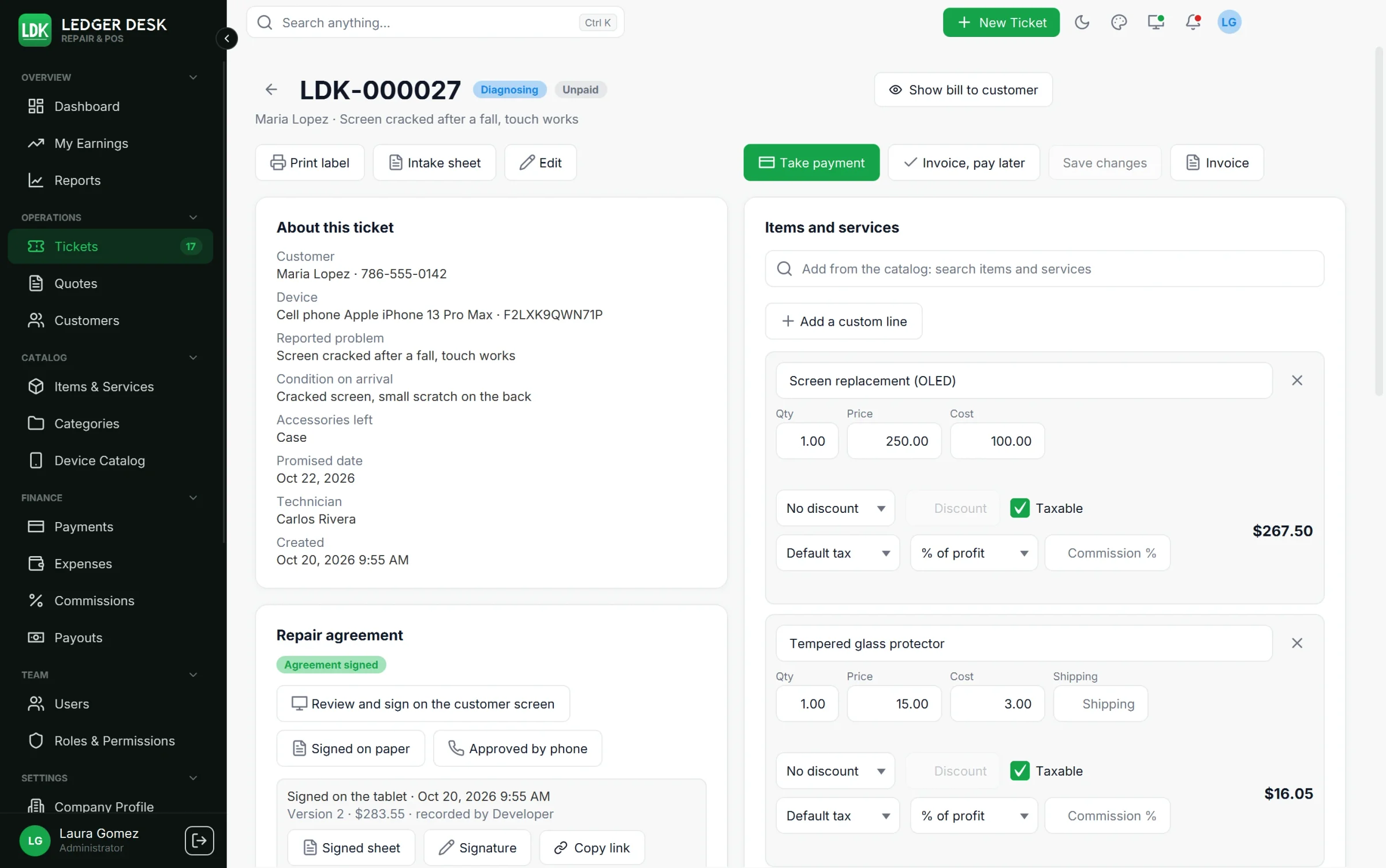
From the ticket you can also print the label again (Print label), print the Intake sheet (the page the customer signs when leaving a device), and ask for the repair agreement.
The bill
Every ticket has one bill. It starts as a draft with the lines of the estimate and can be changed until it is issued. Press Save changes to keep your changes without issuing it.
Lines
- Each line has a description, quantity and price. Users who may see costs also see and change the Cost.
- Shipping: on parts, products and custom lines you can enter what it cost to get that line delivered, for the whole line. It counts as a cost: it lowers the profit and the commission, and the customer never sees it. Only users who may see costs see this field.
- Discount per line, and Discount on the whole document, each as a percentage or an amount. Users without the discount permission cannot go above the shop's limit.
- Tax: a line on Default tax uses the shop's default tax group (or default rate). If no default is set up, the bill says so and charges no tax on those lines.
- License key or code on a digital product: the code is printed on the receipt and sent to the customer only once the bill is paid in full. Ledger Desk asks before you issue a bill with a digital product that has no code.
- Staff who may change commission rules can give a line its own commission: a % of the profit or a fixed amount per unit.
Taxes and exempt customers
A customer marked as tax exempt pays no tax on their bills; the bill shows Tax waived (exempt). To skip tax on a single ticket, tick Do not charge tax on this ticket and give a reason (needs the tax exemption permission). Tax is never counted as income.
Take the payment
- Take payment issues the bill and records the money in one step. Methods: Cash, Card (taken on your own terminal and recorded by hand), Bank transfer, Zelle, Check and Other, with an optional reference. The amount can be less than the total; the rest stays owed on the ticket.
- For a check or a transfer, tick The money has not cleared yet. The payment is recorded but not counted as paid, earns no commission and releases no code until you press Confirm payment when the money arrives. Cash can never wait to clear.
- Invoice, pay later issues the bill without money. The customer gets an invoice with a Due date and pays later in one or several payments. A bill still owed after its due date shows as Overdue.
- Pay on the tablet (Premium) sends the amount to the customer tablet, where the customer pays by card. See Card payments.
- A bill with a total of zero is closed with Close without charge.
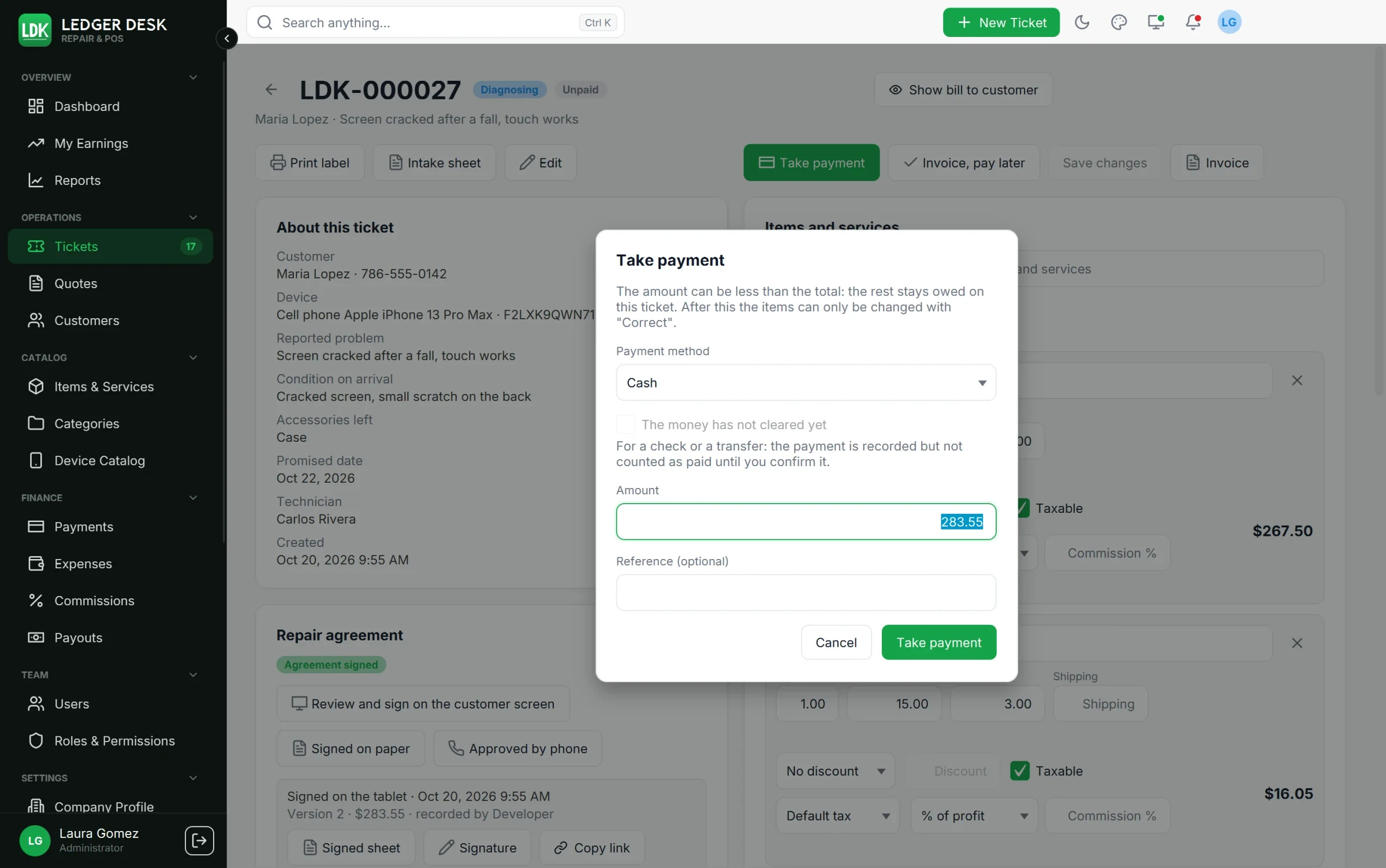
After a bill is issued its lines are fixed. To change them, use Correct (below).
Print, send and share
- Receipt prints the small receipt on the receipt printer. It is offered once something was paid.
- Invoice prints the invoice on the document printer.
- Send to customer sends the receipt or invoice by email (PDF attached) or SMS. The customer must have agreed to the channel. While a message of this bill is still waiting to go out, the button waits, so the customer never gets two copies.
- Copy link makes a link that opens the document in a web browser and copies it, to paste into a chat or a text from the shop phone. The notice says until when the link works.
- Show bill to customer, at the top of the ticket, puts the bill on the customer screen or tablet. It follows every change until you press Hide bill from customer or leave the ticket.
Refunds, voids and corrections
- Refund gives money back, all or part. The tax is reversed in proportion and a credit note number is issued.
- Void payment cancels a payment recorded by mistake. It stays on record, marked as void, and the balance goes back up.
- Correct voids an issued bill (it keeps its number) and opens it again with the same lines, so you can change them and issue it again. Only possible while the bill holds no money: refund the payments first.
- Void document voids the bill and keeps its number. The ticket can then be billed again; the new draft starts from the lines of the voided bill. The bill that replaces it carries the ticket number with a suffix, for example
LDK-000123-2. - Card payments taken through Stripe are given back with Refund through Stripe; payments taken through PayPal Zettle are refunded in the Zettle app and then recorded here.
Sales over the counter
A sale with no device is a ticket too. Tick Walk-in customer (no name), add the product and take the payment. A walk-in sale without a device is moved to Delivered by itself as soon as it is paid in full. If its bill is voided later and no other bill is left, the ticket goes back to Open. A sale for a named customer stays in its status until you move it.
Labels, the intake sheet and the scanner
- The label carries the ticket number in large type, the customer, the service and a barcode (plus an optional QR code). Its look is set on Printers & Labels.
- The Intake sheet lists the customer, the device, its condition, the accessories, the problem and the terms, with lines to sign.
- A barcode scanner pointed at a label opens that ticket from any page. See Barcode scanner.
The Tickets count in the sidebar
The number next to Tickets counts the tickets that are not delivered yet. Each computer can choose what it counts in Preferences, under the sidebar settings: Not delivered, In work, Ready for pickup or No count.
Last updated October 31, 2026