
You are reading the documentation for 1.0.4. The current version is 1.0.6.Go to 1.0.6
Ledger Desk Screen (tablet app)
On this page
- Which tablet
- Get the app
- Install the APK
- First start
- Pair the tablet with the counter computer
- Kiosk mode: keep customers inside the app
- Screen pinning (simple)
- Full kiosk mode (recommended)
- The admin screen
- What customers see
- Set it from Ledger Desk
- Update the app
- When the plan no longer includes the tablet
- Privacy
- Troubleshooting
Ledger Desk Screen is the Android app that turns a tablet on a stand into the customer screen of one counter computer. It shows your welcome, lets the customer type their details and address, sign the repair agreement, see the bill and pay by card. The tablet talks directly to its counter computer over the shop's own network. It is part of the Premium edition.
Which tablet
| To | You need |
|---|---|
| Show the customer screen | An Android tablet with Android 9 or later, on the same Wi-Fi as the counter computer. |
| Take cards with Stripe (Tap to Pay) | Android 13 or later with NFC, Google Play, not rooted, a security update from the last 12 months and Developer options switched off. Stripe lists the supported models (for example Samsung Galaxy Tab Active5). |
| Take cards with PayPal Zettle | Your Zettle card reader, paired with the tablet over Bluetooth. |
We recommend an 8 to 11 inch tablet on a stand at the counter, always plugged in. Use the shop's own Wi-Fi, not a guest network that keeps devices from seeing each other.
Get the app
The app is an APK file (the Android installation file). Our team gives it to you, or you download it from the downloads of your licence on xssit.com when it is listed there. It is not in the Google Play Store.
Install the APK
- Copy the APK to the tablet, or open the download link on the tablet.
- Open the file from the browser's downloads or from the Files app.
- Android asks to allow Install unknown apps for the browser or file manager you used. Open the settings it offers, switch it on and go back.
- Press Install.
- If Google Play Protect warns that the app is unknown, choose More details and then Install anyway.
- Switch Install unknown apps off again afterwards, if you like.
For a full kiosk tablet the app is installed with a computer instead (see “Full kiosk mode” below).
First start
- Open Ledger Desk Screen.
- Choose the Language of this tablet (English or Spanish). It is the language of the tablet's own screens; customers still choose their own language.
- Set an Admin PIN of 6 to 8 digits and type it again. Staff need it to leave the customer screen. Keep it somewhere safe.
- Press Next. The tablet now looks for Ledger Desk computers.
Pair the tablet with the counter computer
- On the counter computer, open Settings → Customer screen, choose Tablet and press Pair a tablet. Pairing stays possible for two minutes.
- On the tablet, under Pair with Ledger Desk, choose the computer from the list. It is listed by the Name of this computer set on the Customer screen page.
- If the computer is not listed, type its address under Address of the computer (for example
192.168.1.20, or192.168.1.20:47820when the port was changed) and press Connect. The usual port is 47820; it is shown as Port on the Customer screen page. - Both screens show the same six digits. Compare them. When they match, press Pair on the computer.
From then on the tablet shows the welcome and connects by itself after the computer, the tablet or the network restarts. The monitor button in the header of Ledger Desk turns green while a customer can see the tablet.
Windows may ask once whether Ledger Desk may use the network. Allow it on private networks, or the tablet can not reach the computer. The shop Wi-Fi should be set as a private network in Windows.
To pair the tablet with another computer, use Unpair on the tablet's admin screen, or Forget the tablet on the Customer screen page of the old computer.
Kiosk mode: keep customers inside the app
In a shop the tablet should show only the customer screen: no home screen, no notifications, no way out without the PIN. There are two levels.
Screen pinning (simple)
Without any preparation, Android asks once per start to pin the app to the screen. Accept it. A pinned screen keeps casual users in the app, but anybody who knows the Android gesture can leave it. The admin screen then says Kiosk: screen pinning (no device owner).
Full kiosk mode (recommended)
Here the app becomes the device owner of the tablet. Android only allows this on a tablet that has no account on it, normally right after a reset. Our team can prepare the tablet for you, or you can do it with a computer that has the Android platform tools (adb):
- Reset the tablet to factory settings. During set-up, do not add a Google account (skip it).
- Turn on Developer options (Settings, About tablet, tap the build number seven times) and switch on USB debugging.
- Connect the tablet to the computer with a USB cable and allow the computer on the tablet.
- Install the app:
adb install ledgerdesk-screen.apk(use the name of your APK file). - Make it the device owner:
adb shell dpm set-device-owner com.xss.it.tiky.screen/.kiosk.AdminReceiver - Open Ledger Desk Screen, choose the language and set the admin PIN, then pair it as above.
- If the tablet takes cards with Stripe, switch Developer options off again (Settings, System, Developer options). Tap to Pay does not run while they are on.
In full kiosk mode the app locks itself to the screen, becomes the home app, switches the lock screen and the status bar off, keeps the screen on while the tablet is plugged in, and gives itself the location and Bluetooth permissions that card payments need. The admin screen says Kiosk: this app is the device owner.
The admin screen
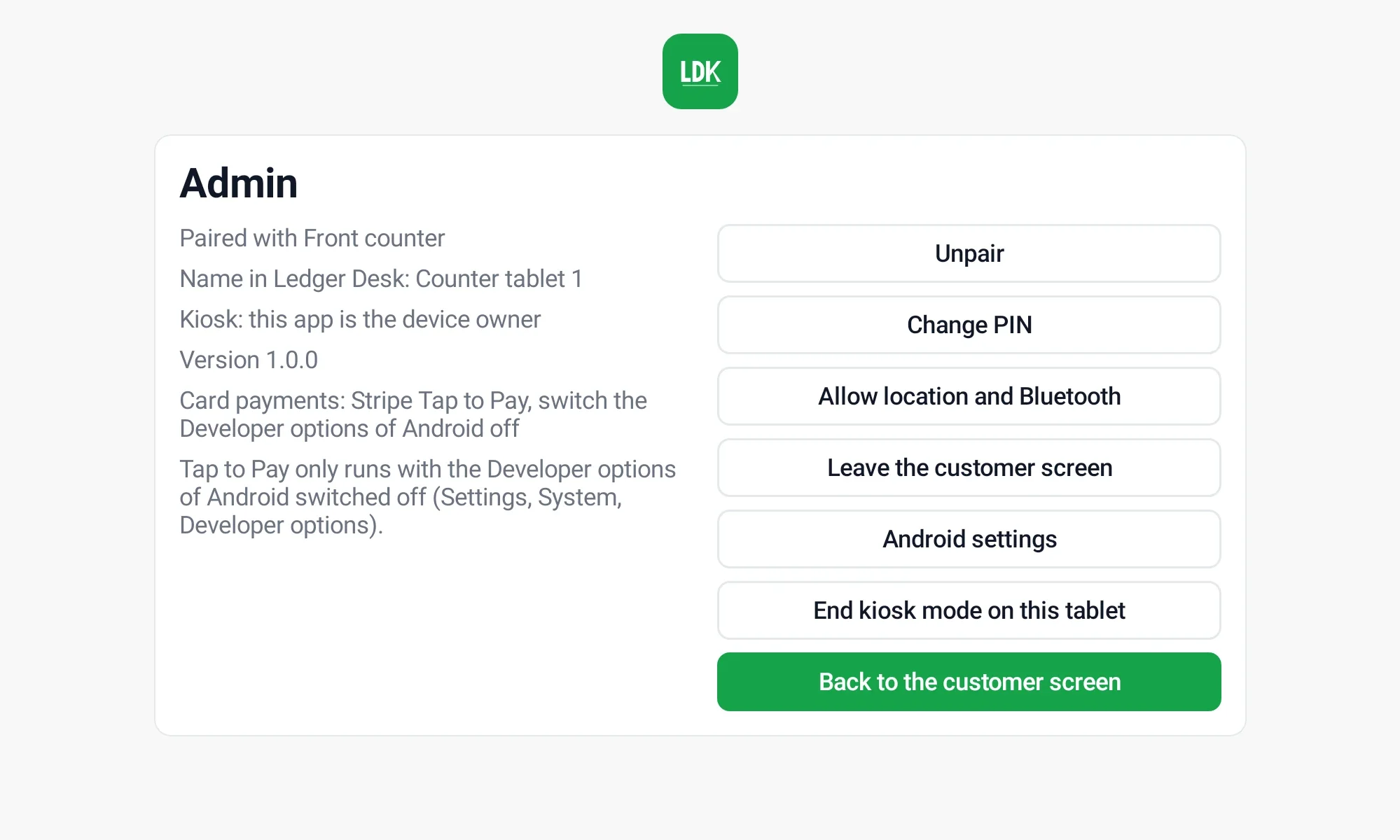
Hold the top left corner of the screen for 5 seconds and type the admin PIN. The admin screen shows which computer the tablet is paired with, the kiosk level, the version, the name the tablet has in Ledger Desk and whether it can take card payments (and if not, why). From there you can:
- Unpair: forget the computer (the tablet must then be paired again).
- Change PIN.
- Change the language of the tablet's own screens.
- Leave the customer screen, for example to install an update.
- Android settings: open the settings of the tablet.
- End kiosk mode on this tablet: the app stops being the device owner for good. Setting it up again needs a reset tablet.
- For card payments: Allow location and Bluetooth, and with Zettle Sign in to Zettle and Pair Zettle reader (see Card payments).
- Back to the customer screen.
The admin screen closes by itself after 60 seconds without a touch, and when the counter asks the customer for something. After five wrong PINs each try waits longer, up to 10 minutes. Restarting the app or the tablet does not give fresh tries.
What customers see
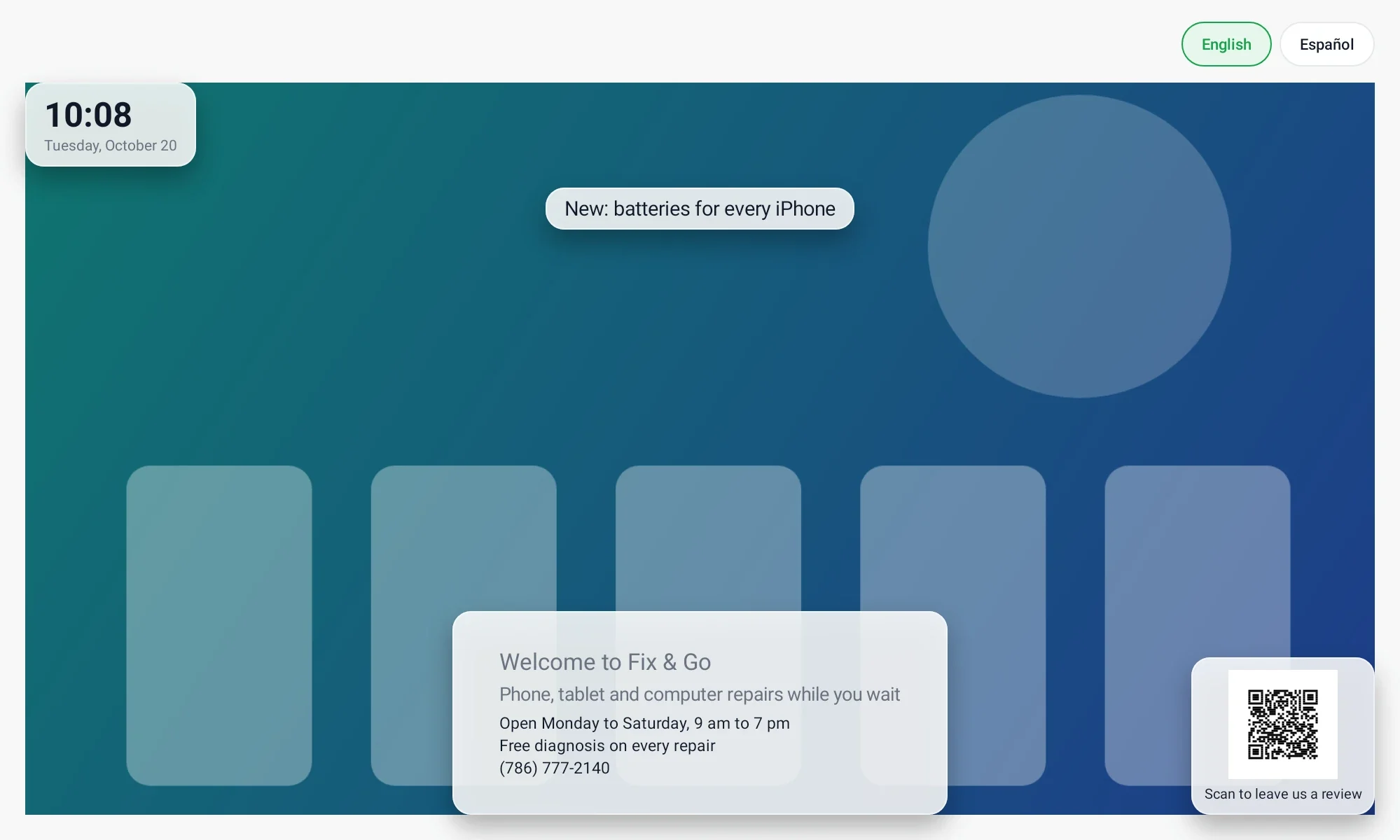
- Welcome: your logo, texts, pictures, moving background, clock and QR code, exactly as on the Customer screen page and its preview.
- Their details with an on-screen keyboard. The Hide keyboard key at the bottom left closes the keyboard on tablets that have no button for it; tapping outside the field also closes it. The keyboard does not learn or suggest what customers type.
- Address (optional) and the confirmation, with the optional consent to offers and the required tick that the details are correct.
- Work order, repair agreement and signature: the device, the service requested and the estimate with the total, then the agreement with the pickup deadline, then a signature pad for the finger.
- Bill, when staff press Show bill to customer on the ticket.
- Card payment, when the shop uses Stripe or PayPal Zettle: the amount (and any surcharge with its notice) first, then Pay and the card. A declined card can try again.
- Thank you! (or Welcome back! for a returning customer).
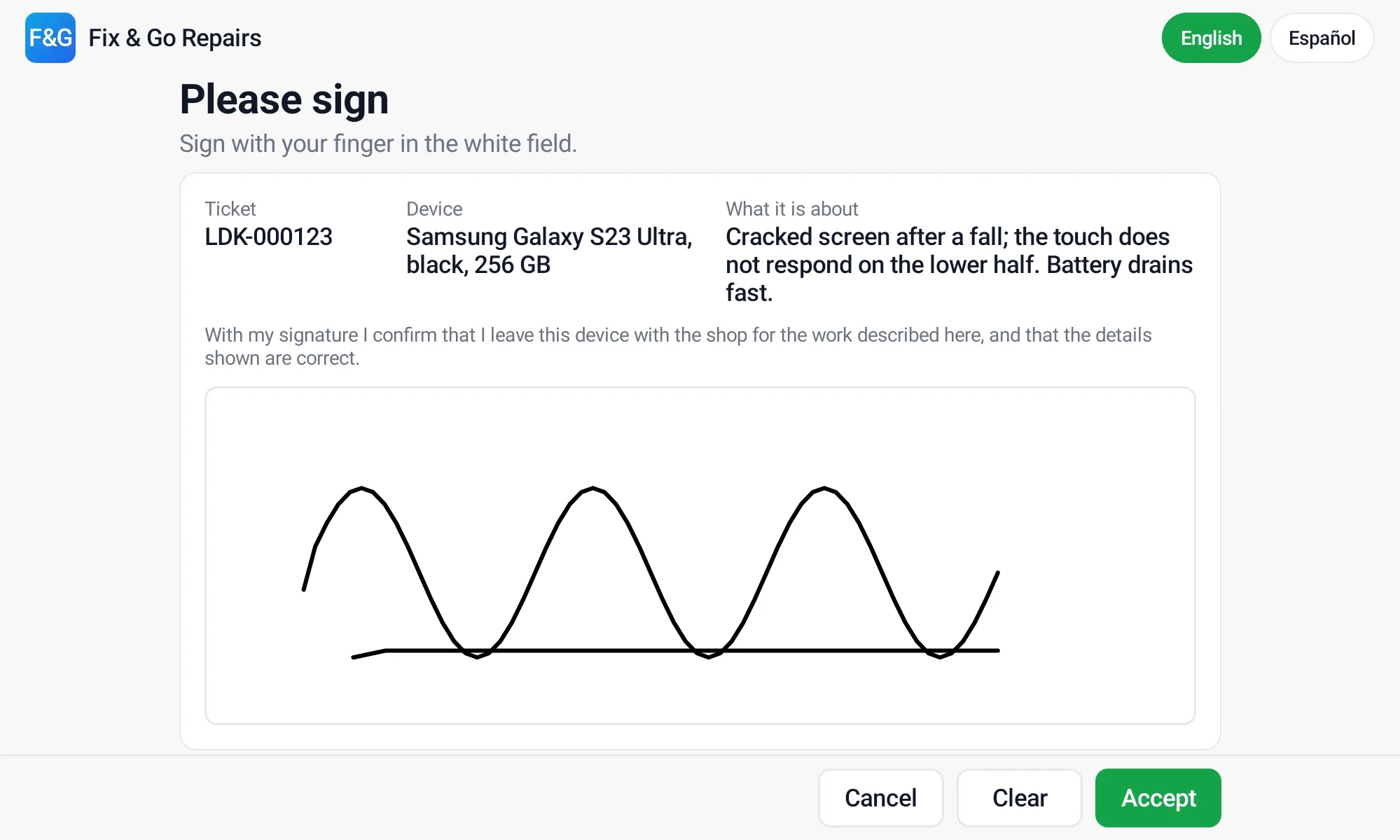
Customers switch between English and Spanish with the language buttons. A language chosen by the customer stays while their request runs; the next customer is greeted in the starting language.
Set it from Ledger Desk
With the tablet paired, the card named The tablet on the Customer screen page shows its status (connected or not, battery and charging, Wi-Fi bars, app and Android version, model, last heard) and whether it can take cards. It also sets, under Settings of the tablet:
- Name of the tablet, shown here and on the admin screen.
- Brightness, or leave the tablet's own.
- Sleep at night: the welcome goes dark between two times (Dark from, Light again at). A touch, a request or a bill wakes it.
- Keep the screen on: the tablet never turns its screen off by itself.
- Change the tablet PIN: type a new PIN of 6 to 8 digits twice and press Send to the tablet. The page says whether the tablet took it.
- Identify: the tablet shows a large “This tablet” sign for a few seconds.
- Restart the tablet app: the app closes and opens again, staying in kiosk mode, and connects again by itself.
Identify and Restart wait while a customer is typing, signing or paying. They work while the tablet shows the welcome, the bill or the lock screen. The welcome options themselves (layout, pictures, texts, look) are the same as for a monitor.
Update the app
- Get the new APK from our team or from your downloads.
- On a kiosk tablet, open the admin screen and press Leave the customer screen.
- Open the new APK and press Update (or install it from a computer with
adb install -rand the file name). - Open Ledger Desk Screen again.
The pairing and the PIN stay. The new file must be the same app from us; Android refuses an APK that is signed differently. Keep the tablet app and Ledger Desk on matching versions: if they do not understand each other the tablet says so (LDK-C012). Update both.
When the plan no longer includes the tablet
If the shop's plan no longer includes the customer tablet, Ledger Desk ends the connection and the tablet says that the plan of the shop no longer includes it. Nothing is lost: the pairing stays, and the tablet works again as soon as the plan includes it. The counter can switch to a second monitor (Standard) in the meantime.
Privacy
- Nothing a customer types is written to the tablet. It travels to the counter computer and is forgotten.
- No card details of any kind are read, shown, kept or sent: no card number, no last digits, no brand, no name. The card is read by Stripe or PayPal Zettle.
- Screenshots, recent apps and screen casting show nothing of the app.
- Nothing of the app is backed up. The tablet keeps only its pairing, the PIN (protected) and its own language.
Troubleshooting
| What happens | What to do |
|---|---|
| The tablet does not find the computer | Check that both are on the same Wi-Fi (not a guest network), that the Customer screen page is set to Tablet and that Windows allowed Ledger Desk on private networks. Type the address of the computer by hand. |
| The computer is not pairing right now | Press Pair a tablet on the computer first; pairing stays open for two minutes. |
| The two codes are not the same | Do not pair. Press Cancel on both and start again; make sure you chose the right computer. |
| The computer no longer knows this tablet | The tablet was forgotten on the computer. Pair it again from the admin screen. |
| It keeps disconnecting | Check the Wi-Fi signal (shown on the Customer screen page), keep the tablet plugged in and switch on Keep the screen on. Avoid networks that put devices to sleep. |
| The keyboard covers the fields | Press Hide keyboard at the bottom left, or tap outside the field. The buttons of each step stay above the keyboard. |
| The Pay on the tablet button is missing | Look at the card payment line of the admin screen or the Customer screen page: it says why (Developer options on, no NFC, not signed in to Zettle, no reader, a missing permission). The button also needs a provider set up and a connected tablet. |
| The versions do not match (LDK-C012) | Update Ledger Desk and the tablet app. |
Last updated October 31, 2026