
Batch
Run one tool on many files at once.
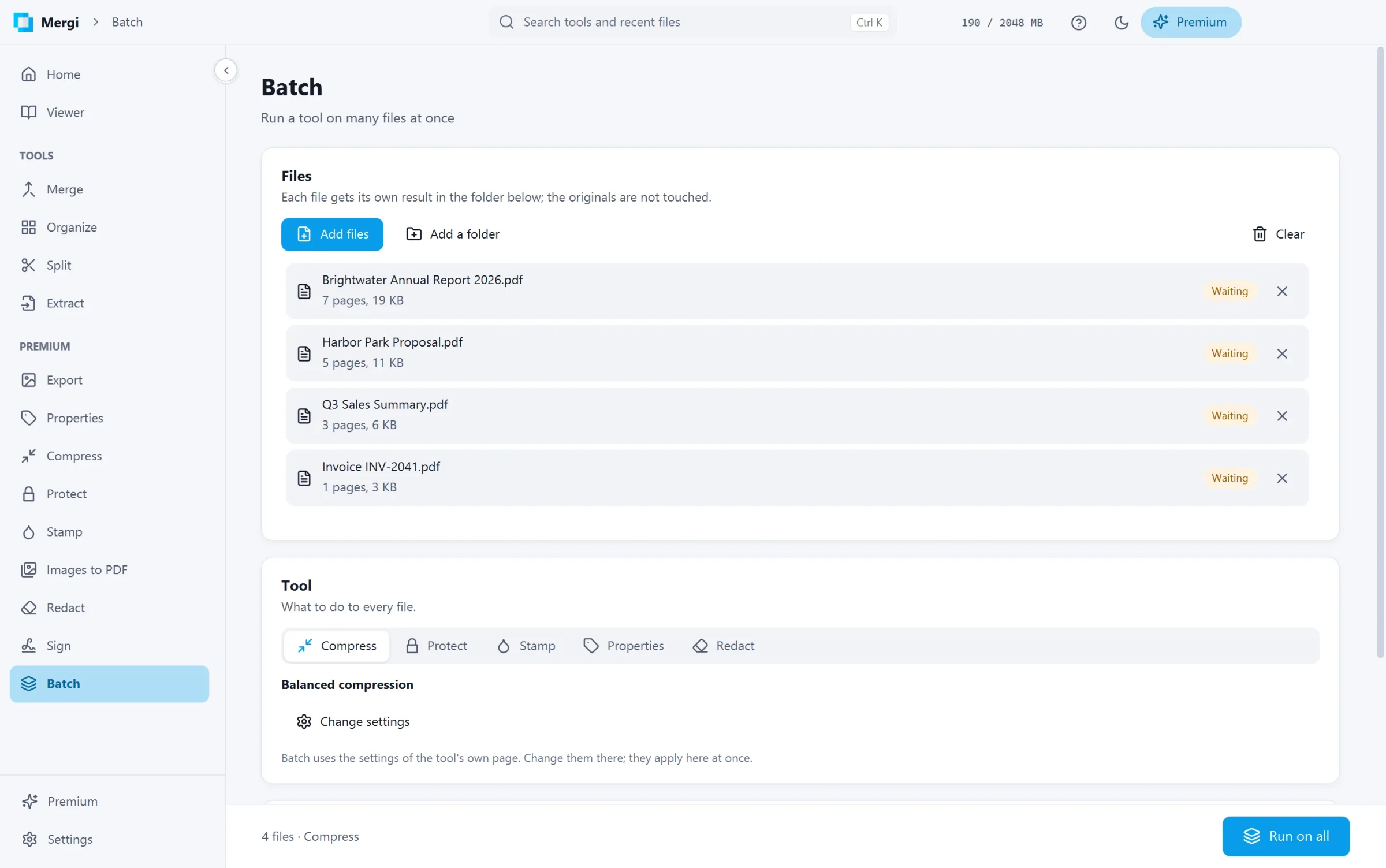
Steps
- Click Add files or Add a folder, or drop PDF files on the page.
- Under Tool, choose what to do to every file: Compress, Protect, Stamp, Properties or Redact. Protect adds a password or removes each file's password, as chosen on the Protect page.
- Batch uses the settings of the tool's own page: the compression strength, the password, the watermark or page numbers, the details to write, the words to redact. Change settings takes you there; changes apply here at once.
- Choose the folder under Save to and click Run on all.
Each file gets its own result in that folder, named after it, such as report-compressed.pdf. The originals are not touched, and an existing file is never replaced.
The list shows each file as Waiting, Working, Done or Failed, with the reason when one fails. A file that needs its permissions password must be opened once on the tool's own page first.
Last updated October 31, 2026