
Your first start
The welcome card
The first time Mergi starts it shows a short welcome card.
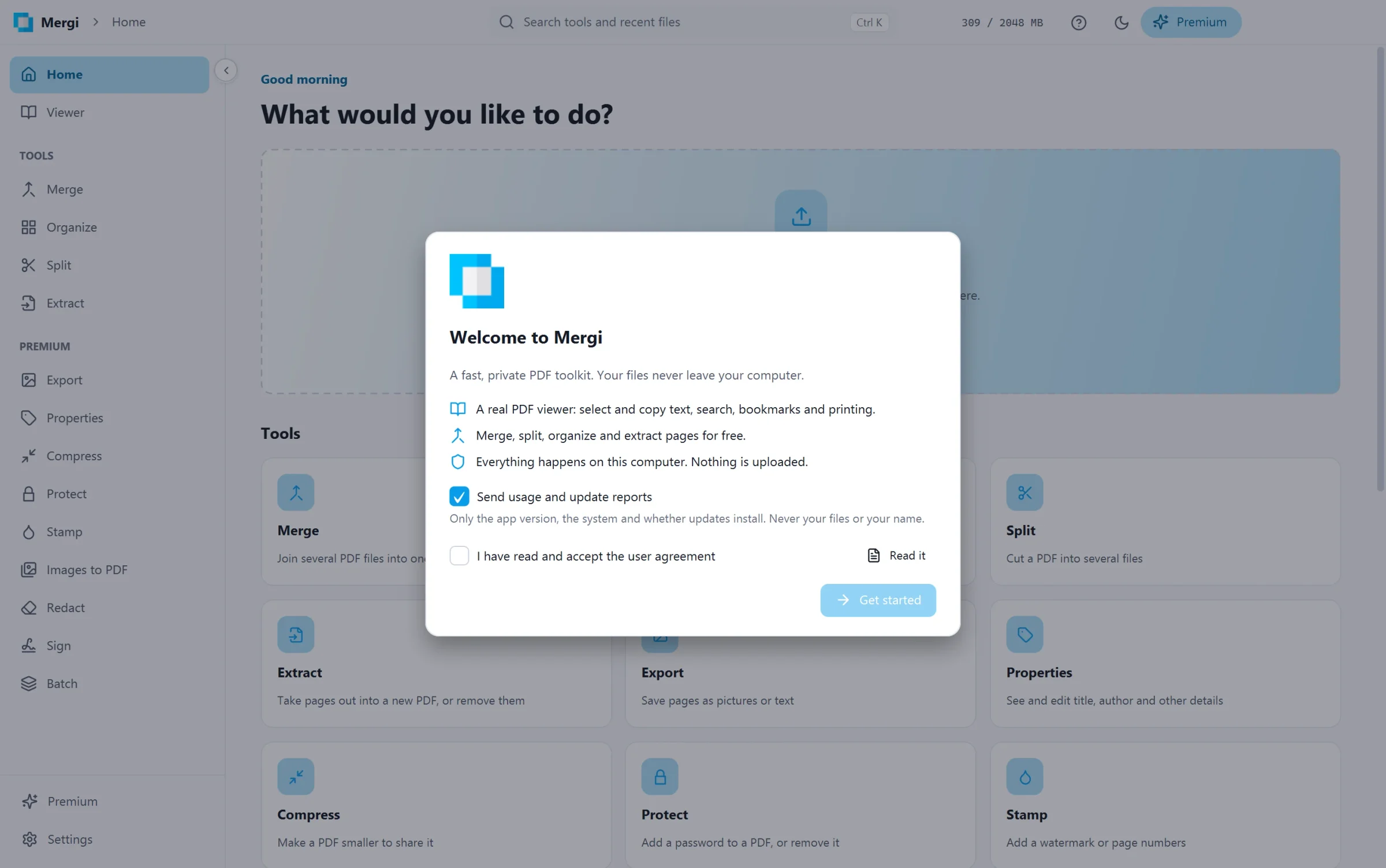
- Send usage and update reports: on by default. Only the app version, the system and whether updates install are sent, never your files or your name. Turn it off here or later in Settings. See Privacy.
- I have read and accept the user agreement: tick it to go on. Read it opens the full text. You can read it again at any time from Settings › About › Licence agreement.
Click Get started.
The tour
Right after the welcome card, a short tour points out the parts of the window: where to open files, the viewer, the free tools, the Premium tools, the quick search, the theme switch and Settings.
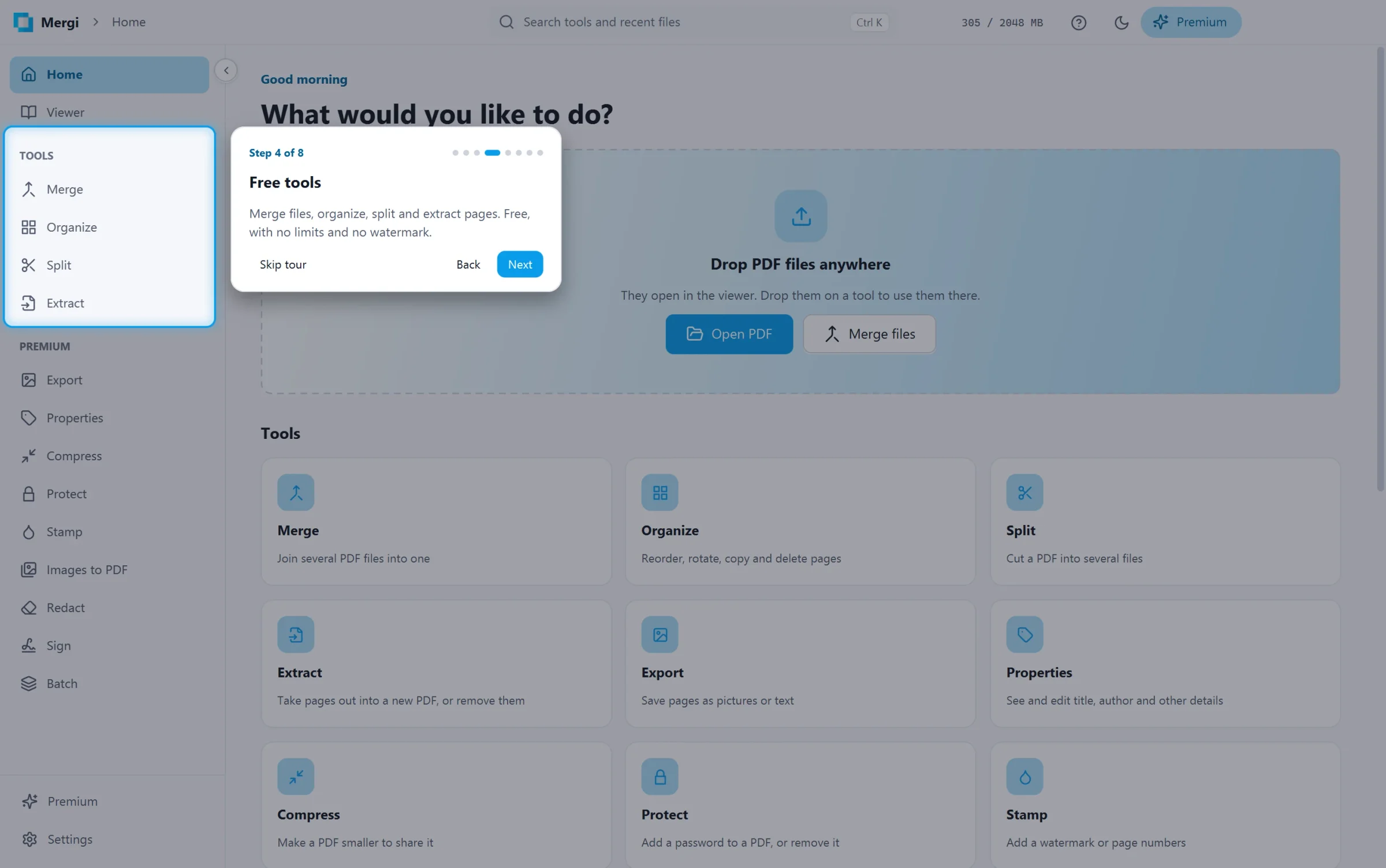
- Next and Back walk through the steps (the arrow keys do too).
- Skip tour (or Escape) ends it at any step.
- Take it again any time from Settings › About › Take the tour.
The window
- Sidebar (left): Home, the viewer, the free tools, the Premium tools, Premium and Settings. The round button on its right edge folds it to icons only, and opens it again; Mergi remembers your choice.
- Title bar: where you are, the quick search (Ctrl+K), the Help menu, the light and dark switch and the Premium button. The small figures beside Help (such as
140 / 2048 MB) are the memory Mergi uses now and the most it may use, set in Settings. - Drop files anywhere: PDFs dropped on the window go to the page you are on when it takes files, otherwise they open in the viewer.
Help and support
The Help button (the question mark in the title bar) gathers everything around Mergi:
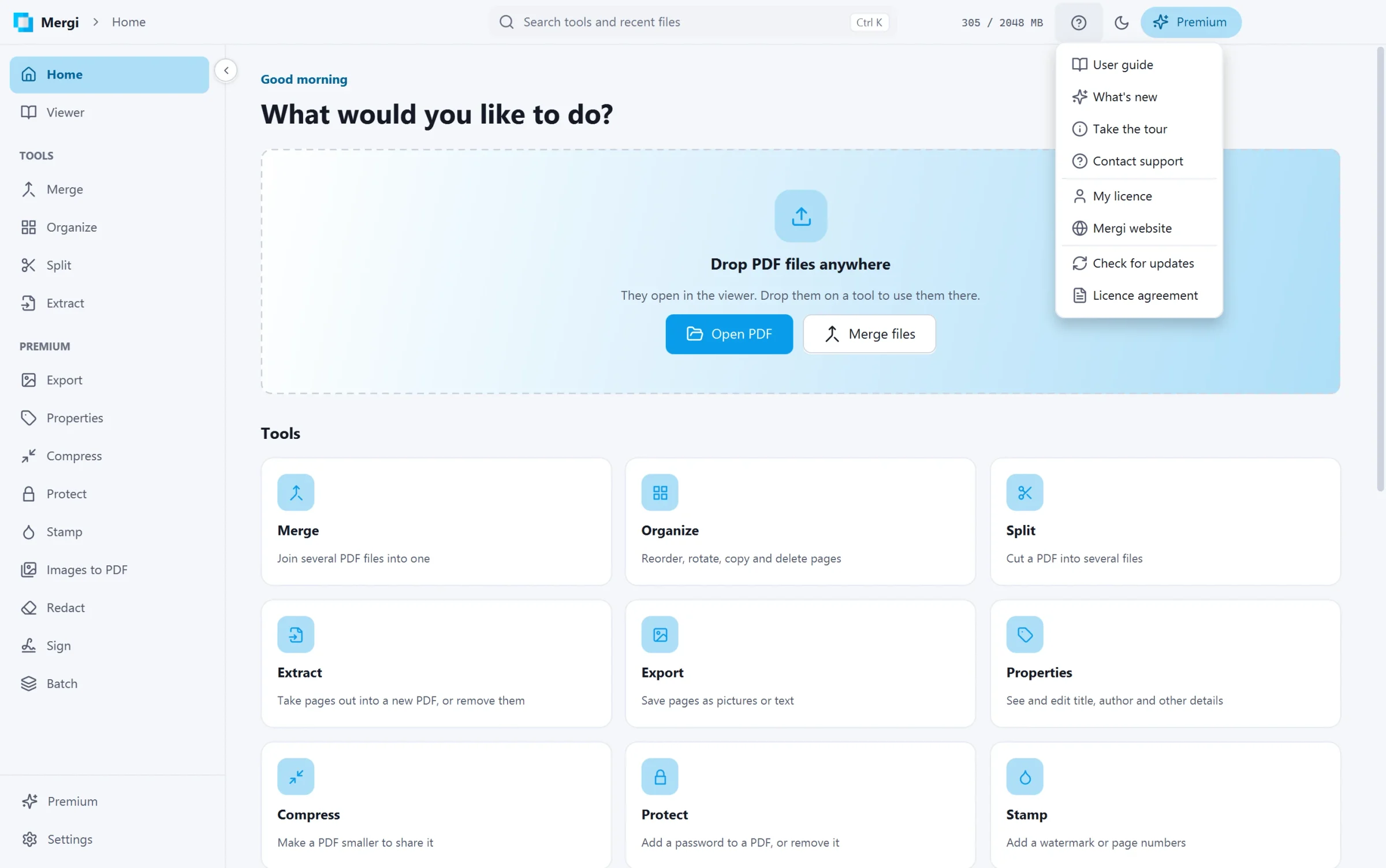
- User guide: this guide, on xssit.com.
- What's new and Take the tour.
- Contact support: opens a support ticket on xssit.com.
- Buy Premium: the plans on xssit.com. With Premium it becomes My licence: your licence and subscription.
- Mergi website, Check for updates and the Licence agreement.
The quick search (Ctrl+K) lists every tool and your recent files, and finds these too: type support, buy or guide. Up and Down move through the results, Enter opens one. Web pages open in the language Mergi shows.
After an update
The first time Mergi starts after an update, the What's new window lists what changed. Open it again from Settings › About › What's new.
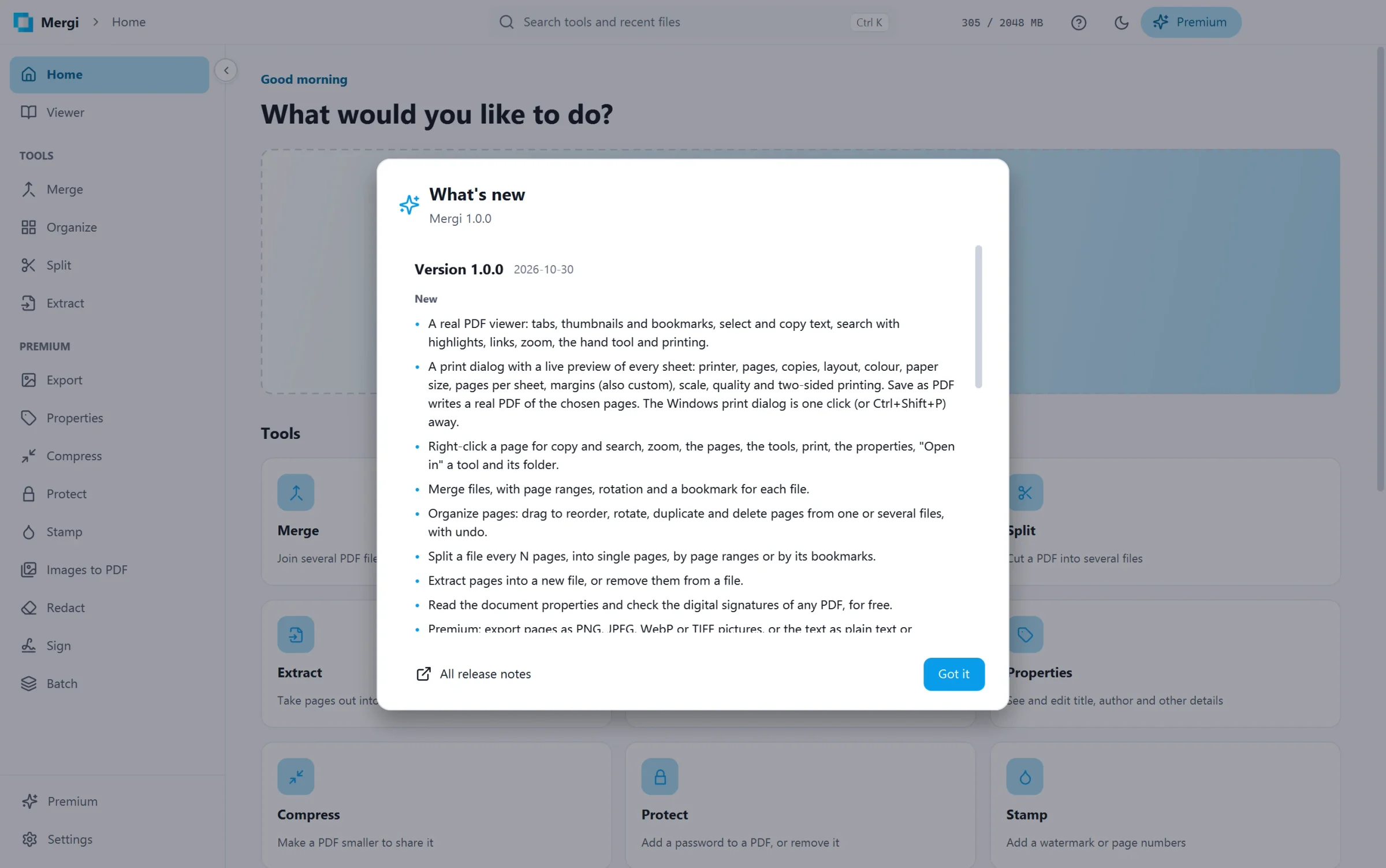
When a new version comes with a changed user agreement, Mergi asks you to accept it before you go on.
Last updated October 31, 2026