
The viewer
On this page
The viewer reads PDF files: it never changes them, unless you save a form you filled in. Every file opens in its own tab.
Open files
- Open PDF on Home or in the empty viewer, or Ctrl+O from any page.
- Drop PDF files anywhere on the window.
- Double-click a PDF in Explorer when Mergi is your PDF app, or right-click it and choose Open with › Mergi. When Mergi is already running, the file opens in a new tab of the same window.
- Pick a file from Recent files on Home, or type its name in the quick search (Ctrl+K).
- The + at the end of the tabs (or Ctrl+T) opens more files in new tabs. Ctrl+W closes the tab.
A password-protected file asks for its password once. Mergi keeps it until you close the app, so the same file is not asked again in the same session; it is never saved.
Find your way
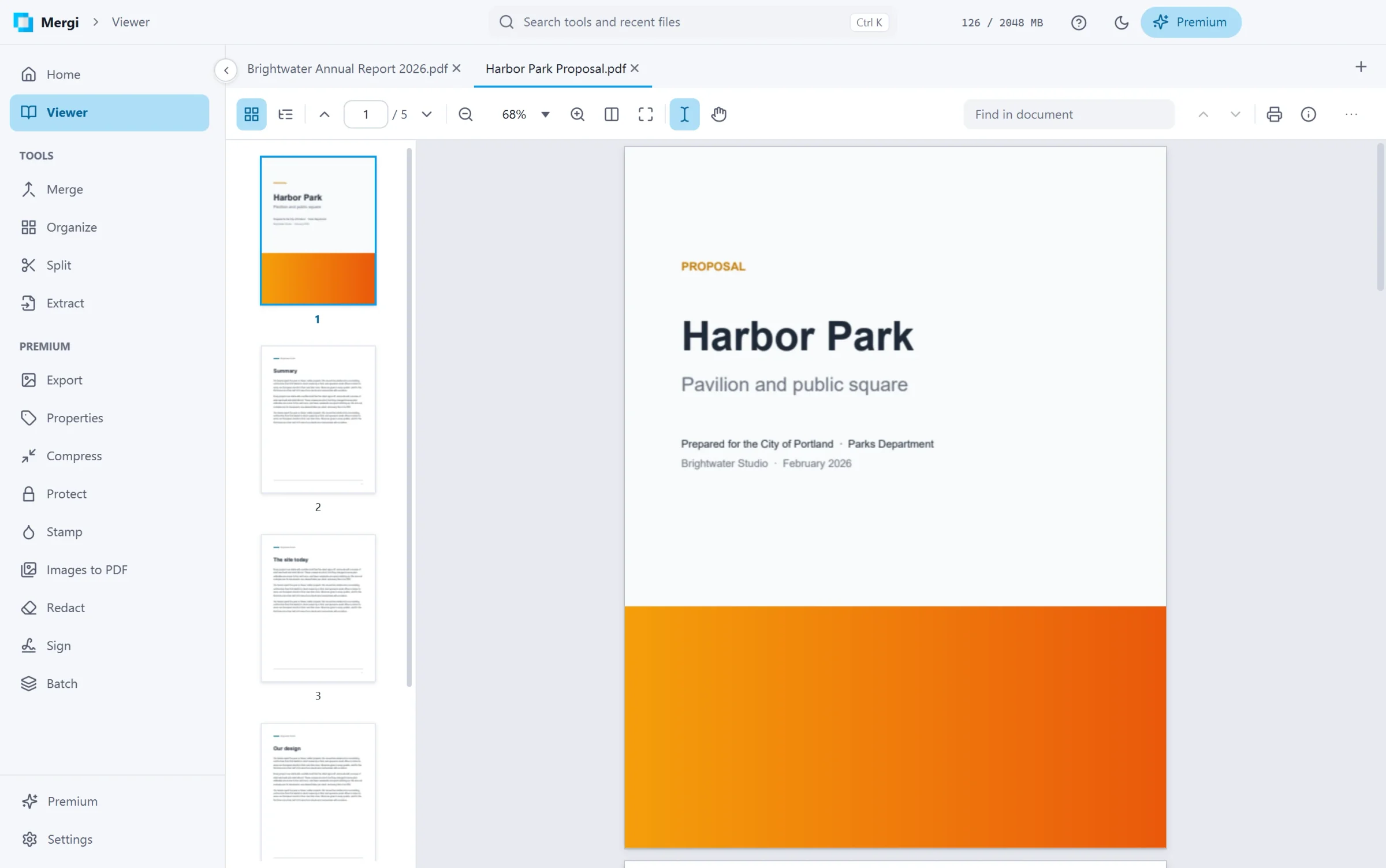
- Page thumbnails and Bookmarks open in the side panel (the first two buttons of the toolbar). Click a thumbnail or a bookmark to go there.
- The page field shows where you are: type a number and press Enter. The arrows go one page up or down.
- Keyboard: Page Up and Page Down, Home and End, and the arrow keys.
Zoom
- The zoom menu has preset sizes plus Fit width and Fit page, which also have their own buttons.
- Ctrl+wheel, Ctrl+plus and Ctrl+minus zoom; Ctrl+0 goes back to 100%.
- Pages stay sharp at any zoom and on high-density screens.
Select and copy text
With the Select text tool (the I-beam button):
- Drag to select across lines and pages.
- Double-click selects a word, triple-click a line, Ctrl+A everything.
- Ctrl+C or the right-click menu copies. The menu can also search for the selected words.
The Hand tool drags the page around. Holding the Space bar gives you the hand for a moment.
Search
Type in Find in document and press Enter for the next match, Shift+Enter for the one before. Every match is highlighted, the current one stronger, and the count shows how many there are. Ctrl+F jumps to the box.
Links
Links inside the document jump to their page. A link to a web address asks first, and opens in your browser only when you choose Open link.
Print (or Ctrl+P) opens Mergi's print dialog: every sheet as it will come out of the printer on the left, the choices on the right.
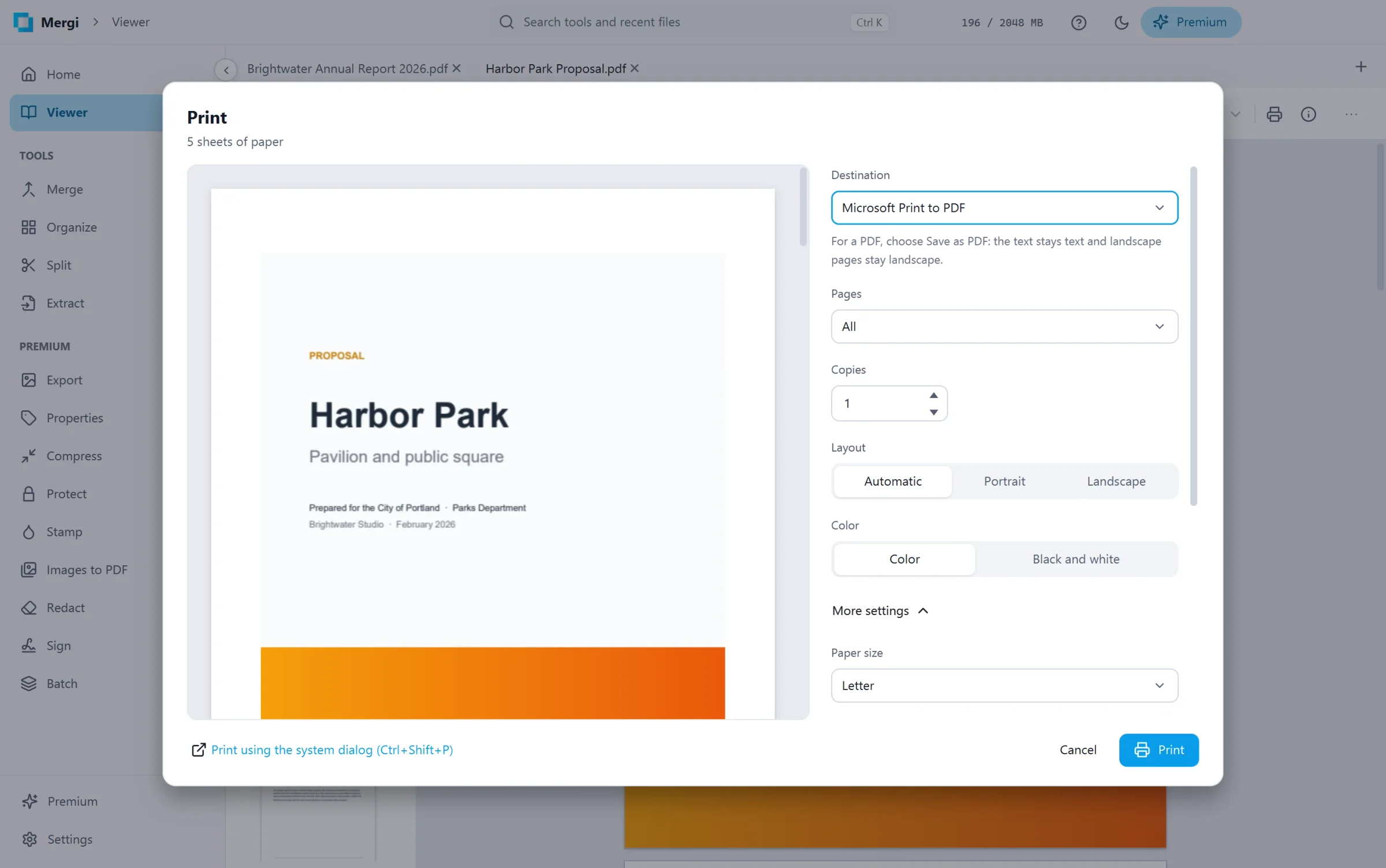
- Destination: a printer, or Save as PDF, which writes a real PDF of the chosen pages (the text stays text and landscape pages stay landscape) with the paper size, layout and pages per sheet you chose. A PDF "printer" such as Microsoft Print to PDF receives pictures of the pages instead. Pages: all, the current page, odd or even pages only, or your own, such as
1-5, 8, 11-13. Copies, collated or not. - Layout (automatic, portrait or landscape) and Color (color, or black and white).
- More settings:
- Paper size, from the papers the printer takes.
- Pages per sheet: 1, 2, 4, 6, 9 or 16.
- Margins: Default, None, Minimum, or Custom (top, bottom, left and right in millimetres).
- Scale: Fit to printable area, Fit to paper, Actual size, or a Custom percentage.
- Quality: the printer's default, or one of the resolutions it offers (such as 600 dpi).
- Print on both sides, flipped on the long or the short edge, when the printer can.
The dialog remembers your printer and choices. The total under the title counts the sheets of paper. Pages print sharp, up to 300 dpi.
Print using the system dialog (or Ctrl+Shift+P) opens the Windows print dialog instead. To always use it, turn on Settings › Behaviour › Use the Windows print dialog.
The right-click menu
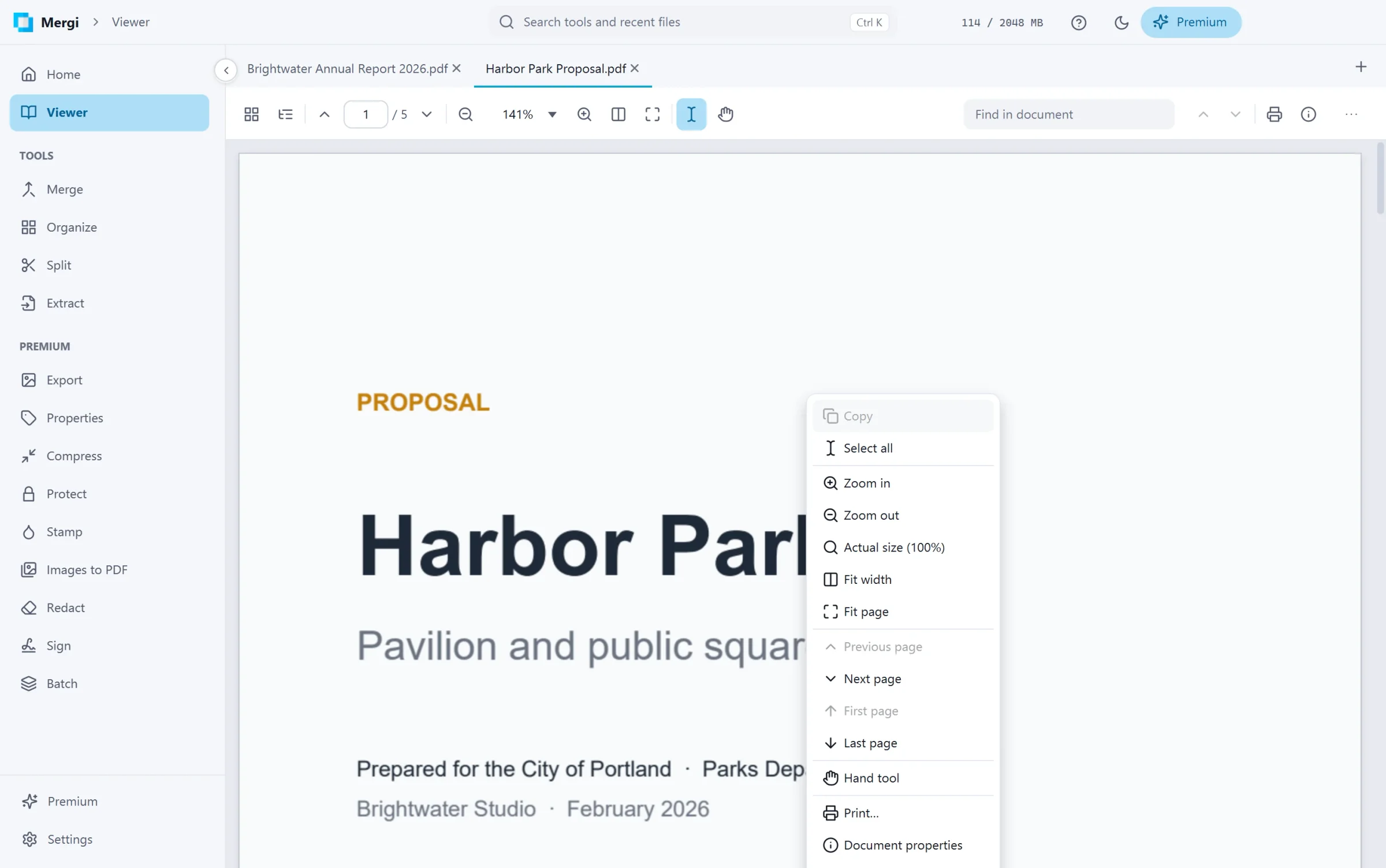
Right-click a page for: Copy, Select all and searching for the selected words; Zoom in, Zoom out, Actual size, Fit width and Fit page; the previous, next, first and last page; the Hand tool or Select text; Print…, Document properties, Open in one of the tools, and Show in folder.
Properties and more
- Document properties shows the title, author, page count, PDF version, protection and more.
- More opens the file in one of the tools (Open in Merge, Open in Compress and so on) or shows it in its folder.
Forms
A file with a form shows a strip under the toolbar. With Premium you fill the form in right here and save it: see Fill forms.
Protected files
A file may limit what its readers can do. The viewer follows those limits: when a file does not allow copying, text cannot be copied; when it does not allow printing, it cannot be printed.
Last updated October 31, 2026