
Images to PDF
Turn pictures into a PDF, one page each.
Steps
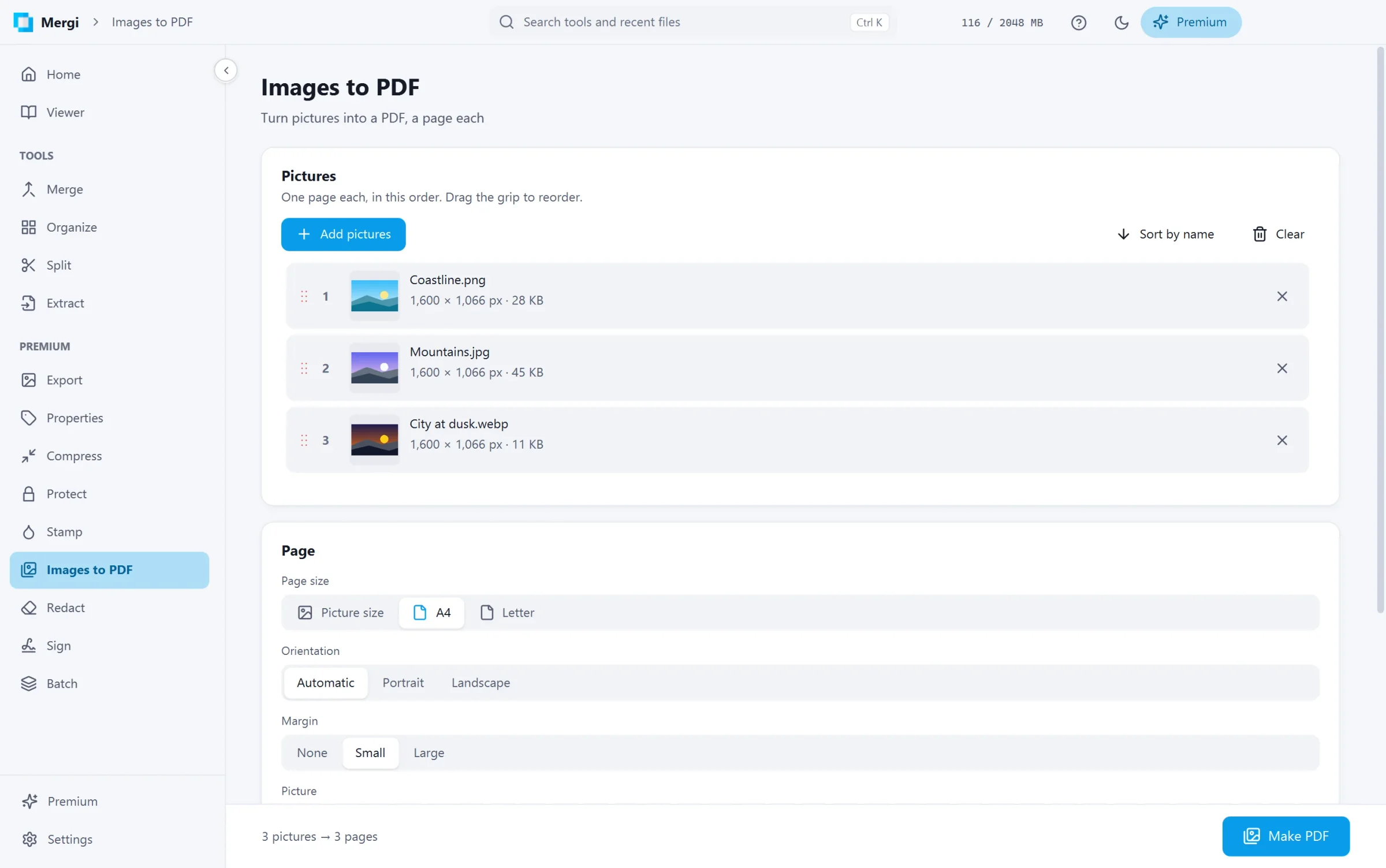
- Click Add pictures, or drop pictures on the page. Mergi reads PNG, JPEG, WebP, AVIF, TIFF, GIF, BMP and JPEG 2000.
- Put them in order by dragging the grip, or Sort by name.
- Set up the Page:
- Page size: Picture size (each page the size of its picture), A4 or Letter.
- Orientation: Automatic (follows each picture), Portrait or Landscape.
- Margin: None, Small or Large.
- Picture: Whole picture (all of it shows) or Fill the page (the page is covered, the edges may be cut).
- Check Save to and click Make PDF.
A TIFF or GIF with several pages gives its first one. Phone photos come out upright, and a mirrored selfie the way the camera meant it, thumbnails included.
Last updated October 31, 2026