
Free tools
On this page
Four tools that are free for everybody, with no limits and no watermark.
- Merge: join several PDF files into one.
- Organize: reorder, rotate, copy and delete pages of one or more files.
- Split: cut a PDF into several files.
- Extract: take pages out into a new PDF, or remove them.
How every tool works
Every tool page follows the same order, top to bottom:
- The file: drop it on the page, or click to choose it. Its card shows the name, page count and size, with buttons to preview it, choose another one or take it away.
- The settings of the tool.
- Save to: the new file or folder. Mergi proposes a name next to the original, and never replaces an existing file: when the name is taken it adds a number, even when a file takes that name while the tool works. A path you type or choose with Browse is written over as asked. A default folder for all tools can be set in Settings.
- The main button at the bottom right runs the tool. The bar shows what will be done, the progress while it works, and a Cancel button.
When the job is done, Mergi offers to open the new file or show it in its folder (you can make one of them happen by itself in Settings). A cancelled or failed job leaves no half-written file behind.
Page ranges
Wherever Mergi asks for pages, you can write:
| You write | It means |
|---|---|
1-3, 5, 8- | pages 1 to 3, page 5, and page 8 to the end |
odd, even | every odd or every even page |
last | the last page |
1-3; 4-9; 10- | groups, for Split by custom ranges |
Empty means all pages.
Click the pages
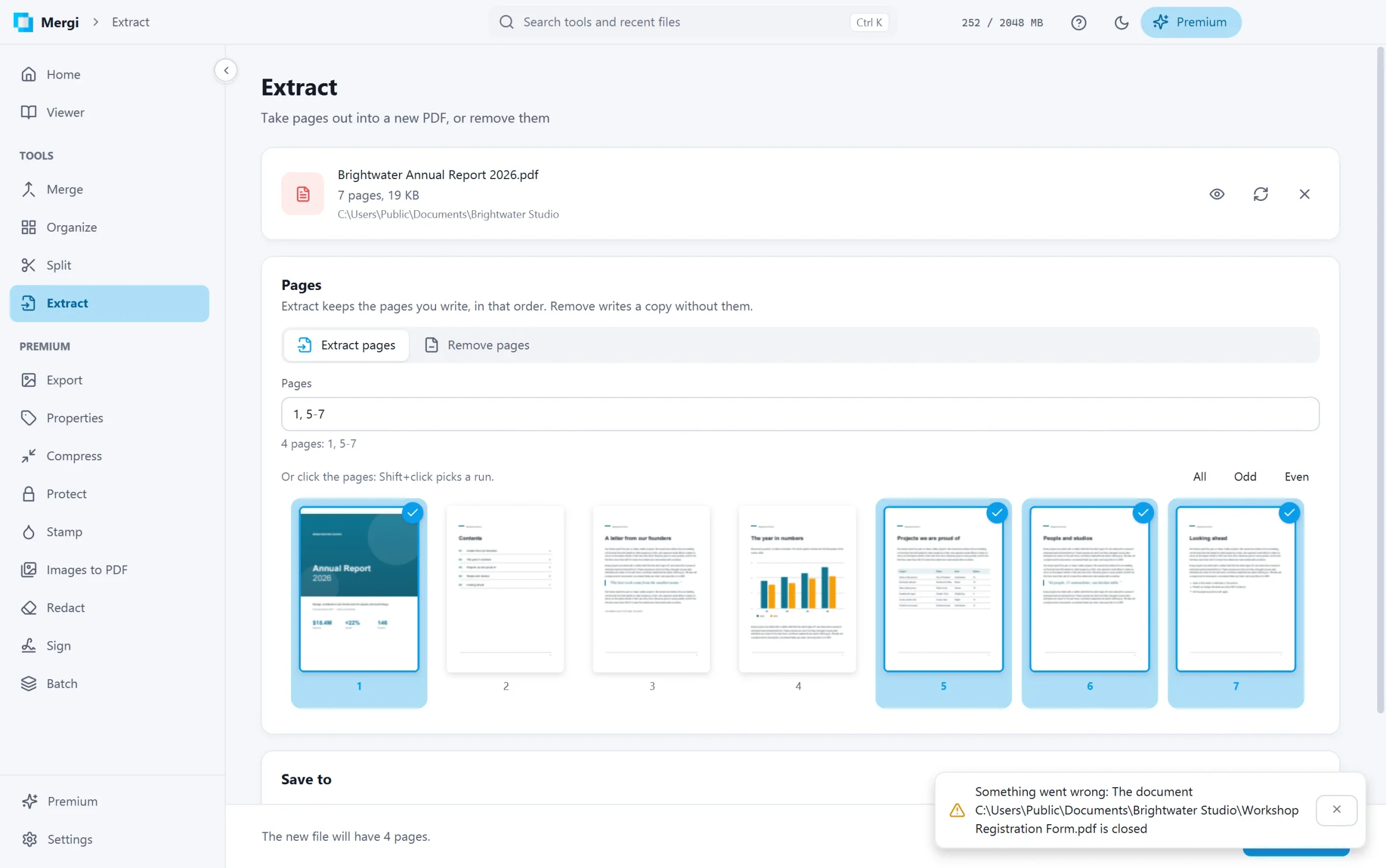
Extract, Export, Stamp and Redact show every page of the file as a thumbnail under the Pages field, so you can see what you pick. Click a page to add it or take it away; Shift+click picks every page from the last one you clicked. All, Odd and Even pick at once. The field and the thumbnails always agree: what you type ticks its pages, and what you click is written in the field. When the field is empty, every page shows ticked.
Split shows the thumbnails too, coloured by the new file each page will go to.
Last updated October 31, 2026