
Sign
On this page
Sign a PDF with your digital certificate, and check the signatures a file already has. Checking signatures is free; signing is part of Premium.
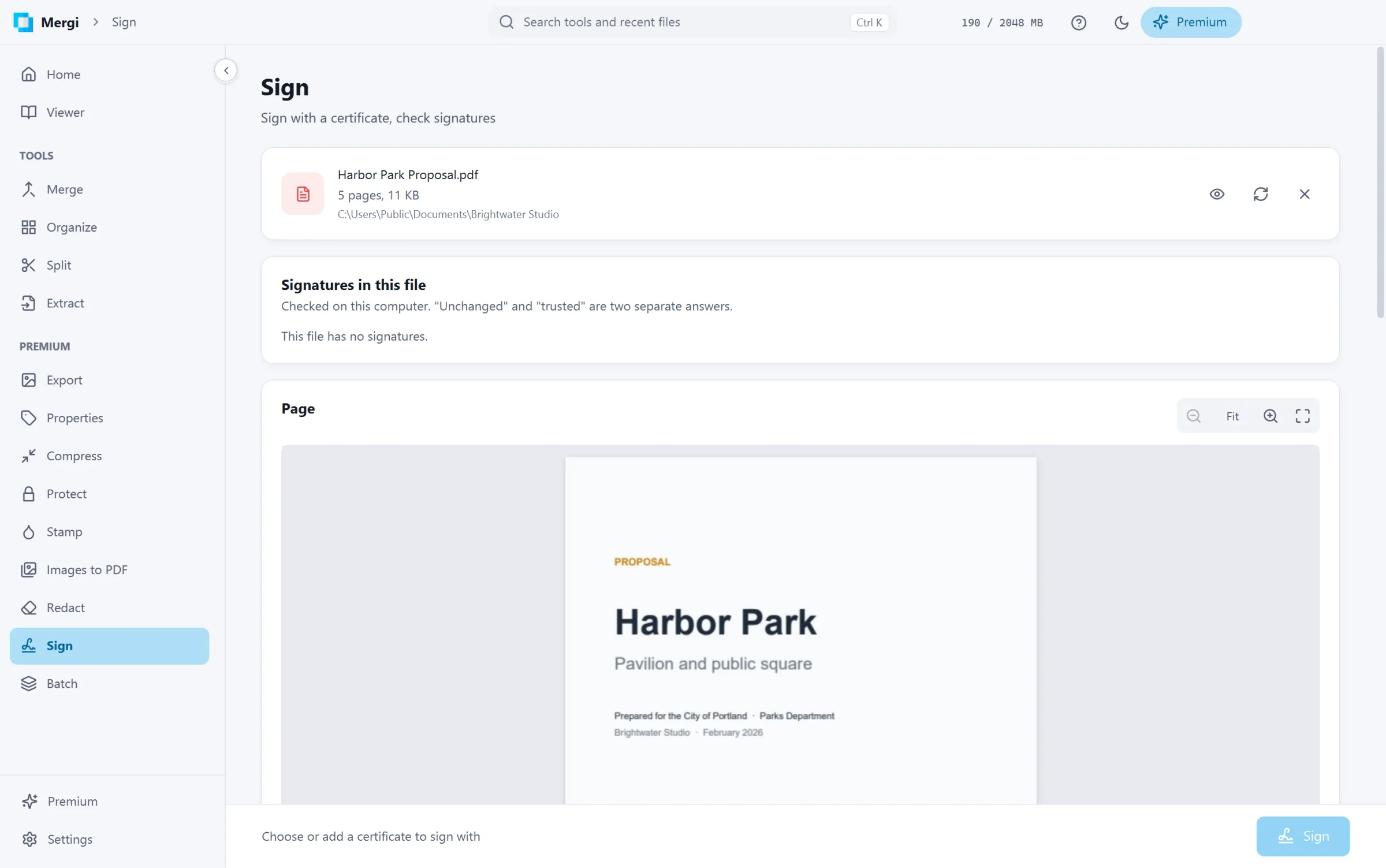
Check the signatures of a file
Choose the file: Signatures in this file lists every signature with two separate answers.
| Was the file changed? | Is the signer trusted? |
|---|---|
| Unchanged since signing | Trusted by Windows |
| Signed part unchanged; the file was added to after signing | Self-signed certificate |
| Changed: signature broken | Certificate expired |
| Could not be checked | Not trusted by Windows |
| Certificate not checked (the signature could not be verified) | |
| Certificate not made for signing |
A timestamp shows who vouched for the signing time and when.
Sign
- Signer: click Add certificate and choose your
.pfxor.p12file. Mergi asks for its password once per session and never saves it. It keeps your certificates and details for next time. Mergi signs with RSA certificates. - Details: your Name, the Reason (such as Approved), the Location and a Contact.
- Look:
- Visible box: the box on the preview shows where the signature goes. Drag it to move it, a corner to resize it, the arrows to change the page. It shows the signer, the date, the reason and the location.
- Invisible: nothing is drawn, the signature is still in the file.
- Add a trusted timestamp: a timestamp server vouches for the signing time. Only a fingerprint of the signature is sent, never the file. The server's address can be changed.
- Check Save to and click Sign.
Any later change to the file will show in its signature.
Last updated October 31, 2026