
Fill forms
On this page
Fill in a PDF form right in the viewer: no other tool to open. Filling forms is part of Premium.
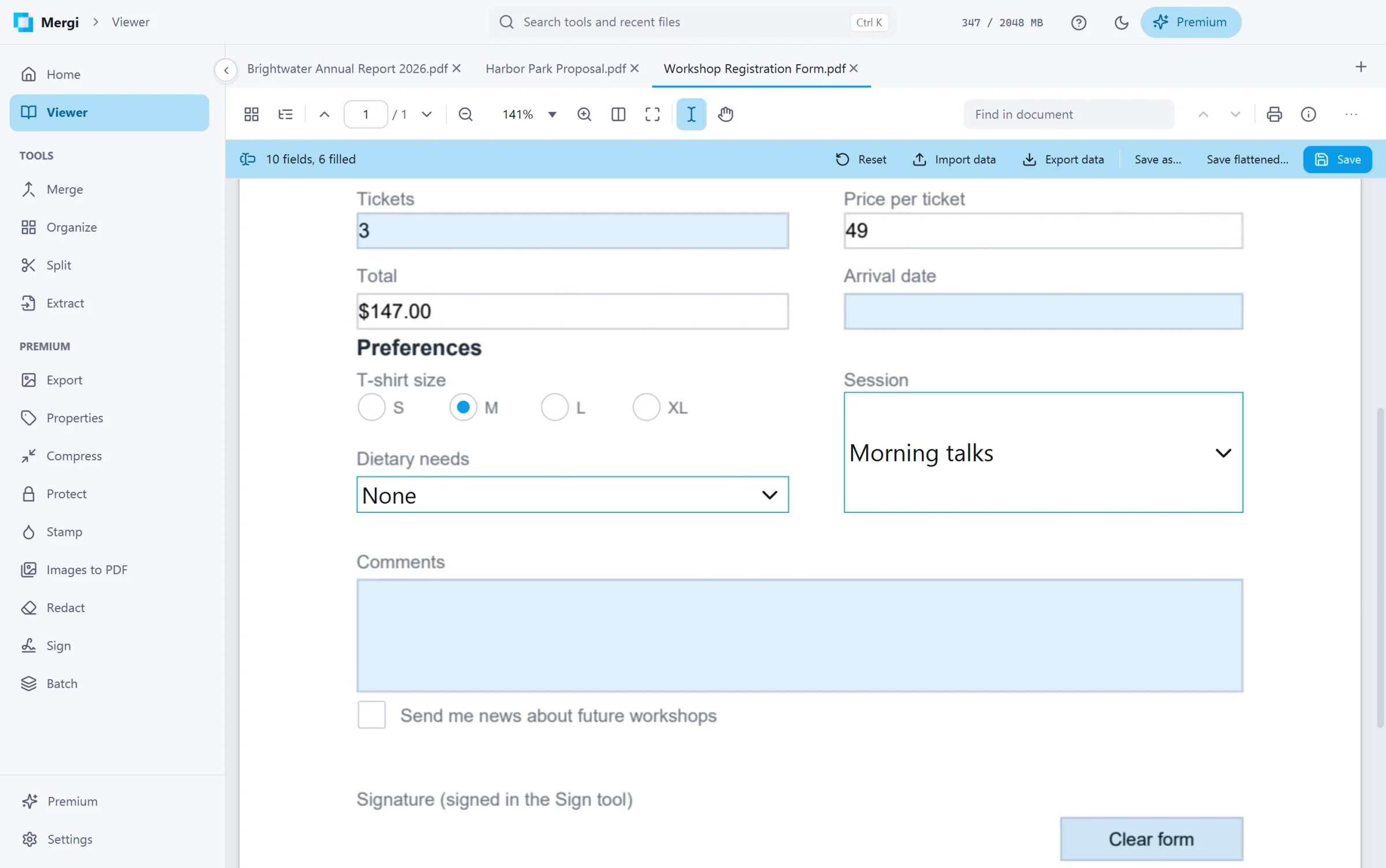
The form strip
When a file has a form, a strip shows under the viewer's toolbar. It says how many fields the form has, how many are filled, and how many required fields are still empty. Without Premium the form shows as the file has it, the fields take nothing, and Fill with Premium opens the offer; once Premium is on, the form works in place.
Fill it in
- Text boxes: click and type. A box that takes a number, a date, a zip code or a phone number keeps to its format, and a box with a limit stops at its last character. Boxes follow the form's own settings: several lines, a password hidden as dots, one letter per cell.
- Check boxes and radio buttons: click them. Radio buttons of one group, even on several pages, keep one choice.
- Lists and drop-downs: pick a choice. A list that takes several choices lets you tick them. The choices show their names as the form lists them.
- Required fields are marked until they are filled.
- Buttons and totals work as the form's author made them when Settings › Behaviour › Run forms' scripts is on. Scripts run sealed off: they can't reach your files or the network.
When a file does not allow filling its form without its permissions password, the strip says so and the fields take nothing.
Save
- Save (or Ctrl+S) writes the answers into the file.
- Save as… writes a copy with the answers and leaves the file as it was.
- Save flattened… writes a copy where the answers become part of the pages: they look the same everywhere and can no longer be changed. Your file keeps its form.
Closing the tab or Mergi with answers not saved yet asks Save or Don't save. If another tool writes the same file while you fill it, Mergi tells you and offers to reload it.
Form data
- Export data saves only the answers, as an FDF file: handy to fill the same form again later.
- Import data fills the form from an FDF file.
- Reset clears every answer back to the form's defaults.
A signature field is signed with the Sign tool.
Last updated October 31, 2026