
Redact
On this page
Remove words, phrases and areas from a PDF for good. Redaction does not draw a box over the text: the text, pictures and drawings are removed from the file, and a filled box marks where they were.
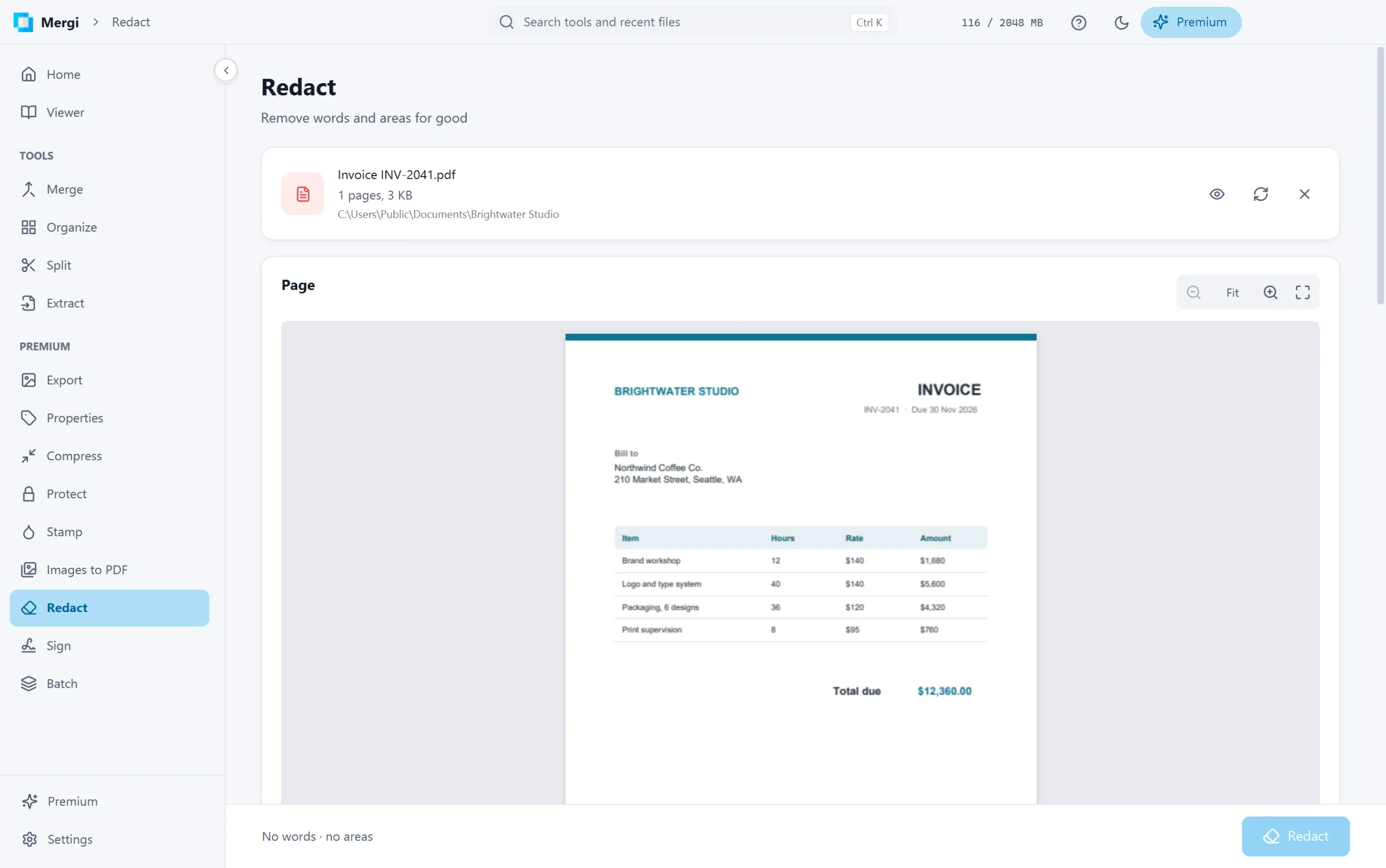
Remove words and phrases
- Choose the file.
- Under Find text, write the words or phrases to remove, one per line, such as a name or a phone number.
- Choose Match case and Whole words only if you need them, and the Pages to search.
- Click Show matches: every match is marked on the preview, and Mergi says how many it found.
Remove areas
Drag on the page to draw an area: everything under it goes, text, pictures and drawings. Click an area to select it, drag it to move it, drag a corner to resize it; Delete or its × removes it. Use the arrows to change the page. Clear areas removes them all.
Options
- Box color: black, white or gray.
- Also clean comments and form fields.
- Also remove the document properties (title, author and the rest).
Click Redact. The new file is written in full, so nothing of the removed content stays inside it.
Redaction can't be undone. Keep the original until you have checked the result. If some content could not be removed, Mergi says what and asks you to check before sharing.
Last updated October 31, 2026