
Merge
On this page
Join several PDF files into one, in the order you choose.
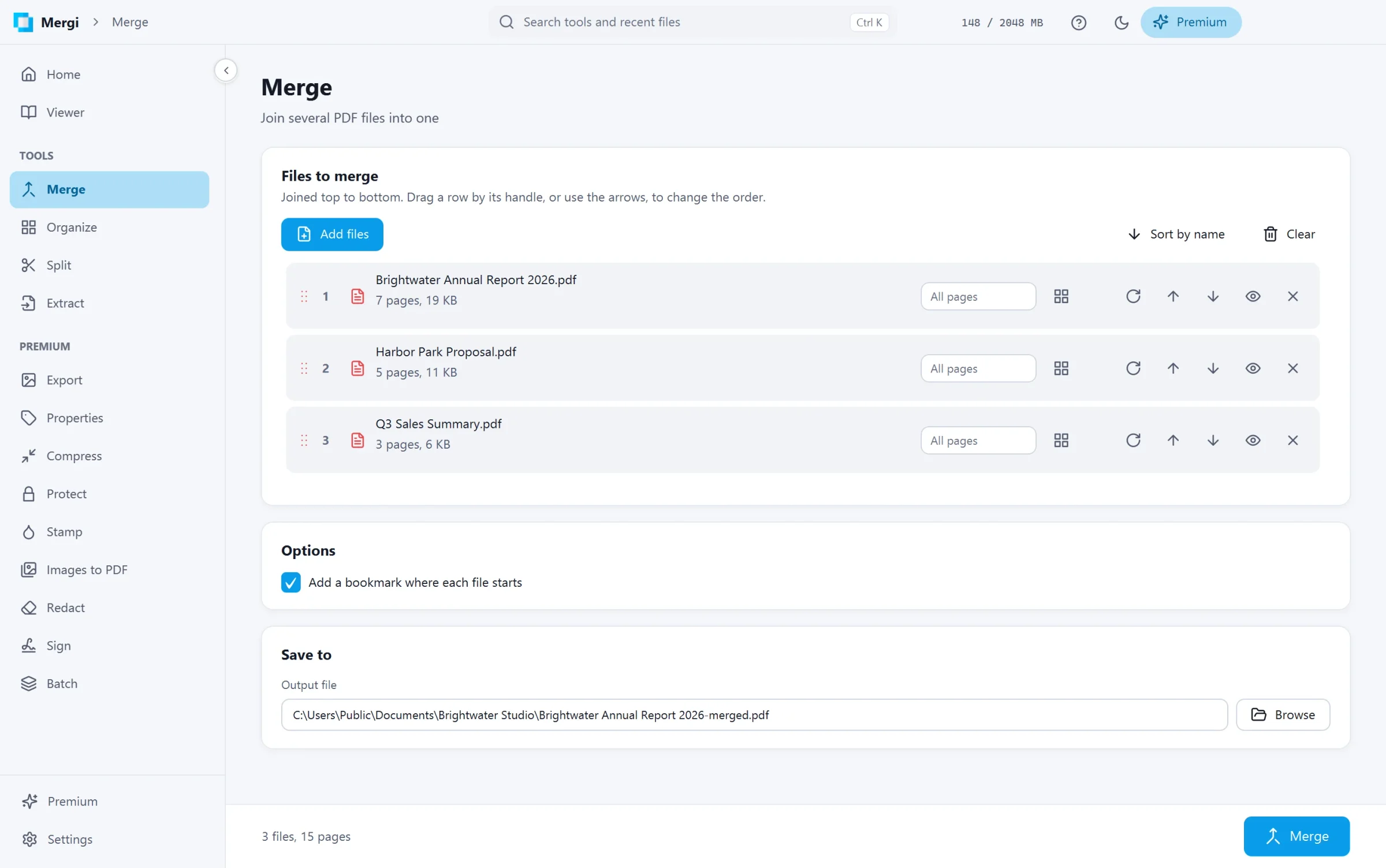
Steps
- Click Add files, or drop PDF files on the page. Merge files on Home brings you here too.
- Put them in order: drag a row by its handle, or use the up and down arrows. Sort by name sorts them all.
- For each file you can:
- write the pages to take, such as
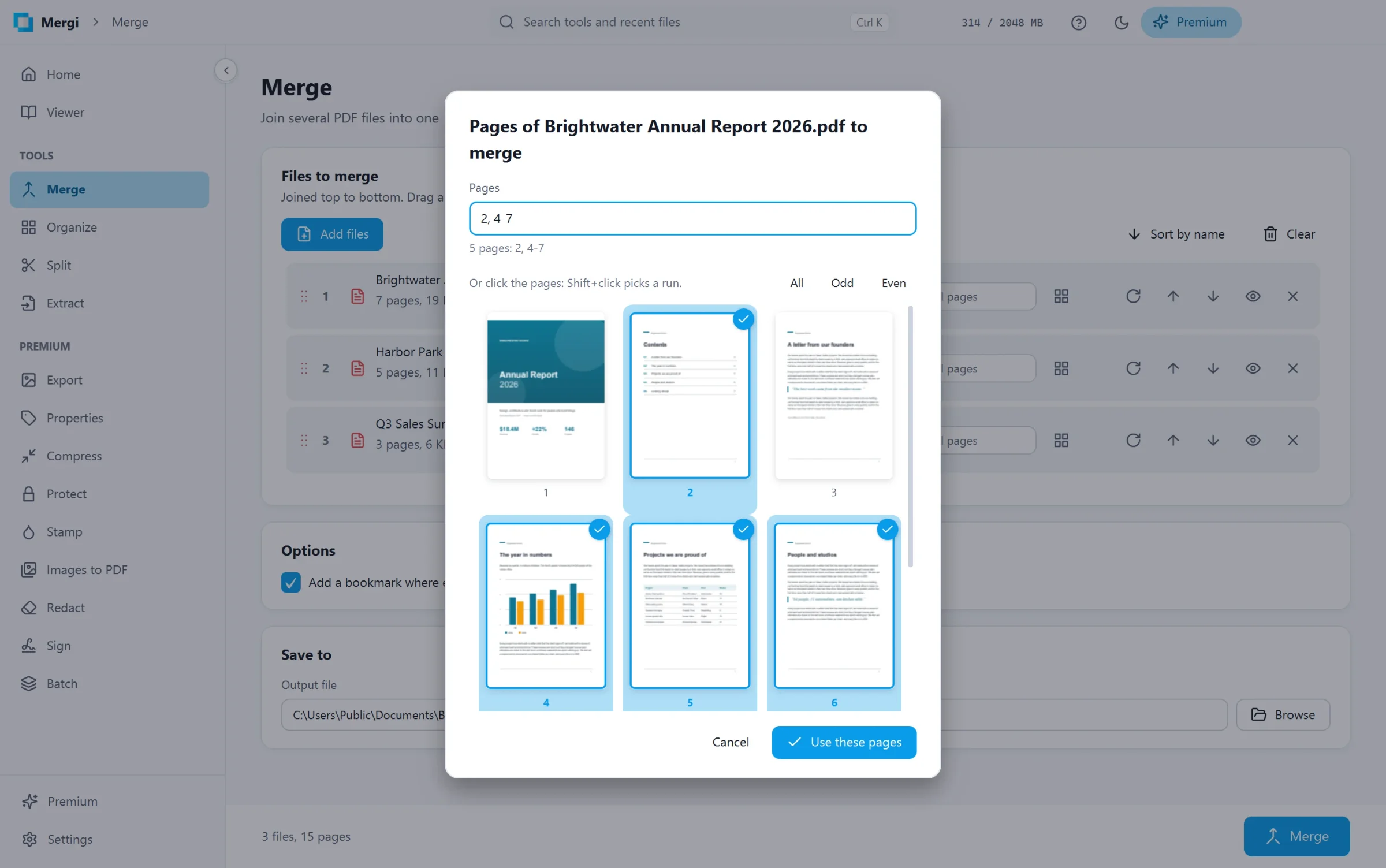
1-3, 7(empty takes every page), or click Choose pages to pick them on the file's thumbnails and click Use these pages; - turn its pages a quarter turn;
- preview it, or remove it from the list.
- write the pages to take, such as
- Add a bookmark where each file starts (ticked) gives the new file a bookmark per file, named after it. The bookmarks the files already have are kept under it.
- Check Save to, then click Merge.
The bar at the bottom says how many files and pages the new file will have. Add at least two files.
Good to know
- Protected files ask for their password when you add them. Merge writes a new file without a password, so a file that limits what can be done with it also asks for its permissions password.
- The original files are never changed.
Last updated October 31, 2026